 Scribba
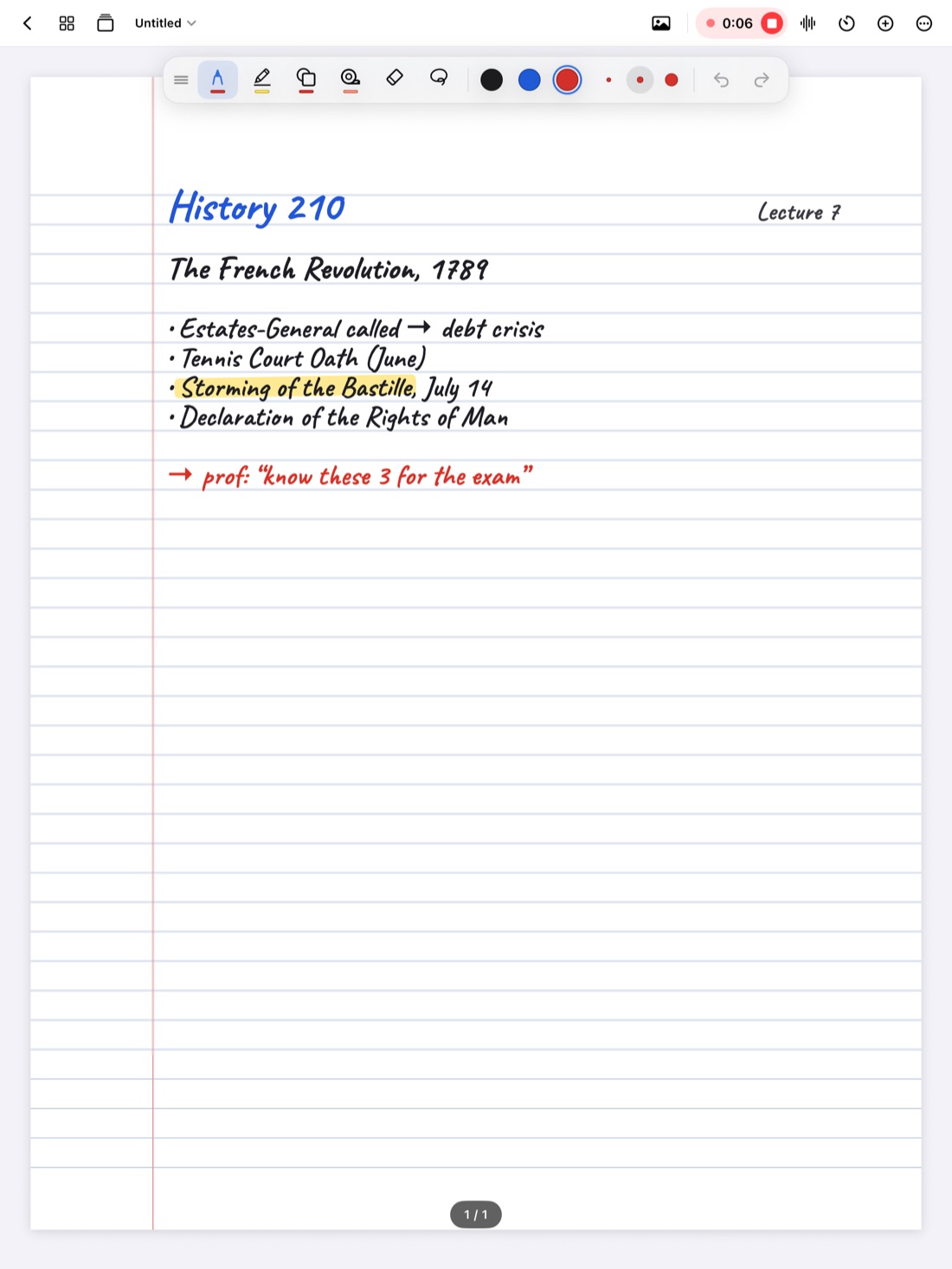
Handwritten notes take up surprisingly little space. Audio is different. If you record every lecture in every class, recordings quickly become the biggest thing in your notes app, and by midterms you may see the "storage almost full" warning you've been ignoring on your phone for years.
The good news: you don't have to choose between recording and having room. You need to know what's taking space, decide where recordings should live, and archive each semester when it ends. This guide walks through all three.
Why recordings fill up an iPad
A page of handwriting is mostly a list of pen strokes, which is small. An imported PDF or a scanned handout is bigger. An hour of audio is bigger still, and you make several of those a week, every week of the term.
So when your notes app starts taking real space, it's almost always the recordings. Photos added to pages, scanned handouts and large slide decks come next.
Step 1: check what's actually using space
Before you change anything, look. On your iPad, open Settings › General › iPad Storage. After a moment, you'll see a bar showing how your storage is split, and a list of apps sorted by how much they use.
Three things to look for:
- How much is free overall. iPads get sluggish and some apps misbehave when storage is nearly full, and software updates need free room too.
- Where your notes app sits in the list. If it's near the top, recordings are the likely reason.
- What else is big. Often it's not your notes at all. Downloaded videos, old games, offline music and the photo library are common culprits, and clearing one of those may solve the problem without touching your lectures.
Check iCloud too. In your iPad's Settings, tap your name, then iCloud, to see how much iCloud storage you have and what's using it. If you sync notes or keep backups in iCloud Drive, recordings count against that space as well.
Step 2: record on purpose
The easiest space to save is the space you never use. A few habits help:
- Record the classes where it helps. Fast lecturers, dense material and classes in a second language benefit most. A small discussion seminar might not need it.
- Stop when class ends. A recording left running through the walk to your next class is wasted space. Tap the mic to stop as soon as the professor wraps up.
- Use one recording per class session. In Scribba, Start Lecture adds a dated, bookmarked page and starts recording in one tap, so each lecture has its own page and its own recording, and you're less likely to leave one running.
Recording also needs permission. Policies vary by school, professor and location; ask first. See is it OK to record lectures?
Step 3: keep recordings out of iCloud Sync
If your iCloud storage is tight, this is the biggest single change you can make. In Scribba, open Settings › iCloud. Alongside the iCloud Sync switch, there's an option to leave recordings out.
With recordings left out, your notebooks, folders, ink, photos, PDFs and flashcards still sync to your private iCloud. The recordings stay only on the iPad you made them on.
That trade-off is worth understanding:
- Upside: your iCloud space goes much further, and sync has less to move.
- Downside: if the iPad is lost or broken, recordings that aren't backed up anywhere else are gone. Your notes survive; the audio doesn't.
If you have plenty of iCloud space, there's no need to leave them out.
Step 4: keep recordings out of Auto Backup
Scribba's Auto Backup saves a backup zip once a day, while Scribba is open, to a folder you choose in Files, and keeps the newest 7. Turn it on in Settings › Backups. If that folder is in iCloud Drive, seven daily backups with every recording in each one can take a lot of room.
Auto Backup lets you leave recordings out, which keeps each daily backup small. Your handwriting, PDFs and flashcards are still backed up every day.
If you leave recordings out of both sync and Auto Backup, make up for it with Step 5 at the end of each term. How to back up iPad notes explains the full backup setup.
Tip: if a recording is precious, like the review session before a final, don't leave it only on the iPad. Use Save a Backup that week instead of waiting for the end of term.
Step 5: archive old semesters
At the end of each term, the recordings from that term are rarely needed day to day, but you may want them for the next course in a sequence or a cumulative exam. Archive them instead of deleting them on a whim.
- Save a backup by hand. In Scribba's Settings › Backups, tap Save a Backup and choose where it goes. Pick a place with room: iCloud Drive if you have space, another cloud service you use in the Files app, or an external drive connected to your iPad.
- Check it landed. Open the Files app and confirm the backup file is where you saved it, with today's date. A backup that holds a term of recordings should be much bigger than your small daily ones; if it isn't, look again before deleting anything.
- Export readable copies, if you like. Exporting each notebook as a PDF gives you notes you can open anywhere, though a PDF doesn't carry the audio.
- Then decide what to remove. If you need the space, delete the old semester's notebooks from the iPad. If iCloud Sync is on, changes on one iPad travel to your others, so treat deleting as deleting everywhere and make sure your backup is safe first.
Deleted notebooks stay in Recently Deleted for 30 days, in case you change your mind. After that, the backup file is your copy. Restore a Backup in Settings › Backups brings the whole library back to how it was in that backup, with your current library kept aside in Files, so it's a way back if you need it rather than a way to pick out one semester.
Keep your folders tidy and this gets easier: if each term already lives in its own folder, you know exactly which notebooks to archive. See how to organize iPad notes by semester.
A quick storage routine
- Week one: check iPad Storage and iCloud space; decide whether recordings sync.
- Midterms: check iPad Storage again. Clear non-school apps and downloads first.
- End of term: save a backup by hand, check it, then archive or remove the old semester.
Frequently asked questions
Do lecture recordings sync to iCloud in Scribba?
Only if you want them to. In Settings › iCloud you can leave recordings out, and everything else still syncs.
What uses the most space in Scribba?
Recordings, by far. Imported PDFs, scans and photos come next. Handwriting itself is small.
If I leave recordings out of backups, are my notes still safe?
Your notebooks, handwriting, PDFs and flashcards are still backed up. Only the audio is left out, so make a backup by hand with Save a Backup at the end of each term and check that it holds your recordings.