 Scribba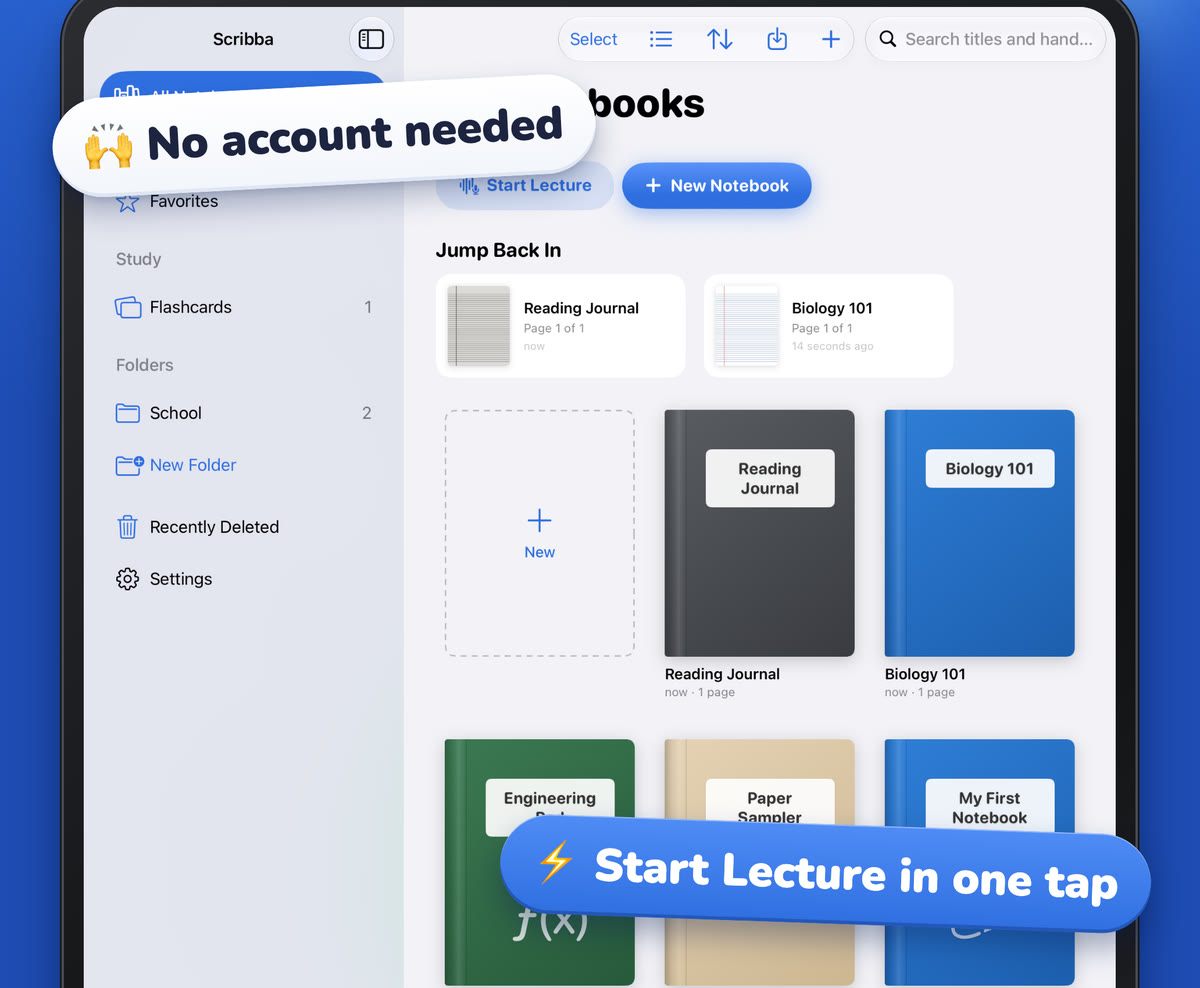
By your third semester, an iPad full of notes can start to look like a junk drawer. There's "Notes," "Untitled 3" and "Bio??", and half of them are from classes that ended a year ago. When you need last fall's statistics notes for the next course in the sequence, finding them takes longer than it should.
The fix isn't a complicated system. It's a few rules you set up once and repeat at the start of each term. They work in any notes app, and we'll show how each one works in Scribba along the way.
The system in one sentence
One folder per semester, one notebook per class, and a bookmark for every lecture.
That's all of it. Everything else in this guide makes those three layers easier to use: names you can scan, covers you can spot, and a short routine for the end of term.
Make a folder for each semester
Start each term by making a folder named after it. Use a name that sorts well and that you'll still recognize in three years:
- "2026 Fall" or "2027 Spring" puts the year first, so your semesters line up in order.
- "Year 2 Fall" works if you think in years of school instead of calendar years.
Pick one pattern and keep it. Being consistent matters more than which pattern you choose.
Some notebooks don't belong to a semester: a planner, a reading journal, a list of internship applications. Give those their own folder, like "General," so they don't clutter a term.
In Scribba, folders and notebooks are unlimited, so you never have to delete an old term to make room. The library shows them as a grid or a list.
One notebook per class
Inside the semester folder, make one notebook for each class. Lectures, readings, problem sets and the review sheet before the midterm all go in it. If a lab or discussion section has very different material, it can have its own notebook. Otherwise, keep the class together, so you never wonder where something went.
Name notebooks so they sort and scan
A good name tells you the class at a glance and still makes sense after the semester ends. A few patterns that hold up:
- Short name plus course number: "Bio 101," "Organic Chem 2," "Macro 201."
- Keep names consistent across a sequence. "Spanish 1" and "Spanish 2" sit next to each other later, which helps when the second course builds on the first.
- Skip the professor's name and section number unless you're taking the same course twice. They mean very little a year later.
For what goes inside each class notebook, see how to take notes on iPad in college.
Give each class a cover
Your eyes often find a color or a picture faster than they read a word. Give each class a cover you'll recognize: green for Biology, a flask for Chemistry, a photo of your sketchbook for the studio art class.
In Scribba, a notebook cover can be a color, a subject icon or a photo. Subject icons are the quickest way to tell classes apart when the library fills up.
Tip: reuse the same cover for the same subject every semester. After a year, "the blue one with the flask" means Chemistry without you having to think about it.
A bookmark for every lecture
A class notebook with fifty pages needs a table of contents, and bookmarks give it one. Add a named bookmark at the start of each lecture or new topic.
Name bookmarks with the date or week plus the topic, like "Week 4: enzymes" or "Oct 14: Reconstruction." The date matches the syllabus, and the topic is what you'll remember when you go looking.
In Scribba, named bookmarks live in the page sidebar and act as the notebook's table of contents. If you record lectures, Start Lecture does this step for you: one tap from the library adds a dated, bookmarked page to the class notebook and starts recording, so every class session shows up in the list. How to record a lecture on iPad covers that side.
Keep this term's classes close
During the semester you open the same four or five notebooks every day. Make them easy to reach:
- Favorites. Mark your current classes as favorites so they're one tap away. Unfavorite them when the term ends.
- Jump Back In. Scribba reopens a notebook on the page you left, which is usually where the next lecture starts.
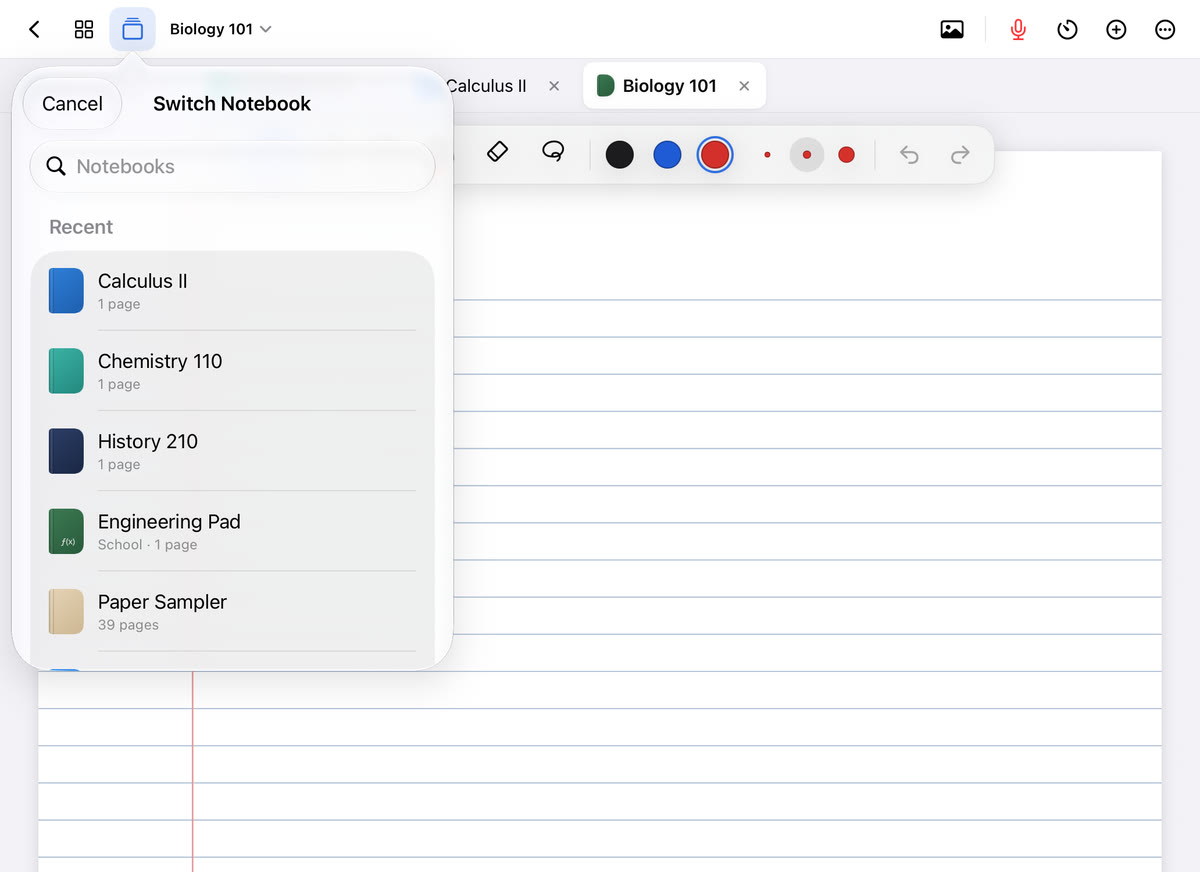
- Tabs. Keep up to 6 notebooks open as tabs, and press ⌘O on a keyboard for the quick switcher, with favorites, recents and search. Notebook tabs and the quick switcher goes deeper.
When a page lands in the wrong notebook
It happens. You open Chemistry by mistake and take half a Physics lecture in it. Fix it the same day, because a page in the wrong notebook is a page you won't find at exam time.
In Scribba, open the page sidebar and move the page to the right notebook. You can also copy a page between notebooks, which is handy for a formula sheet two classes share.
End of term: the five-minute archive
When finals are over, spend five minutes closing out the semester:
- Unfavorite the classes that ended, so your favorites are ready for the new term.
- Check names and covers. Rename any "Untitled" notebook now, while you still remember what it was.
- Gather stray notebooks into the semester folder. In Scribba, you can select several notebooks at once and move them together.
- Set up next term's folder and class notebooks before the first day, so you aren't doing it during the first lecture.
- Make sure a copy lives off the iPad. How to back up iPad notes covers iCloud Sync and daily backups.
Think twice before deleting old classes. Notes from an intro course are often exactly what you need in the next course, and Scribba searches across every notebook from the library, so last year's notes are one search away. See how to search your handwritten notes on iPad. If you do delete a notebook and regret it, Scribba keeps it in Recently Deleted for 30 days.
Personal notebooks
Not everything in your library is a class. If you keep a journal or personal lists alongside your coursework, Scribba can lock a notebook with Face ID, Touch ID or a passcode, so it stays private when you hand your iPad to a classmate to look at your notes.
Frequently asked questions
How many folders should I have?
One per semester, plus one for anything that isn't tied to a class. Inside a semester folder you don't need more folders: one notebook per class keeps things flat and easy to scan.
Should I make a new notebook for each lecture?
Usually not. One notebook per class, with a bookmark for each lecture, keeps the whole course in one place. That makes reviewing and searching before an exam much easier.
What should I do with notes from a class I'm retaking?
Keep the old notebook in its semester folder and start a fresh one for the new term. In Scribba, you can copy useful pages across from the page sidebar.