 Scribba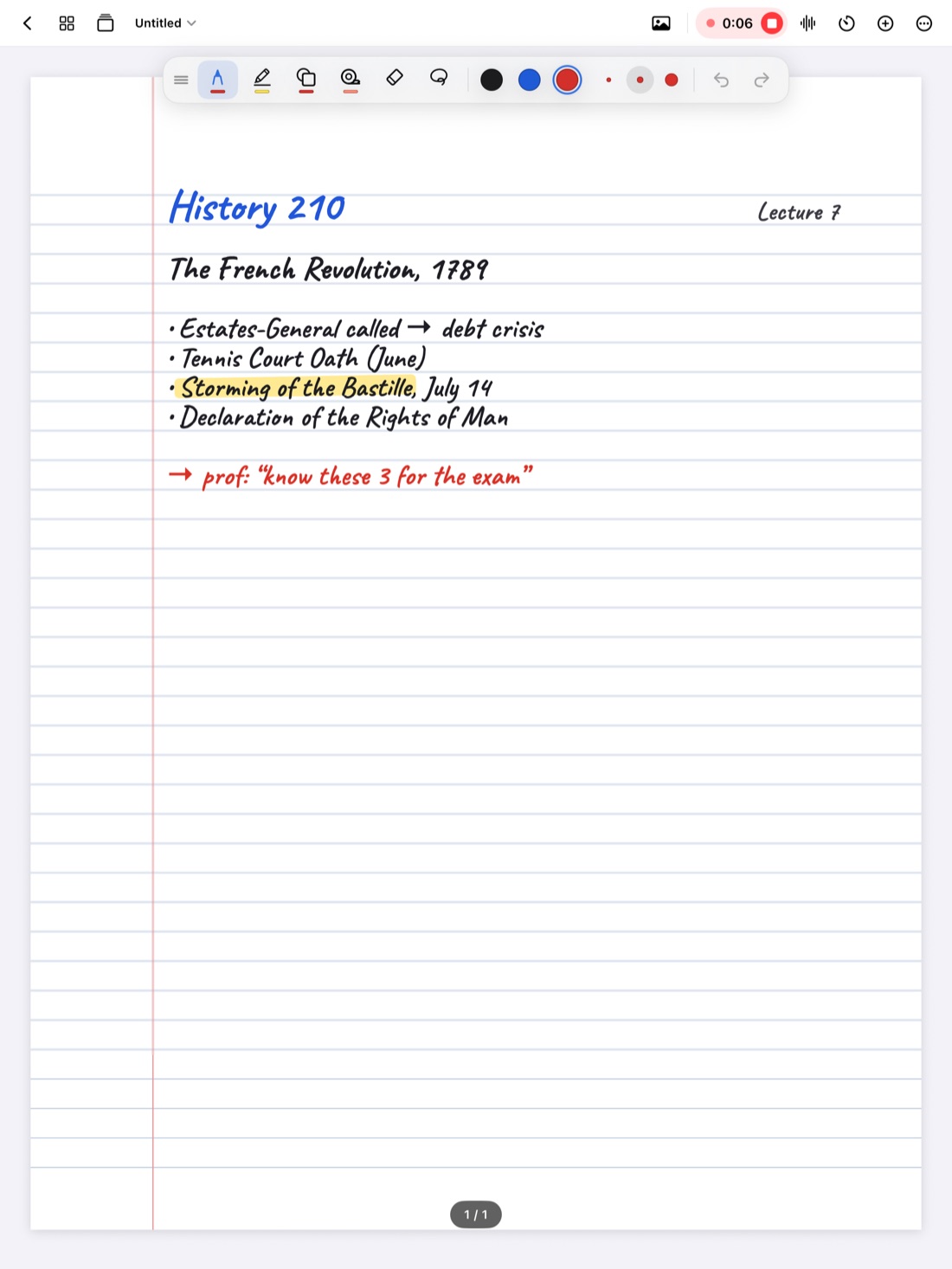
Most lectures move faster than anyone can write. You catch the first half of a definition, the professor moves on, and that night your notes say "mitochondria → ???". A recording fixes that, but only if you can find the right moment in an hour of audio.
That's the idea behind recording in Scribba: the recording and your handwriting are linked. Every stroke you write remembers when you wrote it, so your notes become an index into the lecture.
What "linked to your notes" means
When you record in a regular voice memo app, you get one long file. To find the part about the Krebs cycle, you scrub back and forth and guess.
When you record in Scribba, you take notes the way you always do. Later, you tap the line you wrote about the Krebs cycle, and playback jumps to the moment you were writing it, which is usually the moment the professor was explaining it. As the recording plays, the ink you were writing lights up and the page follows along, so you can watch your notes fill back in.
How to record a lecture
- Open the notebook for the class and turn to a fresh page.
- Tap the mic, or press ⌘R on a keyboard. The first time, your iPad asks for microphone access.
- Write, highlight and draw as you normally would. The recording keeps going even if your iPad's screen locks.
- Tap the mic again to stop when class ends.
That's the whole setup. There's nothing to sync up afterwards: the links between your ink and the audio are made as you write.
Start Lecture: one tap when class begins
If you take notes in the same notebook every class, Start Lecture saves a few steps. One tap from the library adds a new page to the class notebook, dates it, bookmarks it and starts recording. Because each lecture gets a bookmark, the notebook's table of contents turns into a list of every class session.
You can also say "Start a lecture in Scribba" to Siri, or run Start Lecture from Spotlight or the Shortcuts app, or build it into your own shortcuts.
Finding a moment later
There are three ways back into a recording:
- Tap your ink. Tap any word, arrow or diagram you wrote, and playback starts from that moment.
- Use the timeline. Markers on the playback timeline show where you were writing, so you can see the busy parts of the lecture at a glance. Skip back or forward 15 seconds, scrub, or change the playback speed.
- Search the transcript. Scribba transcribes each recording, so you can search for a word the professor said, even if you never wrote it down. See how lecture transcripts work.
Tip: if you missed something completely, draw a quick mark in the margin, like a star or a question mark, at the moment you got lost. After class, tap the mark and you'll hear exactly what you missed.
Tips for a clear recording
The iPad's built-in microphones are good, but a lecture hall is a hard place to record. A few habits make a big difference:
- Sit closer to the front. Distance matters a lot. Seats near the front usually sound clearer; the back row picks up more coughs and laptop fans.
- Keep the iPad flat or on a low stand, facing the room, not tucked behind a laptop screen.
- Avoid sitting under air vents or next to the projector, which add steady noise.
- Charge before class. Recording an hour-long lecture with the screen on uses battery, so start with a good charge if you have back-to-back classes.
Ask before you record
Many schools have policies on recording lectures, and some professors ask students not to. Others are happy to say yes when asked, and students with accessibility accommodations may be able to record as part of them. Check your syllabus or ask your professor first. We wrote more about this in is it OK to record lectures?
What happens after class
Once a lecture has been transcribed, Scribba can do more with it on iPads that support Apple Intelligence, with it turned on: write the key points of the lecture, show what your notes missed, and answer questions like "when is the midterm?" in a sentence, with a button that plays the moment it was said. All of that runs on the iPad itself, so nothing is uploaded for it.
If you have more than one iPad, iCloud Sync can carry your recordings along with your notebooks. Turn it on in Scribba's Settings › iCloud; you can also leave recordings out to save iCloud space.
Frequently asked questions
Does recording keep going if my iPad locks?
Yes. Scribba keeps recording with the screen locked, so you can put the iPad down during a discussion and pick it back up.
Can I record without writing anything?
Yes. The recording works on its own. Writing is what adds the links, so even a few words or arrows during the lecture make it much easier to find things later.
Do I need an Apple Pencil?
No. Recording works with any notes, and you can write with your finger by turning on Settings › Draw with Finger. An Apple Pencil makes handwriting much faster, though.