 Scribba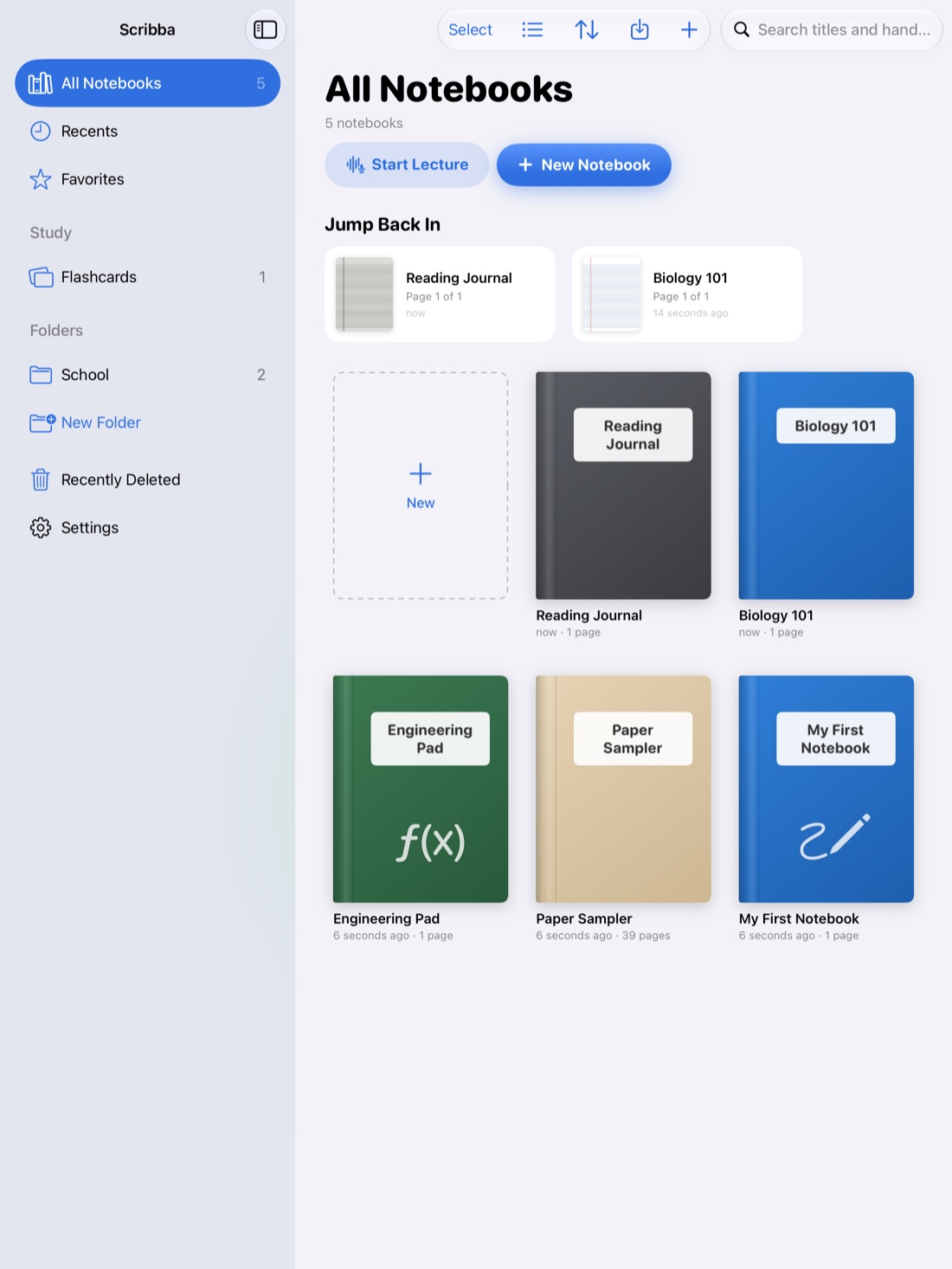
An iPad in college gets passed around more than you'd think. You hand it to a classmate to look at a diagram, prop it up for a study group, mirror it to a screen for a presentation, or leave it on the desk while your roommate borrows it to check something. Most of what's on it is fine for anyone to see. Some of it isn't.
This guide covers what's worth keeping private, how to lock a notebook in Scribba, and the basic iPad security habits that protect everything else.
What's worth locking
Not every notebook needs a lock. If you lock everything, you'll spend your day looking at the camera, and you'll stop bothering. Lock the notebooks where a stranger glancing over your shoulder would actually matter:
- Journals. Daily journals, reflection pages, anything you wrote for yourself.
- Personal notes. Health appointments, budgets, applications, drafts of difficult emails, notes from a counseling or advising meeting.
- Planning you'd rather keep to yourself. A job search, a transfer plan, a list of gift ideas for the person sitting next to you.
- Recordings. A recorded lecture or meeting captures other people's voices, not just yours. If a notebook holds recordings you'd rather nobody else replayed, that's a good reason to lock it.
Class notebooks you share in study groups usually don't need a lock. Keep those quick to open.
Lock a notebook in Scribba
Scribba is an iPad notebook for class, and it can lock private notebooks with Face ID, Touch ID or your passcode. Which one you use depends on your iPad: some models have Face ID, others have Touch ID, and the passcode works on all of them.
Once a notebook is locked, it asks you to unlock it before it opens. Your other notebooks stay as quick to open as ever, so you can hand your iPad to someone to look at your Biology notes without worrying about your journal.
A few habits make locking work well:
- Keep private things in their own notebooks. A lock protects a whole notebook, so don't bury a private page in the middle of a class notebook. Move it out instead. Scribba can move or copy pages between notebooks from the page sidebar.
- Use a cover that doesn't give anything away. A plain color works fine. Scribba covers can be a color, a subject icon or a photo.
- Lock it as soon as you create it. It's easy to mean to lock a journal and forget for a month.
How Scribba handles your privacy
A lock keeps people near your iPad out of a notebook. It's also worth knowing what the app itself does with your notes. Scribba was built to keep them yours:
- No account. There's no sign-up and nothing to log in to. Open the app and start writing.
- No data collected. Scribba's App Store privacy label says Data Not Collected. There are no ads and no tracking.
- Your notes stay on your iPad, and, if you turn on iCloud Sync in Settings › iCloud, in your own private iCloud. Scribba doesn't run servers that hold your notebooks.
- Handwriting recognition runs on the iPad. That's what makes your handwriting searchable, and it doesn't send your pages anywhere.
- Transcription runs on the iPad on models that support on-device recognition. On other iPads, Apple's speech service processes it.
- Apple Intelligence features run on the iPad. On iPads that support Apple Intelligence, with it turned on, key points and study tools are written on the device and nothing is uploaded for them. You can turn them off in Settings › Apple Intelligence.
Lock the iPad itself
A notebook lock is a second layer. The first layer is your iPad, and a few settings in the iPad's own Settings app protect everything on it:
- Set a passcode. It's the key to everything else. A longer passcode is harder to guess than a short one, and you shouldn't share it, even with friends.
- Use Face ID or Touch ID. Unlocking quickly means you won't be tempted to turn the passcode off.
- Let the screen lock on its own. Set a short auto-lock time, so an iPad left on a library table locks itself.
- Turn on Find My. If your iPad is lost or stolen, Find My can help you locate it, and lets you lock or erase it from another device.
- Keep iPadOS up to date. Updates include security fixes.
- Hide notification previews on the lock screen if you'd rather messages didn't show up for anyone who picks up the iPad.
Tip: when you lend your iPad for a minute, open the notebook they need first, then hand it over. They see what you meant to show them and nothing else.
Locks protect privacy. Backups protect your notes.
Locking a notebook keeps the wrong people out. It does nothing if the iPad is lost, broken or wiped. For that, you need a copy of your notes somewhere else. In Scribba, that means iCloud Sync plus Auto Backup, which saves a daily backup to a folder you choose in the Files app. How to back up iPad notes walks through it, and it's worth doing in the same sitting as setting up your locks.
Be careful with recordings
If you record lectures, treat the recordings as private by default. They capture your professor's words and your classmates' questions, and many schools have rules about how lecture recordings can be used and shared. Keep them for your own studying, don't post them, and check with your professor before you share one with anyone. Our guide is it OK to record lectures? covers how to ask and what to check.
If you use iCloud Sync, you can also leave recordings out of sync in Settings › iCloud, so they stay only on the iPad where you made them.
Frequently asked questions
Can I lock a notebook without Face ID?
Yes. Scribba can lock a notebook with Face ID, Touch ID or your passcode, so it works on any iPad with a passcode set.
Does Scribba see my notes?
No. Scribba doesn't use accounts, doesn't collect data, and doesn't run servers that hold your notes. They live on your iPad and, if you choose, your private iCloud.
Should I lock all my notebooks?
Usually not. Lock the private ones, like journals and personal notes, and keep class notebooks quick to open. A passcode on the iPad itself protects everything.