 Scribba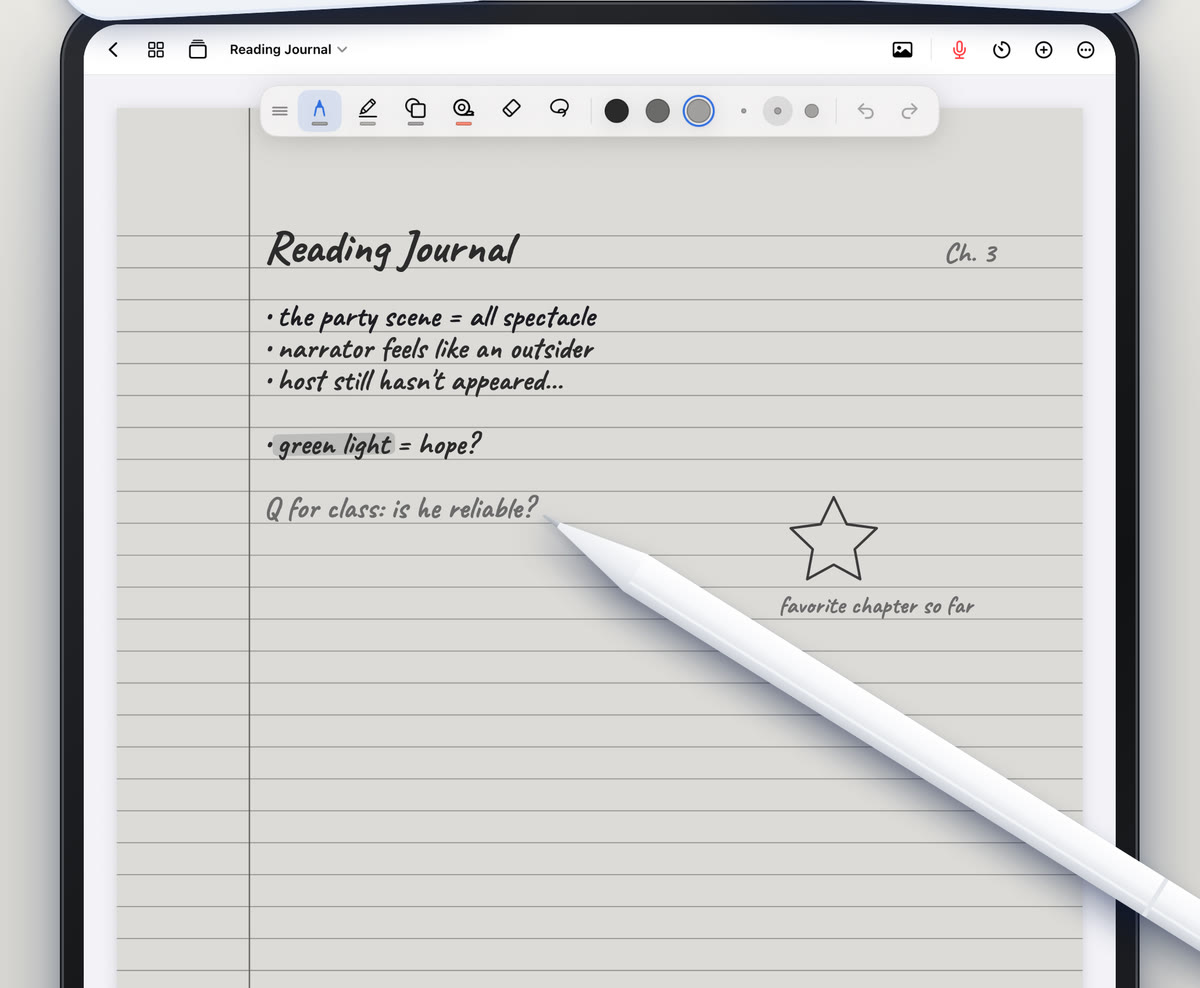
An iPad page is usually bright white, and a notes app usually offers a rainbow of pen colors. For a quick lecture that's fine. For an evening of reading notes or a journal you write in every night, some people want something quieter: a page that looks more like paper or an e-reader, and fewer choices to fiddle with.
This guide is about that quieter page. It covers who an e-ink style page suits, how to take good notes when everything is gray, and how Scribba's E-Ink Books paper works.
What "e-ink style" means on an iPad
E-readers use a different kind of screen from an iPad. An iPad can't become one, and no app changes the display itself. What an app can change is the page: a soft gray paper instead of bright white, and ink in shades of gray instead of saturated color. The result looks closer to a printed book or an e-reader page.
That's a look, not a new screen. If it makes you more comfortable sitting with your notes for a long stretch, that's a good enough reason to use it.
Who it suits
E-ink style paper isn't for every class. It tends to suit:
- Long reading notes. Notes on a novel, a dense article or a textbook chapter, where you're writing a lot of words and very little needs color.
- Journaling. A daily journal, a gratitude list or reflection pages, where the mood of the page matters as much as the layout.
- People who find a bright white page tiring to look at for a long time and prefer something softer.
- People who fiddle. If you spend more time picking pen colors than writing, a page that only does grays removes the temptation.
For classes where color carries meaning, like biology diagrams or a chemistry color code, you may still want regular paper for those notebooks.
How to take reading notes that are worth keeping
Reading notes are where e-ink style paper shines, so here's how to make them useful.
- Read a section before you write. Taking notes sentence by sentence turns into copying. Read a section, close the book, then write what it said.
- Write it in your own words. Rephrasing is how you find out whether you understood it.
- Note page numbers. Put the page number next to every quote and key idea. When you write the essay, you'll thank yourself.
- Quote sparingly. Copy only the lines you'd actually cite, and mark them clearly as quotes.
- End each chapter with a question. One open question per chapter gives you something to bring to discussion section.
- Write a three-line summary. At the end of each reading, summarize the argument in three lines. If you can't, reread the part you can't summarize.
Making grays do the work of color
Without color, you need other ways to show what matters. These work on any page, in any app:
- Weight. A thicker line for headings, a thinner one for detail.
- Shade. Darker gray for your main notes, lighter gray for asides and examples.
- Boxes and underlines. Box definitions, underline names, and circle anything you need to look up.
- Space. Leave a blank line between ideas. White space organizes a page as well as color does.
- Symbols. A star for "important," a question mark for "unclear," an arrow for "connects to." Keep the same symbols all semester.
- Gray highlighting. A light gray highlighter still makes a line stand out, without shouting.
E-Ink Books in Scribba
Scribba is an iPad notebook built for class, and E-Ink Books is its e-ink style paper. It gives a soft gray e-ink paper to any template, and its pens and highlighters write in e-ink grays.
"Any template" is the useful part. Scribba has 39 paper types, so you aren't stuck with one look:
- Ruled paper for reading notes and essay planning.
- Daily journal or journal paper for a journal.
- Cornell notes for reading notes you plan to review, with a cue column and a summary at the bottom. See Cornell notes on iPad.
- Dot grid for pages that mix writing and quick sketches.
Everything else works the same as on any other page. You can bookmark pages in the page sidebar, highlight, add text boxes and search your handwriting later. Our guide to note paper templates explains the full range of paper types.
Tip: try e-ink paper for one reading-heavy class for a week before switching everything over. Some people love it for reading and journaling and keep regular paper for lectures.
Make the rest of the iPad quieter too
A calm page helps more when the screen around it is calm as well:
- Turn on a Focus while you read or journal, so notifications don't pop up over the page.
- Adjust brightness to suit the room. A screen that's much brighter than its surroundings tends to feel harsh.
- Give the page the whole screen. Scribba hides the iPad's status bar by default so your notes get the full screen. If you'd rather see the time and battery, turn on Settings › Screen › Show Time and Battery.
- Hide tools you don't use. In Scribba, Customize Toolbar in the More menu lets you show or hide each button and tool.
E-ink paper or dark paper?
They solve different problems. E-ink style paper softens a light page. Dark paper flips the page to a dark background, which many people prefer late at night or in a dim room. Scribba has both: dark paper is one of its 9 paper colors. If you study mostly at night, read about dark paper for studying at night.
If you keep a journal on e-ink paper, you may also want to keep it private. Scribba can lock a notebook with Face ID, Touch ID or your passcode.
Frequently asked questions
Does E-Ink Books turn my iPad into an e-ink screen?
No. It changes the page, not the screen. You get soft gray paper and gray ink that look like an e-reader page, on your iPad's normal display.
Can I use E-Ink Books with Cornell notes or planners?
Yes. E-Ink Books works with any of Scribba's paper templates.
Can I highlight on e-ink paper?
Yes. Highlighters write in e-ink grays, so highlights stay soft and readable.