 Scribba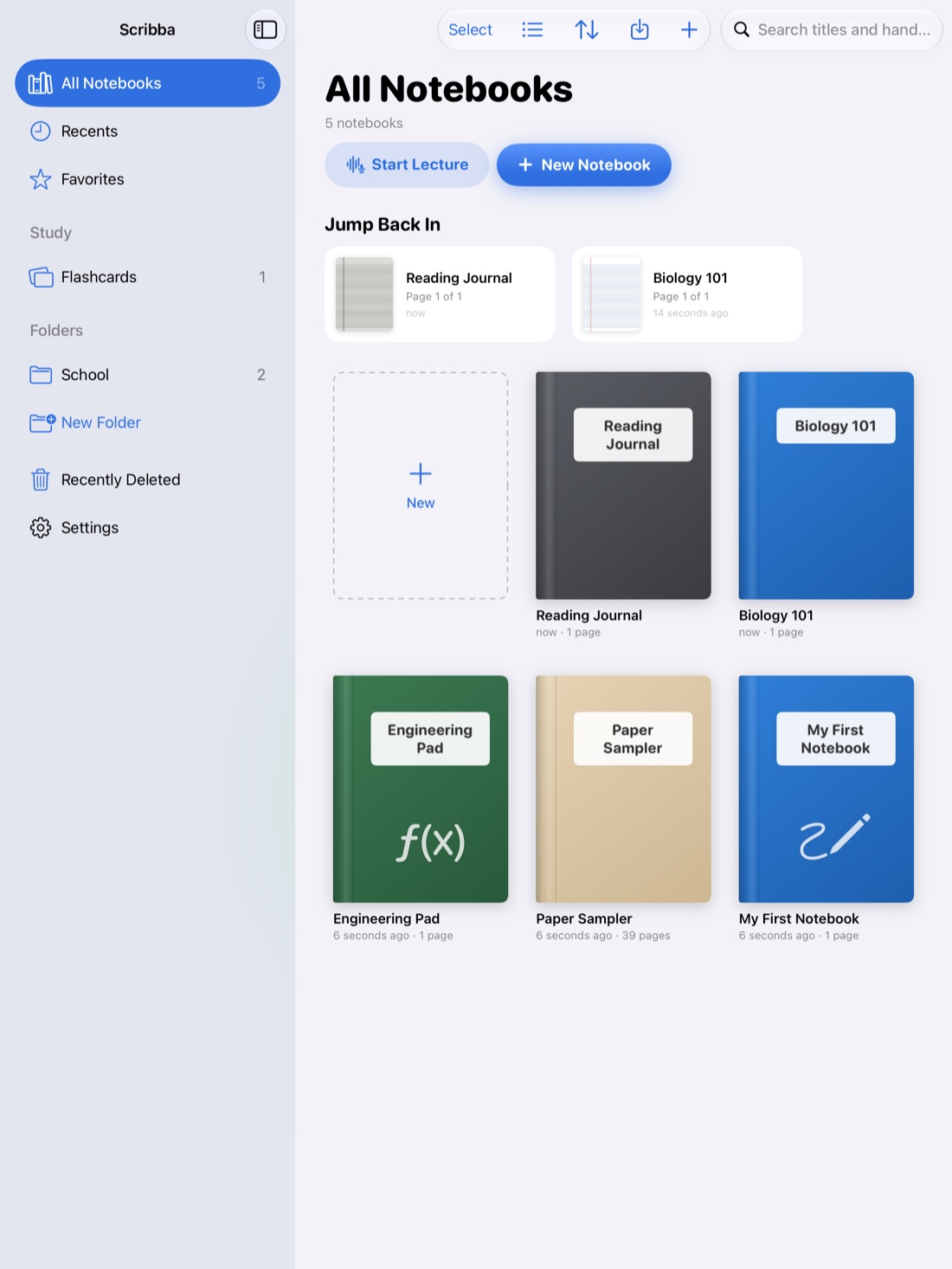
Taking notes on an iPad can be better than paper. You never run out of pages, your notes are searchable, and a whole semester fits in your bag. It can also be worse, if your notes end up scattered across random files with no system behind them. The difference is a little setup in the first week and a few habits you repeat every class.
This guide covers both. The advice works with any notes app. Where it helps, we'll show how Scribba handles each step.
Set up one notebook per class
The simplest system that holds up all semester is one notebook per class. Everything for Biology goes in the Biology notebook: lectures, readings, problem sets, the review sheet before the midterm. You never have to wonder where something went.
A few setup choices make that system easier to live with:
- Name notebooks the way you say them. "Bio 101" or "Organic Chem" beats a full course code when you're scanning your library at 8 a.m.
- Give each class a look. A color or icon on the cover lets you find a notebook without reading anything.
- Group by semester. Put this term's classes in one folder. When the term ends, the folder becomes an archive and your library stays short.
In Scribba, notebooks and folders are unlimited. Covers can be a color, a subject icon or a photo, and you can mark the classes you open every day as favorites. Jump Back In reopens a notebook on the page you left.
Pick paper that fits the class
Paper matters more on an iPad than people expect, because you can choose it for every class. Ruled paper suits lecture-heavy classes like history. Graph or dot grid paper suits math, chemistry and anything with diagrams. Cornell notes paper builds a review step into every page.
Scribba has 39 paper types, and you can change the paper of any page later. Our guide to note paper templates walks through which one to pick for each kind of class.
Before class: five minutes of prep
- Charge your iPad and Pencil. A dead Pencil halfway through a lecture is an easy way for iPad notes to go wrong.
- Download the slides if your professor posts them. Writing on the slides saves you from copying every bullet point. See how to annotate lecture slides on iPad.
- Skim last class's notes. Two minutes of review reminds you where the story left off, so new material has something to attach to.
- Start a fresh, dated page. Dates make it much easier to match your notes to the syllabus later.
Scribba's Start Lecture does that last step for you. One tap from the library adds a dated, bookmarked page to a class notebook and starts recording. The bookmarks build the notebook's table of contents, so after a few weeks you have a list of every class session.
During class: write less, capture more
The goal isn't a transcript. It's a record you can rebuild the lecture from.
- Write ideas, not sentences. Short phrases, arrows and abbreviations keep you listening instead of copying.
- Leave space. Skip a line between topics. You'll fill the gaps after class.
- Mark what you missed. A question mark in the margin is enough. Don't stop to catch up.
- Draw the diagrams. If the professor takes the time to draw it on the board, it's worth having in your notes.
If writing speed is what holds you back, these Apple Pencil tips help you write faster and more neatly.
Should you record?
A recording is a safety net for the moments you can't keep up. In Scribba, the recording is linked to your handwriting: tap any line you wrote and playback jumps to that moment in the lecture. How to record a lecture on iPad covers it step by step.
Ask before you record. Policies vary by school, professor and location, and students with accommodations may be allowed to record. Is it OK to record lectures? covers what to check.
After class: review within a day
This is the habit that matters most. Memory of a lecture fades quickly unless you come back to it, and a short review the same day is far easier than relearning everything the week before an exam.
- Fill the gaps. Go back to your question marks and the blank lines you left. Check the textbook, the slides or the recording.
- Write a short summary at the bottom of the page, in your own words. If you can't, that's the part to study.
- Turn key terms into questions. Testing yourself, also called active recall, helps you remember more than rereading does.
- Spread your reviews out. A few minutes on each class every few days beats one long cram. Read more about spaced repetition flashcards.
Scribba can help with each step. On iPads that support Apple Intelligence, with it turned on, it can write the key points of a recorded lecture and show what your notes missed. Even without Apple Intelligence, Vocabulary and Cornell Notes pages turn into flashcards: Scribba reads your handwriting and makes a card from each row or cue, and the cards come back on a spaced repetition schedule.
Tip: put review on your calendar like a class. Fifteen minutes right after the lecture, while it's fresh, is the easiest time to do it.
Keep it organized as the semester grows
By midterms, a class notebook gets long. Three tools keep it easy to move around:
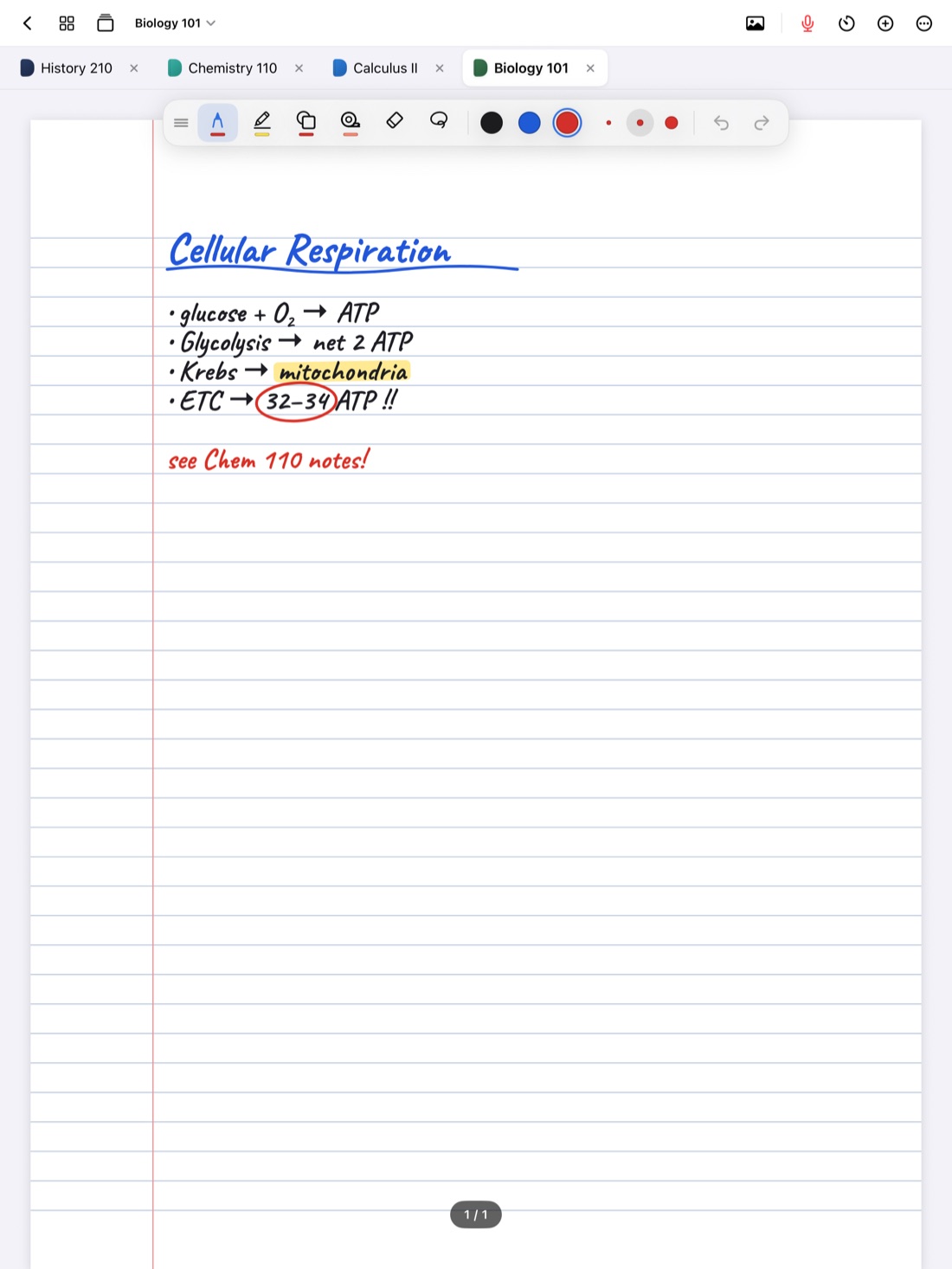
- Bookmarks. Name the pages that start a new topic or lecture. In Scribba, named bookmarks in the page sidebar act as a table of contents.
- Tabs. When you work across classes, like a lab report that pulls from your lecture notes, keep both open. Scribba keeps up to 6 notebooks open as tabs, and ⌘O opens a quick switcher with your favorites, recents and search.
- Search. Scribba searches your handwriting, typed text, PDF text and lecture transcripts, from the library or inside a notebook. See how to search handwriting on iPad.
If a page lands in the wrong notebook, move it from the page sidebar.
Back it up in week one
A semester of notes living on one device is a risk. Set up a backup in the first week, not after something goes wrong. Scribba can sync to your private iCloud and save a daily backup to the Files app. How to back up iPad notes explains the options.
Frequently asked questions
Is an iPad better than a laptop for taking notes?
For classes with diagrams, equations or slides to mark up, handwriting on an iPad is usually easier than typing. For classes where you mostly write prose and type fast, a laptop can work well. Many students simply use whichever fits each class.
Do I need an Apple Pencil?
It helps a lot, but it isn't required. In Scribba, turn on Settings › Draw with Finger to write with your finger. See taking notes without an Apple Pencil.
How many notebooks should I make?
One per class is a good default, grouped in a folder for the semester. If a class has a separate lab or discussion section, give it its own notebook or its own bookmarked section in the main one.