 Scribba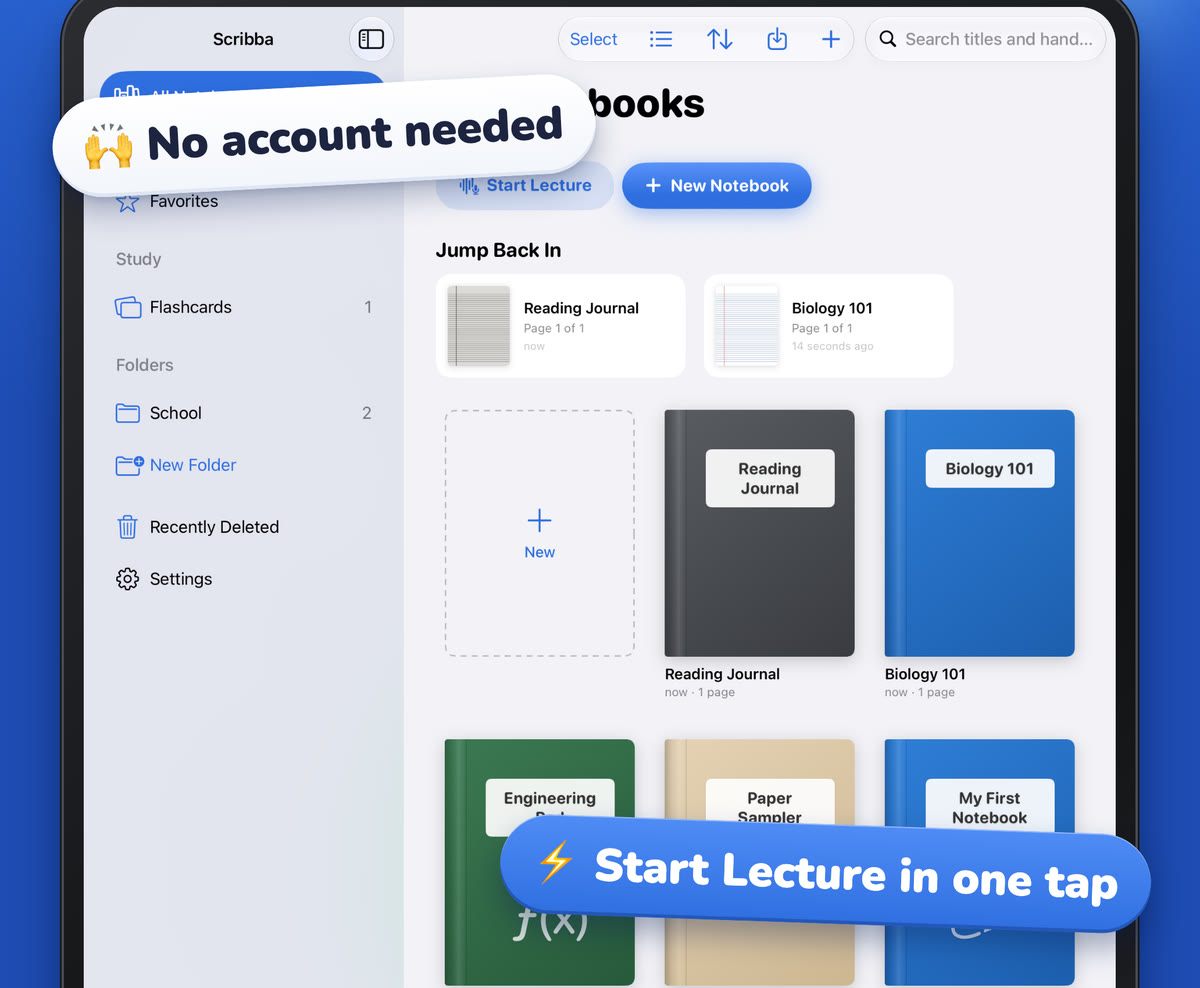
The first few minutes of a lecture are easy to lose. You're unzipping your bag, unlocking the iPad, finding the right notebook and scrolling to a blank page, and meanwhile the professor is saying what today is about and that the problem set is due Friday. Those minutes often hold the overview and the announcements, which are exactly the parts you want later.
This guide is about getting from "walking in" to "ready to write" as fast as possible, and about why one dated page per lecture makes a notebook much easier to use. Then it shows how Scribba's Start Lecture does all of it in one step.
One page per lecture, with a date
The simplest habit that keeps a class notebook usable all semester is starting every lecture on a fresh page with the date at the top. It sounds small. It pays off in a few ways:
- You can match notes to the syllabus. When the review sheet says "everything from Week 6," you know exactly which pages that means.
- You can find a lecture by when it happened. "The one right before spring break" is a real search strategy.
- Gaps are obvious. If there's no page for a Tuesday, you know you missed that class and need someone's notes.
- Topics don't blur together. A new page is a clean break between one lecture and the next.
On paper, students often keep an index page at the front of a notebook listing each lecture and its page number. On an iPad, bookmarks can do that job, so the notebook carries its own table of contents.
Start Lecture in Scribba
Scribba is an iPad notebook that records the lecture while you write and links every stroke to that moment in the recording. Start Lecture is the fastest way to begin a class.
One tap from the library does three things at once:
- Adds a new page to the class notebook, with the date.
- Bookmarks that page.
- Starts recording.
You're on a blank page with the recording running, and you haven't opened a single menu. Write as you normally would. When class ends, tap the mic to stop.
Because every lecture page is bookmarked, the notebook's page sidebar fills up with a list of class sessions as the weeks go by. That list is your table of contents. To review the lecture from three weeks ago, open the sidebar and tap its bookmark.
On iPads that support Apple Intelligence, with it turned on, Scribba goes a step further after class. Once a lecture is transcribed, it writes the lecture's key points and names the recording and that day's page after the lecture's topic. Instead of a list of dates, your table of contents starts to read like the course outline.
Start a lecture by voice with Siri
Sometimes your hands are full: a coffee, a bag, a door. Say "Start a lecture in Scribba" to Siri and the lecture starts without you touching the screen.
A tip on timing: you probably don't want to be the person talking to their iPad in a quiet lecture hall. Ask Siri as you're walking in or sitting down, before the room settles. The recording will catch the start of class either way.
Start Lecture from Spotlight
If you live in Spotlight, you can run Start Lecture from there too. Open Spotlight (swipe down on the Home Screen, or press ⌘Space on a keyboard), type "Start Lecture," and run it. This is handy when Scribba isn't open yet.
Build Start Lecture into your own shortcuts
Start Lecture is also available in Apple's Shortcuts app, so you can add it to shortcuts of your own. A few ideas:
- A class mode shortcut. Combine Start Lecture with a Focus that silences notifications, so one tap gets you recording with no buzzing during class.
- A Home Screen button. Add your shortcut to the Home Screen so starting class is a single icon.
- A routine for one class. If one class always needs the same setup, build a shortcut just for it.
You don't need any of this to use Start Lecture. It works on its own from the library. Shortcuts are there if you like to tinker.
A before-class routine that takes two minutes
Whatever app you use, a short routine before class means you start each lecture ready instead of scrambling.
- Charge before you leave. Recording a full lecture with the screen on uses battery, especially with back-to-back classes.
- Skim last lecture's page. Two minutes of review reminds you where the story left off. In Scribba, tap the last bookmark in the page sidebar.
- Start the lecture as you sit down. Tap Start Lecture or ask Siri. Don't wait for the professor to begin.
- Write the topic at the top. If the slides or the board give a title, copy it. It helps you and it helps search later.
- Mark anything you miss. A star or a question mark in the margin is enough. After class, tap that mark to hear the moment you got lost.
If you want the full picture of a semester-long note-taking setup, see how to take notes on iPad in college.
Tip: set a quiet reminder for a few minutes before each class starts. It's a nudge to sit down, open the iPad and start the lecture before the room fills up.
Ask before you record
Start Lecture starts a recording, so the usual rule applies: check first. Policies vary by school, professor and location. Some professors are happy to say yes when asked, some prefer you didn't, and students with accessibility accommodations may be able to record as part of them. Check your syllabus or ask your professor. We cover this in more detail in is it OK to record lectures?
For classes where you can't record, you can still keep the one-page-per-lecture habit: add a page and name a bookmark for it yourself in the page sidebar.
What happens to the recording
Everything you write while the lecture records is linked to the audio. Later, tap any line to hear what the professor was saying when you wrote it. Scribba also transcribes the recording, so you can read along and search what was said. How to record a lecture on iPad walks through playback, and lecture transcripts covers searching them.
Frequently asked questions
Does Start Lecture need Apple Intelligence?
No. Start Lecture, the dated and bookmarked page, recording and transcripts all work without it. Apple Intelligence adds key points and topic names after class on iPads that support it.
What do I say to Siri?
Say "Start a lecture in Scribba." You can also run Start Lecture from Spotlight or the Shortcuts app.
Where do I find all my lectures later?
In the class notebook's page sidebar. Each Start Lecture page is bookmarked, so the bookmarks list every lecture in order.
Does the recording stop if my iPad locks?
No. Scribba keeps recording when the screen locks, so you can set the iPad down during a discussion.