 Scribba
A to-do list tells you what needs doing. It doesn't tell you when. That's why a day with a reasonable list can still end with nothing done: the gaps between classes slipped by, and by evening you were too tired for the hard task.
Time-blocking fixes that. You give each task a specific slot in the day, the same way your classes already have one. This guide shows how to time-block a school day, then how to do it on a Daily Planner page in Scribba.
What time-blocking is
Time-blocking means planning your day as a schedule instead of a list. Instead of "read chapter 6" floating on a list, you write "2:00 to 3:00, read chapter 6" next to the hour it happens.
It works well for students for a few reasons:
- Your day already has fixed blocks. Classes, labs, work shifts and practice don't move. Time-blocking just fills in the space around them.
- It shows you how much time you really have. Once classes, meals and travel are on the page, you often find your "free afternoon" is two hours.
- It gives hard tasks a start time. "Sometime today" turns into "after lunch," and starting is the hardest part.
How to time-block a school day
Plan tomorrow the evening before, so you wake up knowing what the day looks like. It takes about ten minutes.
- Block the fixed things first. Classes, labs, work, meetings, practice and commute time. Include travel between buildings if it takes more than a few minutes.
- Add meals and sleep. They're not optional, and leaving them off is how plans fall apart by mid-afternoon.
- Pick your top priorities. Choose one to three tasks that would make the day a success if they were the only things you did. Usually that's whatever is due soonest or needs the most thinking.
- Give each priority a block. Put the hardest one in the time you think most clearly. For many people that's morning, for others it's late evening. Use your own pattern, not someone else's.
- Fill the gaps between classes. A 50-minute gap is perfect for small tasks: reviewing the lecture you just had, answering emails, doing a short reading.
- Leave buffer time. Don't schedule every minute. Things run long, professors keep you after class, and you'll need a break.
Tip: estimate how long a task will take, then add half again. Most people underestimate study tasks, and a plan that runs over all day is discouraging.
Make blocks about tasks, not subjects
"Chemistry, 7 to 9" is vague. You might spend the first half hour deciding what to do. "Chemistry: problems 1 to 8 from the problem set" tells you exactly where to start. The more specific the block, the less time you lose getting going.
When the plan breaks
It will. A class runs over, a friend needs help, a task takes twice as long as you thought. That's normal. When it happens, don't throw out the day. Look at the rest of the schedule, move or drop the least important block, and keep going. The plan is a tool for making choices, not a test you passed or failed.
Ending the day
Before bed, spend two minutes looking back at today's page. What got done? What moved? Anything unfinished goes to tomorrow's plan or back onto your main task list. Then write tomorrow's page. Doing both at once means each day starts already planned.
If you keep a running to-do list, this is where it connects: your top priorities and blocks come from that list. Our guide to making a to-do list on iPad covers the capture-and-prioritize side.
Time-blocking with Scribba's Daily Planner
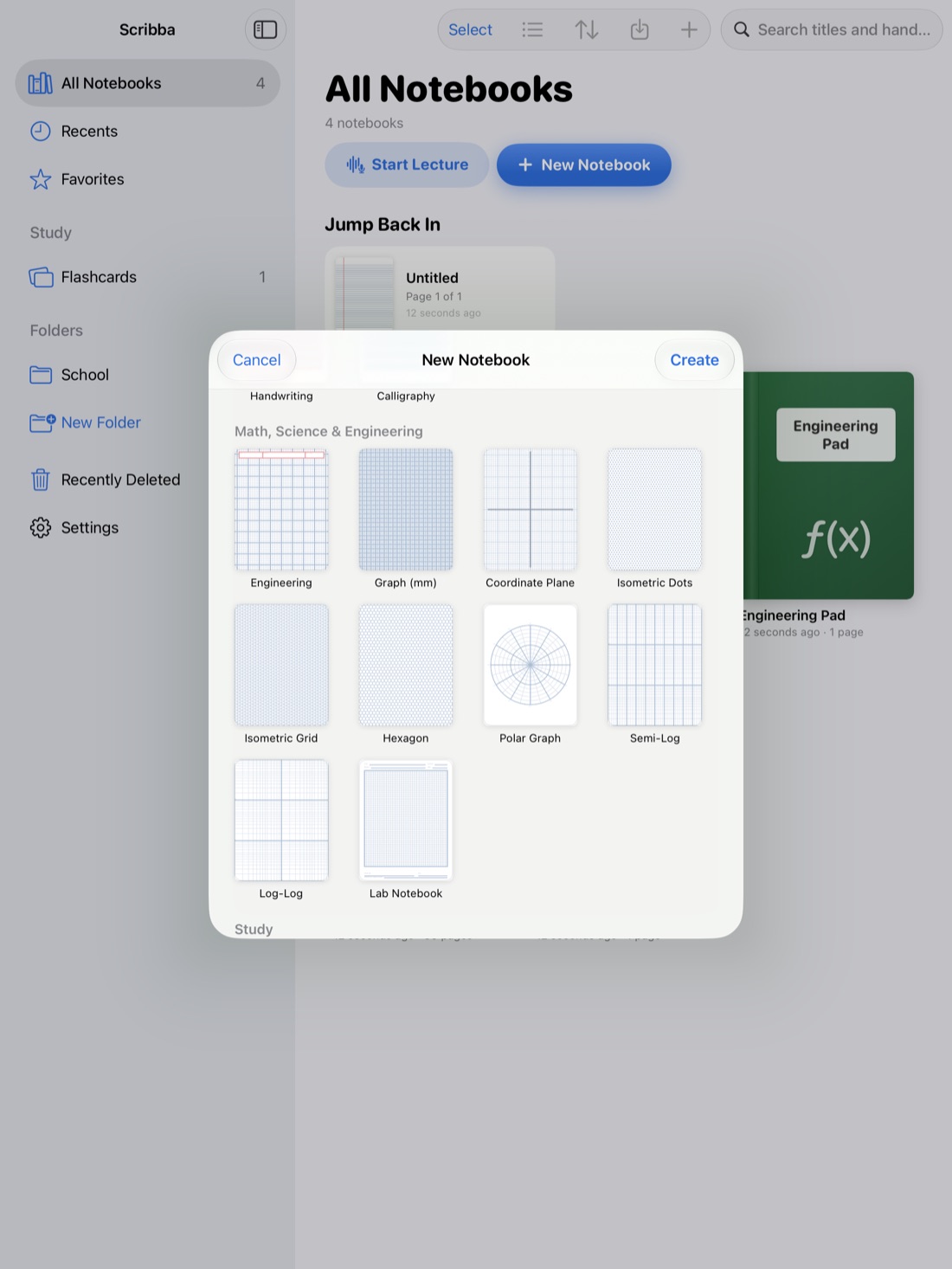
Scribba is an iPad notebook app for class, and its paper picker has a Daily Planner template that fits this method. The page has:
- a DATE line at the top,
- an hourly SCHEDULE column for your blocks,
- numbered TOP PRIORITIES,
- TO DO checkboxes for smaller tasks,
- and a NOTES area.
The labels are printed on the page and everything else is yours to fill in. That maps neatly onto the steps above: blocks go in the schedule, your one to three big tasks go in top priorities, and the small stuff goes under to do. Use the notes area for the end-of-day look back, or for anything that came up during the day.
Practical ways to fill it in
- Color by class. Scribba keeps three to six favorite colors within reach. Give each class a color, and the schedule shows at a glance how your day is split.
- Draw a block across several hours. Hold the Pencil still at the end of a stroke and it snaps into a clean rectangle, which is a tidy way to mark a long lab or study block. The highlighter also snaps strokes straight, so you can shade a time slot neatly.
- Write small in tight slots. The Zoom Window lets you write big in a magnified strip, and the writing lands small and neat on the page. It helps when a schedule row is narrow.
- Mark what moved. Cross out a block you skipped and write it into its new time, rather than erasing. At the end of the week, those crossed-out blocks show you which tasks you keep underestimating.
Keep the plan open while you work
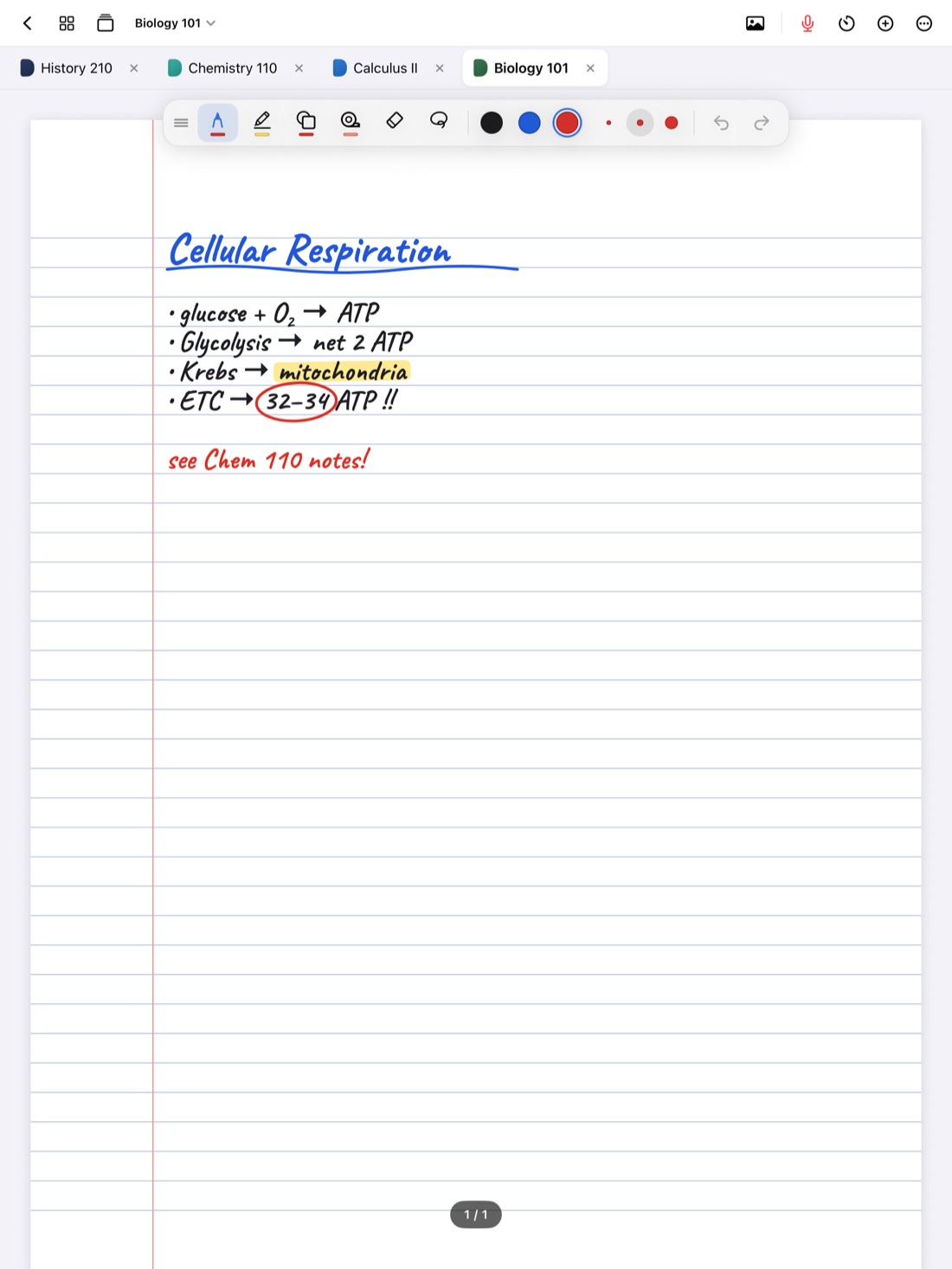
Keep your planner notebook open as a tab next to your class notebooks. Scribba keeps up to six notebooks open as tabs, so the day's plan is one tap away between lectures.
When a study block starts, Scribba's focus timer can run it as a Pomodoro session, and it follows you between notebooks if a block covers more than one class. See how to use a Pomodoro timer for studying.
Undated or dated pages
A plain Daily Planner page has a blank DATE line, so you can add one whenever you need it: pull past the last page to add a page and set its paper from the page sidebar. If you'd rather have a planner with the dates already filled in for the whole term, see how to set up an iPad planner for the school year.
Frequently asked questions
Should I time-block every day?
Not necessarily. Many students time-block busy days, like exam weeks or days with work shifts, and use a simple to-do list on lighter days.
What's the difference between top priorities and the to-do list?
Top priorities are the one to three tasks that matter most today, and each should get a block in the schedule. The to-do list holds smaller tasks you fit into gaps.
Does the Daily Planner sync with my calendar?
No. Scribba's planner pages are handwritten, and Scribba doesn't sync with calendar apps. For a deadline that needs an alert, add it to your calendar app too.