 Scribba
Most student to-do lists fail in one of two ways. Either they live in five places at once (a sticky note, the back of a syllabus, a text to yourself, the margin of Tuesday's notes), or they become one endless list that you read every morning and then ignore.
A to-do system that works has three parts: one place to catch everything, a quick way to decide what matters, and a short list for today. This guide walks through each one, then shows how to set it up with Scribba's To-Do List paper.
Part 1: capture everything in one place
Tasks show up all day. A professor mentions a reading at the end of class. A group member asks for your slides by Thursday. You remember the financial aid form while walking to lunch. If each of those goes somewhere different, some of them will get lost.
So pick one capture list and send everything there. It doesn't need to be neat or ordered. Its only job is to make sure nothing gets forgotten between the moment you hear about a task and the moment you plan your day.
A few rules make capture work:
- Write it down right away. "I'll remember that" is how tasks disappear.
- Write the next action, not the project. "Bio lab report" is a project. "Make the data table for the bio lab" is something you can sit down and do.
- Add the due date if there is one. It saves you looking it up later.
- Don't sort while you capture. Sorting comes later. Capture should take seconds.
Part 2: decide what matters
Once a day, usually the night before, read through the capture list and decide what's next. Two questions do most of the work:
- When is it due? Anything due in the next day or two goes to the top.
- How big is it? A ten-page paper due in two weeks is more urgent than it looks, because it needs many sessions. A two-minute email can wait until you have two minutes.
Big assignments need one more step: break them into pieces small enough to finish in one sitting. "Write history paper" becomes "find three sources," "outline," "draft intro and first section," and so on. Each piece goes on the capture list with its own rough date, counting backward from the due date.
Then cross off anything that no longer matters. A capture list with old, dead tasks on it makes the whole system feel heavier than it is.
Part 3: write a short daily list
The daily list is the one you actually work from. Keep it small: three to five tasks you can realistically finish today, on top of your classes. A short list you finish feels better and teaches you more about your real pace than a long one you abandon at noon.
When you write it:
- Put the hardest task first, and plan to do it at the time of day you think best.
- Include one small, quick task so the list gets moving.
- Be honest about your day. If you have four hours of class and a shift at work, today's list should be shorter.
At the end of the day, look at what's left. Move each unfinished task to tomorrow's list or back to the capture list. If the same task has moved three days in a row, it's probably too big or too vague. Break it down or rewrite it as a clearer next action.
Tip: a done list is useful too. On a day that felt unproductive, look at what you crossed off. Students often get more done than they remember.
Where the to-do list fits with a planner
A to-do list answers "what do I do today?" A planner answers "what's coming up?" You need both. Due dates for the whole term belong in a planner, and the small steps toward those dates belong on your to-do lists. For setting up the bigger picture, see how to set up an iPad planner for the school year.
If you'd like your daily list to sit next to an hour-by-hour schedule, the daily planner guide shows how to time-block a school day.
Setting it up in Scribba
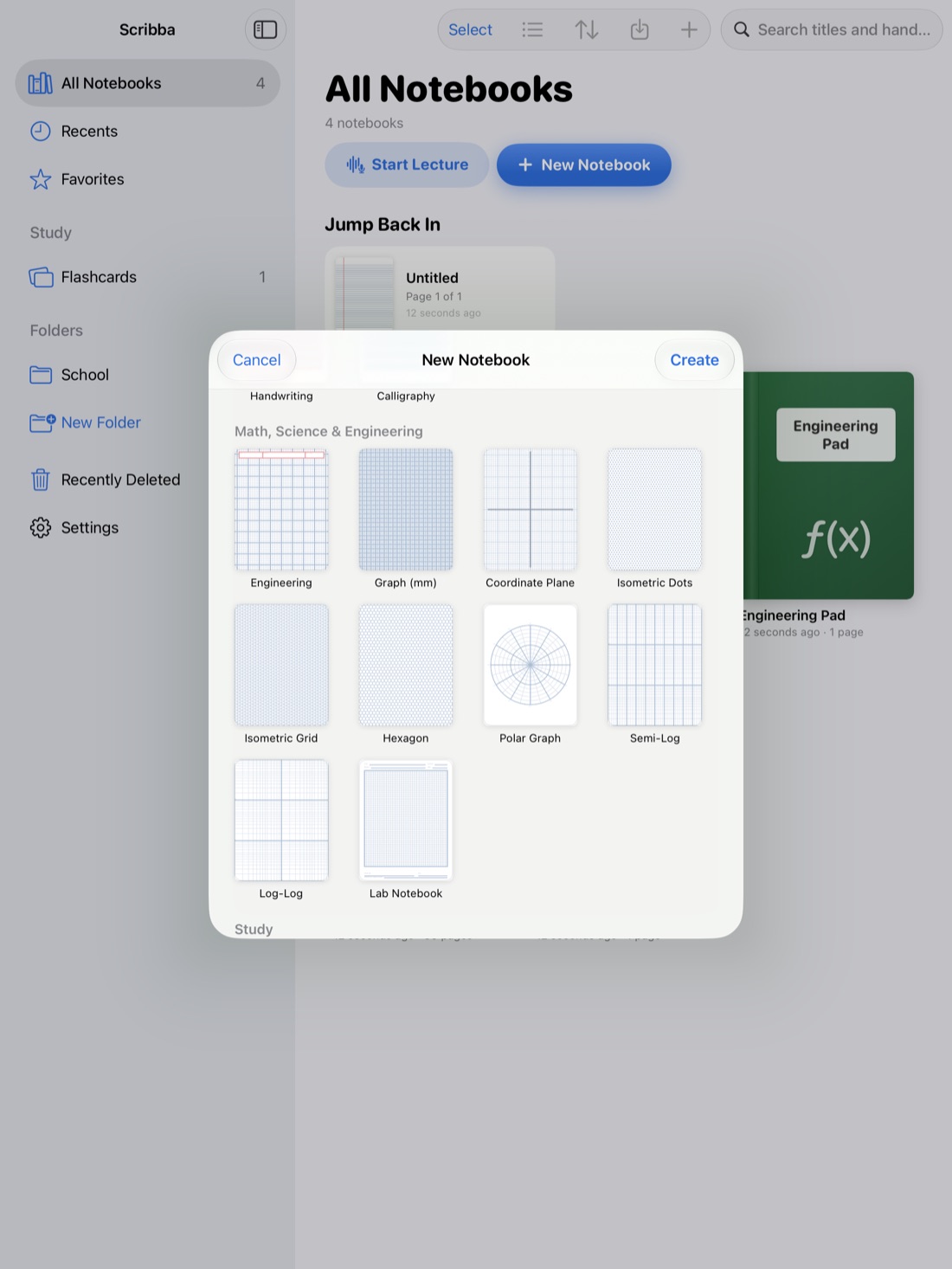
Scribba is an iPad notebook app for students, and its paper picker includes a To-Do List template. The page has a TO DO header, a DATE line and rows of checkboxes. The DATE line is blank, so you write in the day yourself.
Here's a setup that follows the three parts above:
- Make a notebook just for tasks, or keep the pages at the front of your planner notebook. Mark it as a favorite so it's one tap from the library.
- Use the first page as your capture list. Bookmark it in the page sidebar so it sits at the top of the notebook's table of contents.
- Add a fresh To-Do List page each evening for tomorrow's daily list. Pull past the last page to add one, then change its paper from the page sidebar if needed. Write the date and your three to five tasks.
- Check off tasks by filling in the box as you finish them.
Older daily lists stay in the notebook, so you can scroll back and see what you did last week.
Catch tasks during class
You won't always have the task notebook open when a task appears. When a professor announces something mid-lecture, write "TODO" in the margin of your class notes next to it. That evening, search for "todo" from the library. Scribba searches handwriting across your notebooks, and results open on the matching page, so you can move each one to your capture list. More on that in how to search handwriting on iPad.
A sticky note works too. Add one from the + menu in the notebook's top bar, write the task on it, and it stands out on the page when you review.
Keep the list one tap away
Scribba keeps up to six notebooks open as tabs. Keep your task notebook in a tab next to whatever class you're in, and switch with ⌘⇧[ and ⌘⇧] on a keyboard, or ⌘O for the quick switcher.
One honest limit: a handwritten list doesn't send reminders. For a task that has to happen at a set time, like a registration window, add an alert in your calendar app as well.
Frequently asked questions
Should I keep one long list or a new list every day?
Both. Keep one running capture list for everything, and write a short new list each day from it. The daily list stays small enough to finish.
How many tasks should be on a daily to-do list?
Three to five on a normal class day is a good start. Adjust once you see how many you actually finish.
Can I search my handwritten to-do lists?
Yes. Scribba recognizes handwriting on the iPad, so you can search your task pages for a word like "lab" or "email" from the library or inside the notebook.