 Scribba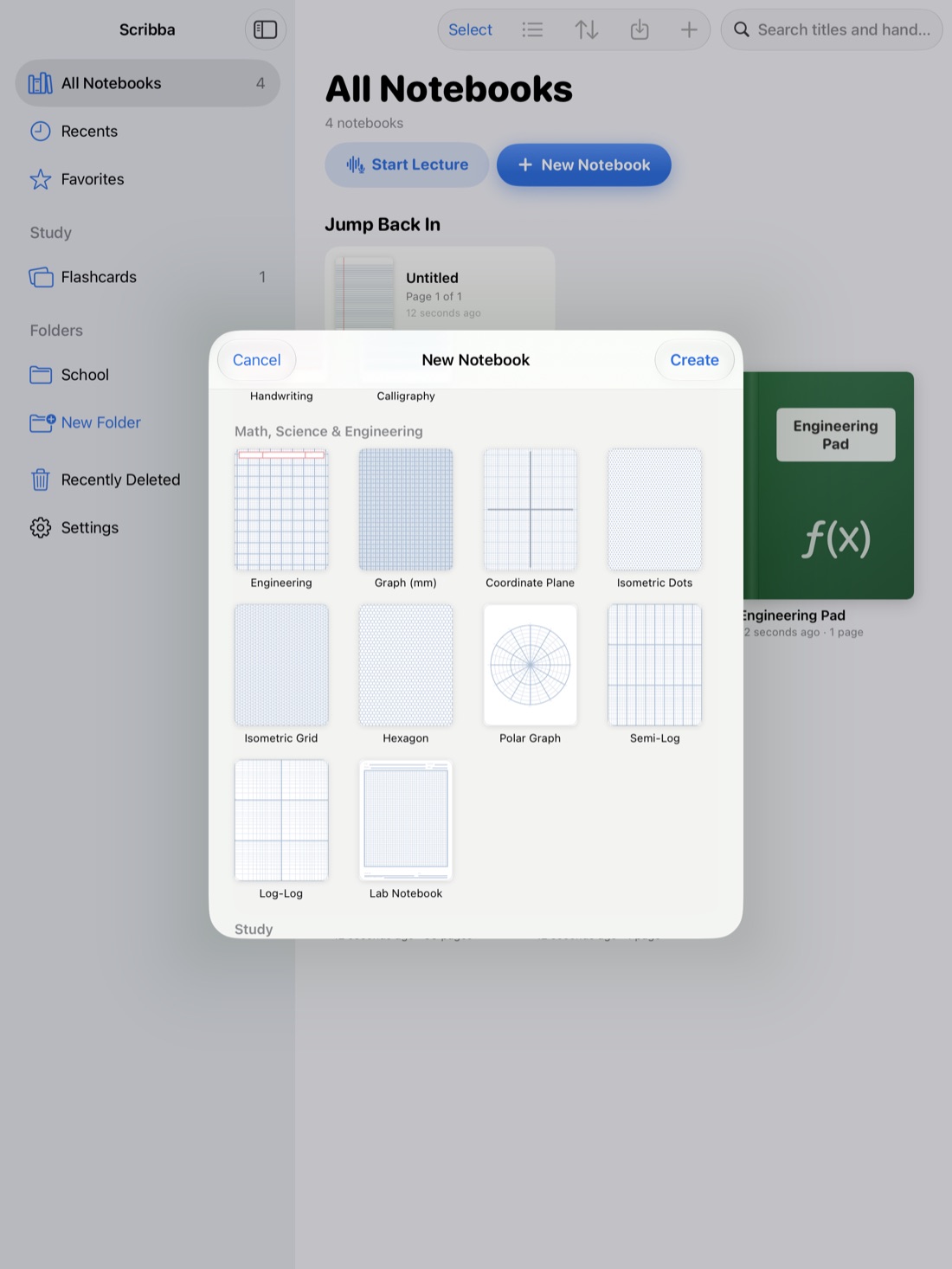
The first week of a semester hands you four or five syllabi, each with a dozen dates on it. Midterms, papers, problem sets, a lab report due the Friday before break. Almost every one of those dates is known in week one. The students who seem calm in November often just wrote them all down in September.
This guide is about doing that on an iPad: setting up a planner, filling it from every syllabus, and keeping it alive with a short weekly habit. The steps work with any planner. Scribba, an iPad notes app for students, has planner paper built in, so we'll show how it fits along the way.
Why plan on the iPad you take notes on
A planner only works if you look at it. If your notes are already on your iPad, a planner on the same device is one less thing to carry and one less thing to forget. It sits next to the class you're in, and you can check it in the two minutes before a lecture starts.
One honest trade-off: a handwritten planner page doesn't send alerts. For a few hard deadlines, like a registration window or a scholarship form, it's worth adding a reminder in your calendar app too. Use the planner for seeing the shape of your semester, and alerts for the handful of dates you can't afford to miss.
Step 1: set up a dated planner
You want two views of your time:
- A month view for the big picture: exams, due dates, breaks and busy weeks.
- A week view for the detail: readings, problem sets, study blocks and errands.
Writing in dates by hand for a whole year is tedious, which is why many paper planners come pre-dated. In Scribba, you can generate a dated planner with a month calendar plus weekly spreads, covering anything from one month to a full school year. The dates are already filled in, so you can start writing deadlines right away.
Make it cover the whole term, including finals week. If you'd rather set it up once, make it run the full school year.
Keep the planner in its own notebook, outside your class folders, and mark it as a favorite so it's always one tap from the library. For a library setup that makes this easy, see how to organize iPad notes by semester.
Step 2: add a class schedule page
Put a class schedule page at the front of the planner. Write each class with its days, times and room. Below that, add the things you always end up hunting for: office hours for each professor and TA, and where each class posts its slides and assignments.
Scribba has class schedule paper made for this. Bookmark the page in the page sidebar so it's always at the top of the planner's table of contents.
Step 3: copy every deadline from every syllabus in week one
This is the step that makes the rest of the year easier. Set aside an hour in the first week and do it all at once.
- Gather every syllabus. Download them from each course page, or ask for one if it was handed out on paper.
- Go class by class, not date by date. Work through one syllabus at a time, so you don't miss anything.
- Put the big items on the month calendar. Exams, papers, projects, presentations and quizzes.
- Put smaller items on the weekly spreads. Readings, problem sets, lab write-ups and discussion posts.
- Give each class a color. A glance at the month then shows which class is about to take over your week.
- Plan backwards from each exam. A week before a midterm, write "start reviewing." Two weeks before a paper is due, write "outline."
- Look for crunch weeks. If three things land in the same week, you know now, and you can start one of them early.
Scribba doesn't pull dates from your school's calendar or course site, so this is a by-hand step. That's partly the point: writing each date once makes you notice it.
Tip: import each syllabus PDF into the front of its class notebook. In Scribba, text in imported PDFs is searchable, so "midterm" finds the exam policy in seconds.
In Scribba, you can keep three to six favorite colors within reach, which is enough for a color per class. The highlighter snaps to straight strokes, so blocking out an exam week stays neat.
Step 4: a 15-minute weekly review
A planner filled in during week one slowly goes stale unless you come back to it. Pick a regular time each week, like Sunday evening, and spend 15 minutes on it:
- Look back. Cross off what you finished last week, and move anything unfinished to a new day.
- Look ahead two or three weeks on the month calendar. Anything big coming up?
- Add new dates. Professors change deadlines and add quizzes. Copy any changes from class or the course site.
- Plan study blocks. Write in when you'll work on each big assignment this week, not just when it's due.
- Check the next exam. If one is within two weeks, make sure review time is on the page.
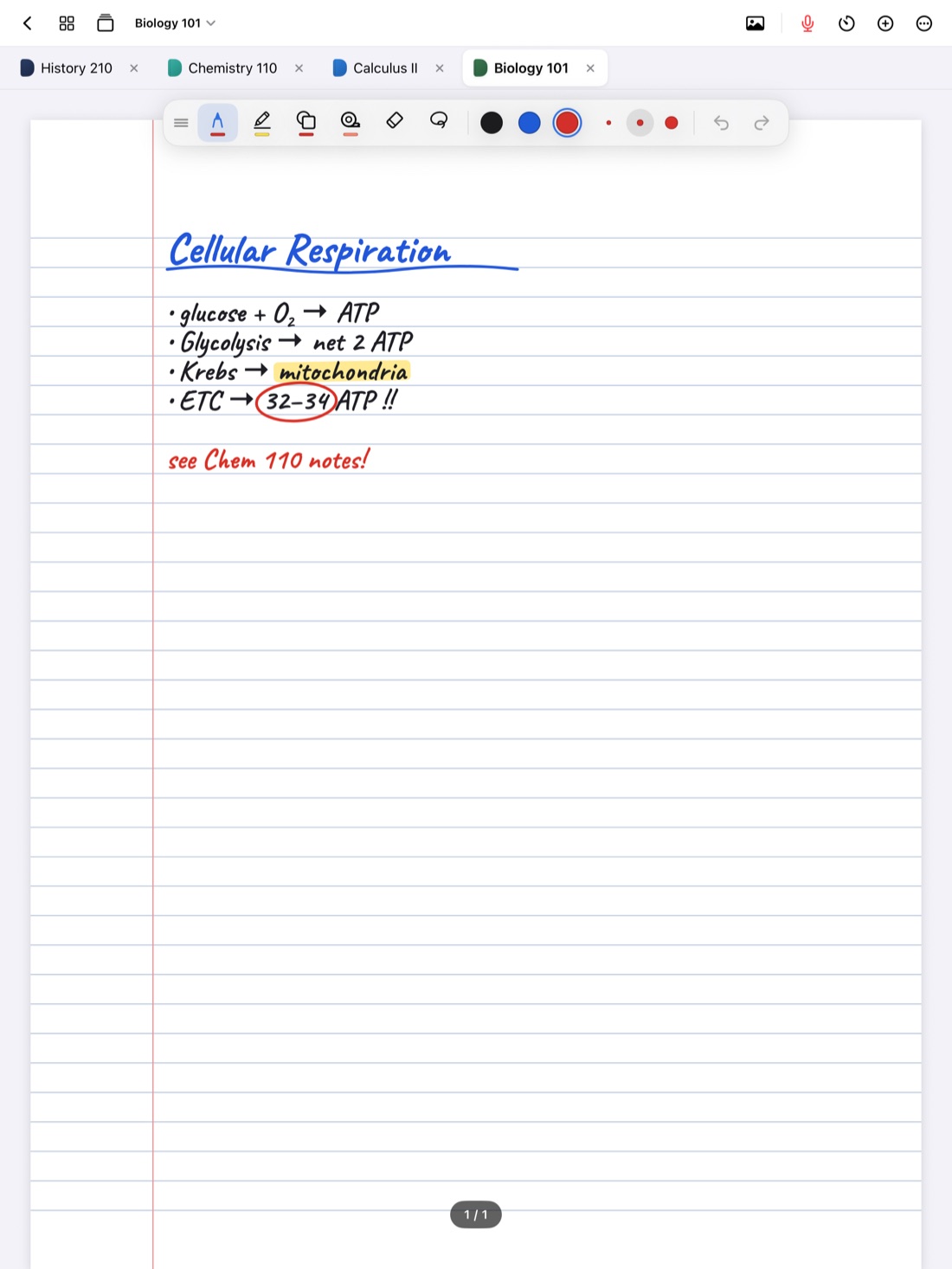
Keeping the planner open as a tab next to your current class notebook makes it easy to add a new date the moment a professor announces it. Scribba keeps up to 6 notebooks open as tabs, and on a keyboard ⌘⇧[ and ⌘⇧] move between them.
Step 5: to-do lists and a habit tracker
The weekly spread tells you what's due. A daily to-do list tells you what to do today. Keep it short: three to five things you'll actually finish beats a list of fifteen.
A habit tracker is useful for the small things that add up over a semester, like reviewing notes after each lecture, going to the gym or getting to bed on time. Track two or three habits at most. More than that and filling in the tracker becomes its own chore.
Scribba has to-do and habit tracker paper, as well as daily, weekly and monthly planner pages, so you can add them right inside the planner notebook. See iPad note paper templates for the full list.
Keep it going all year
At the start of each new term, repeat Step 3 with the new syllabi. If your planner covers the full school year, the new term's pages are already there waiting. As finals approach, the planner becomes your study schedule; how to study for finals with your iPad notes shows how to build one.
Frequently asked questions
Can Scribba sync with my calendar or Canvas?
No. Scribba doesn't sync class schedules or connect to course sites like Canvas or Blackboard. The planner is handwritten, which works well for seeing your whole semester at a glance.
How long can a Scribba planner be?
A dated planner can cover anything from one month to a full school year, with a month calendar plus weekly spreads.
Can I search my planner?
Yes. Scribba searches handwriting, so you can find "lab report" or "midterm" in your planner the same way you search your notes.