 Scribba
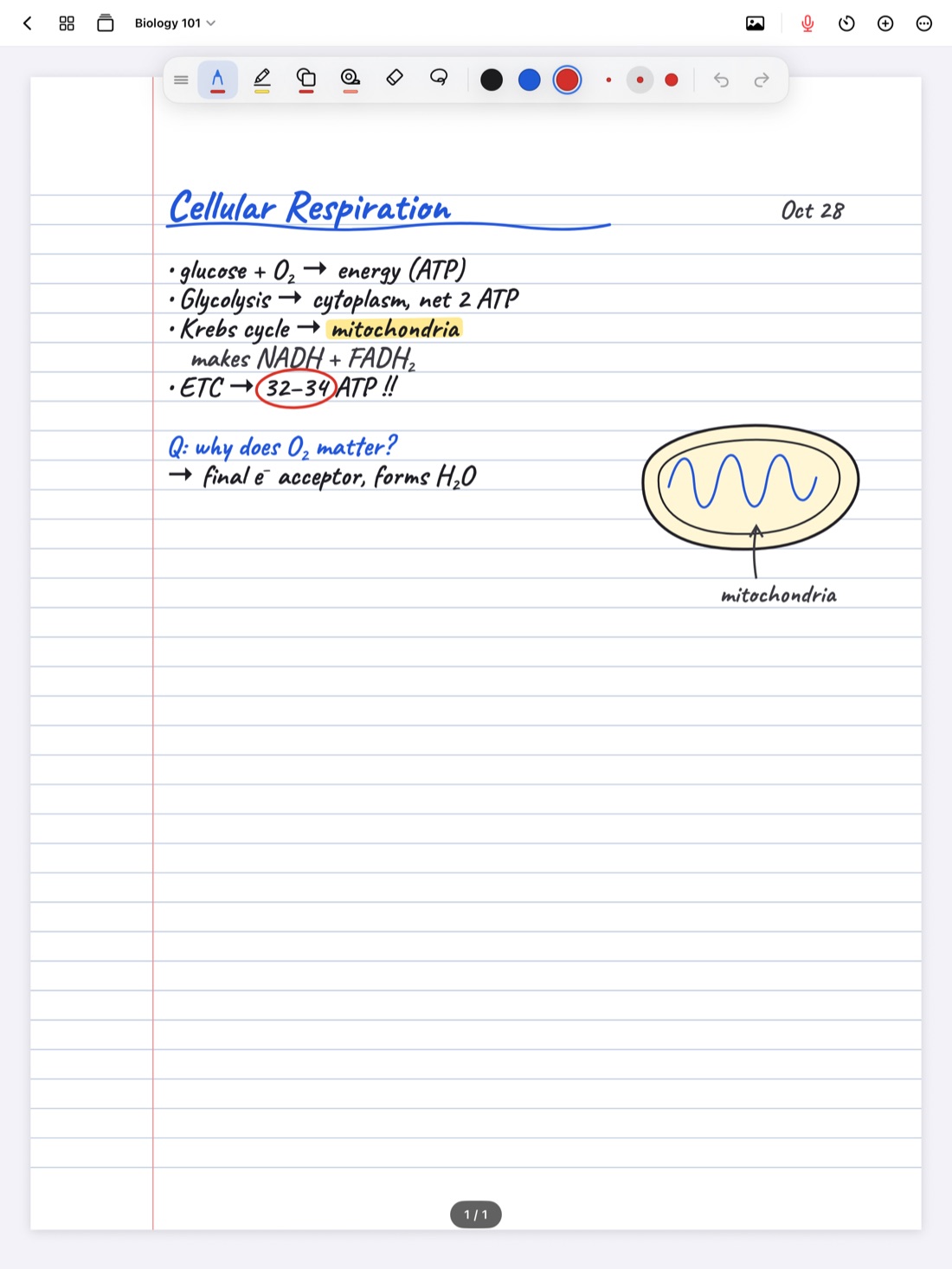
The problem set is due at 11:59 on the course website, and your work is handwritten on your iPad. Or a classmate missed Tuesday and asks for your notes. Or you want a formula sheet on paper to tape above your desk. Each time, your notes need to leave the app as a file anyone can open. Usually that file is a PDF.
This guide covers choosing the right format, preparing pages so they read well outside the app, and the export itself, with tips for submitting homework and printing.
PDF, image or text: pick the right format
- PDF is right for anything with more than one page, anything you submit and anything you print. It keeps pages in order, opens on every device and is what most course websites expect.
- An image is quicker for one page sent to a group chat. Your friend sees it right in the conversation without opening a file.
- Typed text is for when someone needs to edit the words, or you want to paste them into an essay draft or an email.
Before you export: set pages up for the reader
On your own iPad you can zoom, scroll and remember what you meant. A grader or a classmate can't. A few minutes of prep makes the export useful.
For homework
- Put each problem on its own page, or give each one clear space. Many submission systems ask you to match pages to questions, and one problem per page makes that easy.
- Write your name, the course and the assignment at the top of the first page.
- Box or underline final answers, so a grader finds them without searching.
- Leave scratch work out. You don't have to export every page. Choose only the clean ones.
- Check the order. Pages should run in the order of the questions.
For printing
- Mind dark paper. Notes on dark paper are easy on your eyes at night, but a dark page uses a lot of ink and may come out muddy. Print one test page first, or print in grayscale.
- Check the page size. A notebook made with a page size that matches your printer paper, like US Letter in the US or A4 in most other countries, prints without odd scaling.
For sharing with a classmate
- Send the pages they need, not the whole semester.
- Look over each page for anything you didn't mean to share, like a personal note in the margin.
Exporting in Scribba
Scribba gives you a few ways to get notes out:
- A whole notebook as a PDF. Export any notebook, including imported slides and scanned handouts with your writing on them.
- Selected pages as a PDF. Open the page sidebar, select just the pages you want and export those. This is the one to use for homework.
- One page as an image. From the page sidebar, share a single page as an image.
- Handwriting as text. Copy, share or place a page's handwriting as typed text, ready to paste into a document.
Before you export a homework set, use the page sidebar to drag pages into the right order. If a problem ran over onto a page at the end, move it next to the rest of that problem. How to move and reorder pages covers the sidebar in detail.
For problem sets, Scribba's Problem Set paper helps from the start. It has NAME, COURSE, DUE and ASSIGNMENT fields at the top, over a grid split into four numbered problem areas. The fields are blank lines you write in, so fill in your name before you export. Paper type can be changed per page from the page sidebar, so you can switch a blank page to Problem Set at any time. Page size and orientation are set per notebook when you create it, so pick US Letter or A4 for a homework notebook you plan to print or submit.
Your notes stay exportable even if you don't have a Scribba plan. You can always get your notebooks out as PDFs.
Submitting homework through a course website
Scribba doesn't connect to course websites directly. You save the PDF and upload it yourself:
- Export the pages as a PDF and save it to the Files app. iCloud Drive is a good place, so it's on your other devices too.
- Give it a clear name, like "Lastname HW4." In the Files app, touch and hold a file to rename it.
- Open the PDF in Files and scroll through every page. Check that nothing is cut off and the pages are in order.
- Upload it from your course website in the browser, or from your school's course app, by choosing the file from Files.
- Open the submission afterward if the site lets you, and confirm the right file went through.
Tip: do a test upload early in the semester with a practice file. Finding out how your course site handles PDFs is much less stressful in week one than at 11:58 on a due date.
Printing
If your iPad is on the same network as an AirPrint printer, open the PDF in the Files app and print it from the share button. Campus printers often work differently: many schools have you upload a file to a print website or send it by email. Either way, save the PDF to Files first, and you can send it wherever your school's printing works.
Sending notes to a classmate
For a missed lecture, export just that day's pages as a PDF. For one diagram, share the page as an image. Scribba doesn't have shared or live notebooks, so a PDF or image is how notes travel between classmates. Studying with a group using iPad notes has more ideas.
Two cautions. Share notes, not answers: check your course's rules on homework collaboration. And if your notes are written on your professor's slides, ask before passing them outside the class.
A PDF is a copy, not a backup
A PDF is good for reading and printing, but it's a snapshot of how the pages looked, not the notebook itself. To protect notebooks you'll keep using, set up iCloud Sync and Auto Backup. See how to back up iPad notes. A PDF of each finished class at the end of term does make a handy archive, though.
Frequently asked questions
Can I export just a few pages?
Yes. In Scribba, open the page sidebar, select the pages you want and export them as a PDF.
Can I export my notes as a Word document?
Scribba exports PDFs and page images. If you need editable text, copy a page's handwriting as text and paste it into a document.
Can I still export if my free trial ends?
Yes. Without a plan, your notes stay readable and exportable, so you can always save them as PDFs.
Can I share one page without making a PDF?
Yes. From the page sidebar, share the page as an image. It's the quickest way to send a single page to a group chat.