 Scribba
A paper notebook is fixed. If you need more room for Tuesday's lecture after you've started Thursday's, you squeeze it into the margin or staple in a loose sheet. Pages on an iPad aren't stuck like that. You can slide them around, copy them and send them to another notebook. Most students never do, so their notebooks end up in the order things happened rather than the order that makes sense.
This guide covers why page order matters, what each page tool is good for, and a few habits that keep a class notebook tidy all term.
Why page order matters
The order of a notebook is the story of the course. When you review, you read it front to back, so a page in the wrong place breaks the thread: a worked example that ended up after the next topic, or the second half of a lecture sitting three pages away from the first.
Order also matters when your notes leave the app. A PDF of homework or lecture notes should run in a sensible order for whoever reads it.
A good rule: pages that belong together should sit together, even if you wrote them on different days.
The page sidebar
In Scribba, page-level tools live in the page sidebar. From there you can:
- Reorder pages by dragging them.
- Duplicate a page.
- Move or copy pages to another notebook.
- Change the paper of a page.
- Name bookmarks, which form the notebook's table of contents.
- Share a page as an image, or select pages to export as a PDF.
To add a page, pull past the last page, press ⇧⌘N on a keyboard to add one after the page you're on, or touch and hold a page in the sidebar and choose Add Page After. Then drag it wherever it belongs.
Reorder: put pages where they belong
Common reasons to drag pages around:
- Extra notes for a slide. Add a page and drag it right after the slide it explains. How to annotate lecture slides uses this a lot.
- A reading summary next to its lecture. If you summarized Monday's reading on Wednesday, move the summary next to Monday's notes.
- Reference pages at the front. A formula sheet or glossary you check every class is easiest to find as page one.
- Homework in question order. If problem 2 ran onto a page at the end, move that page back next to the rest of problem 2 before you export.
Duplicate: copies you can write over
Duplicating sounds minor, but it solves some real problems:
- Practice a worksheet more than once. Before you fill in a scanned worksheet or practice exam, duplicate the blank page. Do one copy now and save the other for the week before the exam. Working a problem again from a blank page is much better practice than rereading your old answer.
- Reuse a layout you built. If you drew a page with headings for a lab write-up or a weekly review, duplicate it instead of drawing it again.
- Keep the original safe. Before a big rewrite of a page, like moving half a diagram around with the lasso, duplicate it first. If the rewrite goes badly, you still have the original.
Tip: duplicate a blank practice exam twice. Use the first copy to test yourself, the second to retest a few days later, and compare the two. The second copy shows you what actually stuck.
Move or copy pages between notebooks
Move a page when it's in the wrong place: half a Physics lecture written in your Chemistry notebook, or quick notes you took in a scratch notebook when you were in a hurry. If you keep a scratch notebook, empty it into your class notebooks once a week, so nothing stays lost there.
Copy a page when it belongs in two places:
- A shared reference, like a unit conversion table or a page of constants used by both Physics and Chemistry.
- The next course in a sequence. Copy the summary pages from Calculus 1 into your Calculus 2 notebook as a review at the start of term.
- A retaken class. Copy the useful pages from your old notebook into the new one.
Copying leaves the original where it was, so each notebook keeps its own version.
For how pages, notebooks and folders fit together over a semester, see how to organize iPad notes by semester.
Change the paper on one page
In Scribba, paper type and paper color are set per page from the page sidebar. That means a lecture notebook on ruled paper can have one Graph (mm) page for a plot, a Coordinate Plane page for a function, or a Cornell Notes page for a weekly review. You don't need a separate notebook for each kind of paper.
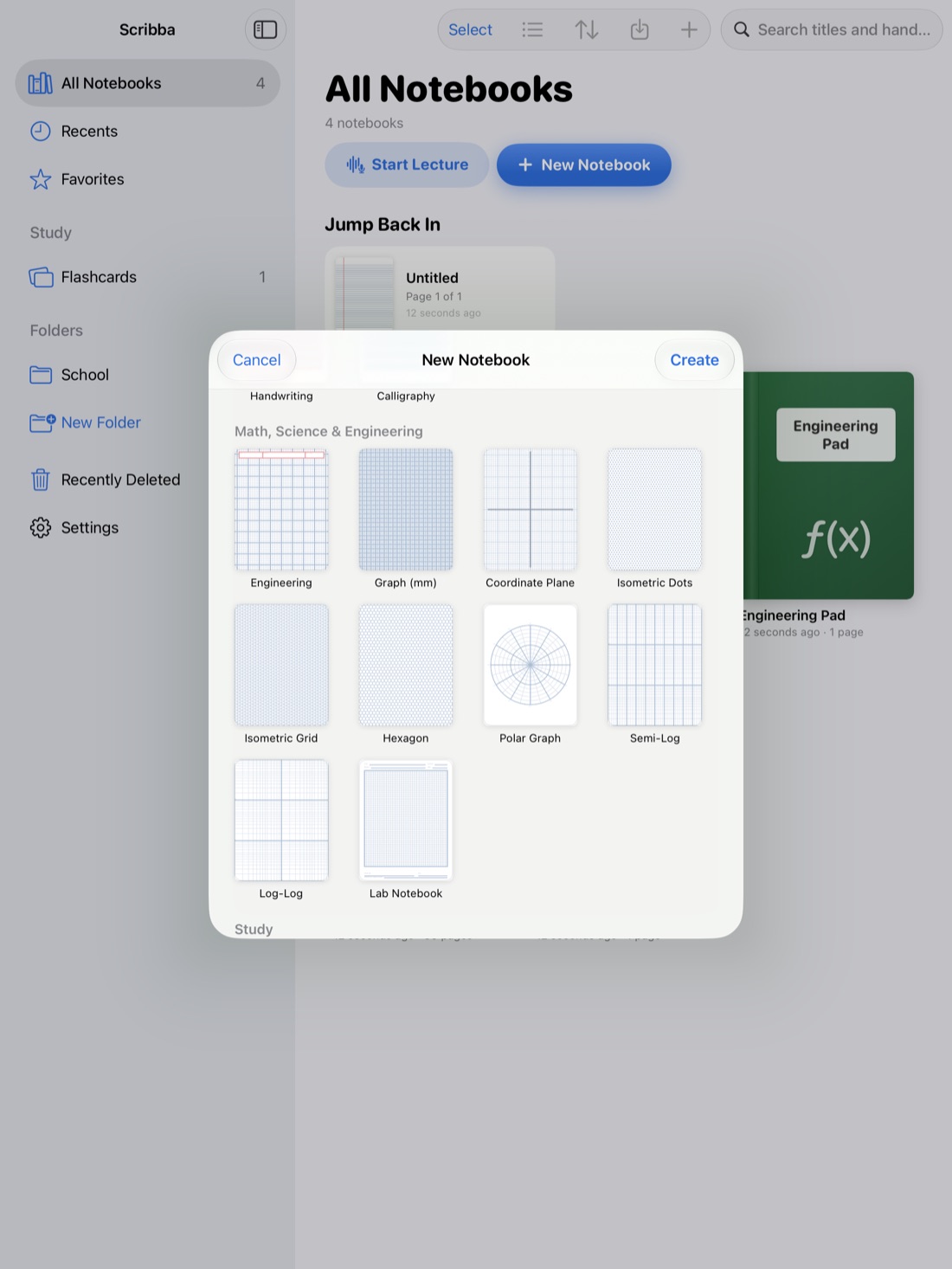
Page size and orientation are different. They're chosen per notebook when you create it, in the New Notebook sheet, so pick them with the whole notebook in mind. Portrait suits most lecture notes; landscape suits slides and wide diagrams.
When you change paper color, check that your ink still shows. Light ink that looked good on Charcoal or Black paper can be hard to see on White. iPad note paper templates explains what each paper is good for.
A weekly tidy-up
Once a week, open the page sidebar of each class notebook and spend two minutes:
- Move strays into the right notebook.
- Drag related pages together, like a lecture and its follow-up notes.
- Bookmark new topics, so the table of contents stays complete. See bookmarks as a table of contents.
- Duplicate any blank worksheets you want to redo before the exam.
Two minutes a week keeps the notebook ready for review, instead of leaving a big cleanup for finals week.
Frequently asked questions
Can I change the size of just one page?
No. Page size and orientation are set per notebook when you create it. Paper type and color can be changed for each page from the page sidebar.
How do I add a page in the middle of a notebook?
In the page sidebar, touch and hold the page before the spot and choose Add Page After. Or press ⇧⌘N, which adds a page after the one you're on.
If I copy a page to another notebook, is the original still there?
Yes. Copying leaves the original in place. Moving takes the page out of the first notebook and puts it in the second.