 Scribba
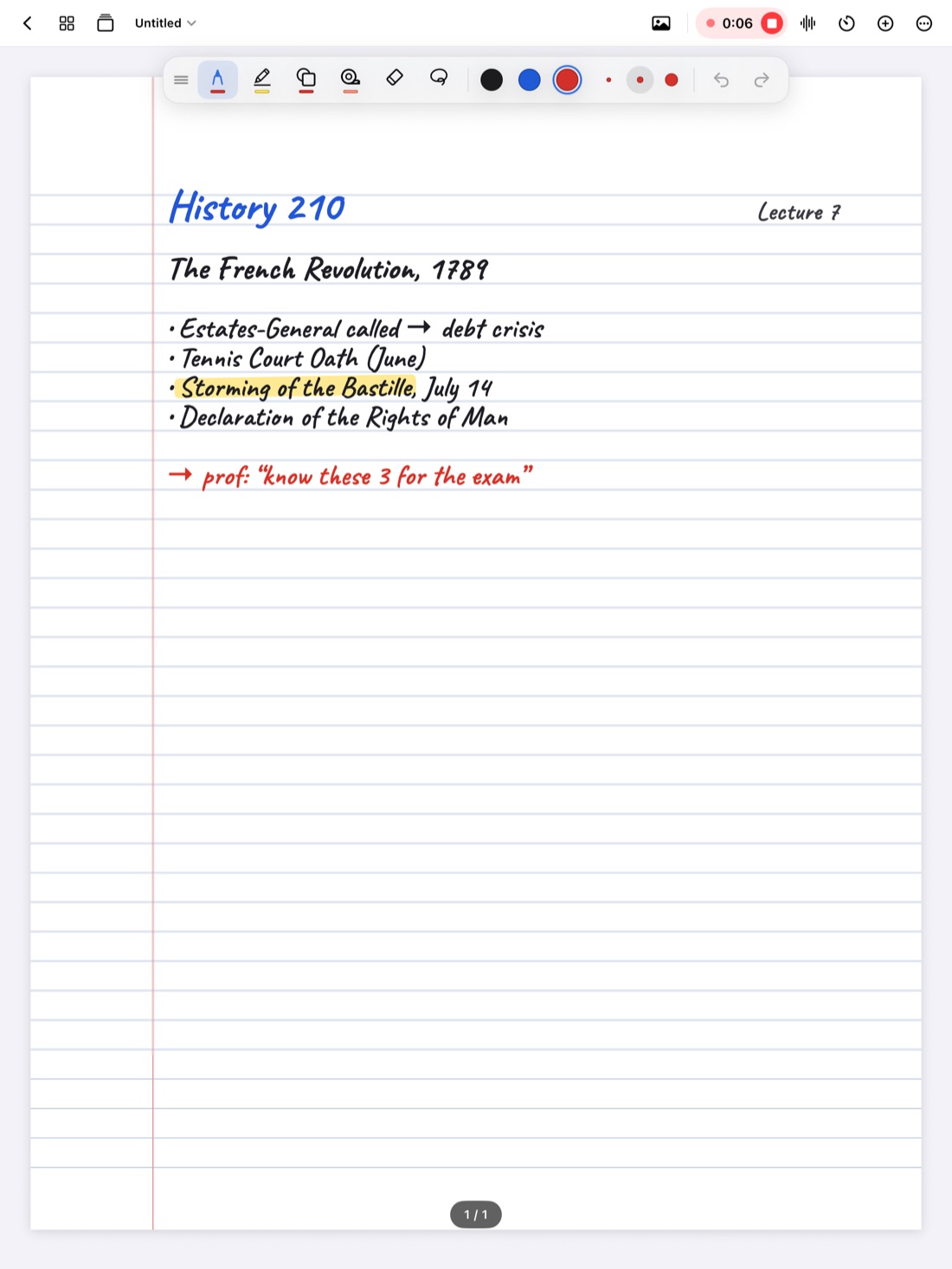
Look at a page of your paper notes, then a page of your iPad notes. For most people, the iPad writing is bigger. A page that would hold a whole lecture on paper fills up in ten minutes, and subscripts, labels and margin notes turn into blobs when you try to shrink them.
You can fight that by forcing your hand to write tiny on slippery glass, or you can let the iPad do the shrinking. That's what a zoom window is for. This guide explains why handwriting grows on a tablet, when a zoom window helps and when it doesn't, and how to use the one in Scribba.
Why your handwriting gets bigger on iPad
A few things work against small writing on a screen:
- Less friction. Glass is smoother than paper, so fine finger movements are harder to control. Most people make up for it by writing bigger.
- A thicker tip than you think. Small loops close up quickly, especially with a wide pen setting.
- A zoomed-out page. If the whole page is on screen, the lines are physically smaller than on a paper notebook, so your writing looks big next to them.
Writing smaller by force usually makes things worse. Letters get cramped, words run together, and you can't read them a week later. Handwriting recognition struggles too, which matters if you want to search your handwritten notes later.
How a zoom window works
A zoom window splits the job in two. You write in a magnified strip at whatever size is comfortable. The app shrinks what you write and puts it on the page at a much smaller size. When you reach the end of the strip, it moves along the line so you can keep going.
The effect is that your hand writes the way it likes to, and the page gets small, even handwriting. It's a bit like writing on a whiteboard that turns into a notebook.
When it helps most
A zoom window is a precision tool. It's at its best when space is tight or the details are small:
- Subscripts, exponents and units. Chemical formulas, powers and indices stay readable instead of shrinking into dots. More on this in math and chemistry notes on iPad.
- Labels on diagrams. Write "endoplasmic reticulum" next to the right part of a cell drawing without the label covering the drawing.
- Margins on lecture slides. Slides rarely leave room. A zoom window fits a full sentence beside a bullet point.
- Narrow columns. The cue column on a Cornell Notes page, the rows of a Vocabulary page or the fields on a lab notebook page. See Cornell notes on iPad.
- Dense reading notes. When you want a whole chapter's notes on a page or two.
When to skip it
It's not for everything. Draw diagrams, arrows and sketches directly on the page, where you can see the whole picture. Write big headings directly too, since they're meant to be large.
In a very fast lecture, a zoom window can also take some getting used to, because your eyes move between the strip and the page. Practice with it on a recorded talk or a textbook chapter before you rely on it in class.
Using the Zoom Window in Scribba
In Scribba, open the Zoom Window from the + menu in the notebook's top bar. Then:
- Write in the magnified strip at a size that feels natural. Don't try to write small in it. Shrinking is the strip's job.
- Watch your writing land small and neat on the page.
- Keep going as you fill the strip. The window slides along the line for you.
To see how the page is coming along, pinch out to see more of it.
The Zoom Window also works if you write with your finger. Turn on Settings › Draw with Finger, and you can write large with a fingertip and still get small, readable notes.
Tip: if a few words come out wrong, two-finger tap to undo, rather than trying to fix tiny letters by hand.
Tips for neat small handwriting
The zoom window does the shrinking. These habits keep what you write in it readable at the smaller size:
- Use a thin, even pen. Fine lines stay crisp when they're scaled down. A fineliner or ballpoint style works well. Our guide to pen types for iPad notes compares them.
- Keep your pressure even. Uneven pressure makes some letters thick and others thin, and that shows more at small sizes. A fineliner always writes an even line.
- Write at a steady pace. Rushing adds small wobbles, which are easier to see in tiny writing.
- Keep a steady letter size. If your letters grow and shrink in the strip, they'll grow and shrink on the page.
- Leave space between words. Gaps that feel wide in the strip end up just right on the page.
- Choose paper with closer lines. Narrow Ruled or Dot Grid (5 mm dots) gives small writing a guide to sit on. Change the paper for a page from the page sidebar.
Another option: zoom the page
If you only need a little more control, you can also zoom in on the page itself and write there. In Scribba, pages zoom smoothly and the paper stays sharp at any zoom. This suits short additions, like a correction or a word in a diagram. For longer stretches of small writing, the Zoom Window is faster, because you don't have to keep scrolling along the line yourself. Our Apple Pencil tips cover more ways to keep your handwriting under control.
Frequently asked questions
Is writing from the Zoom Window still searchable?
It lands on the page as ordinary handwriting, so Scribba's handwriting search reads it like the rest of your notes. Clear letters and word spacing help recognition.
Where do I find the Zoom Window in Scribba?
In the + menu in the notebook's top bar.
Can I use the Zoom Window without an Apple Pencil?
Yes. Turn on Settings › Draw with Finger and write in the magnified strip with your fingertip.