 Scribba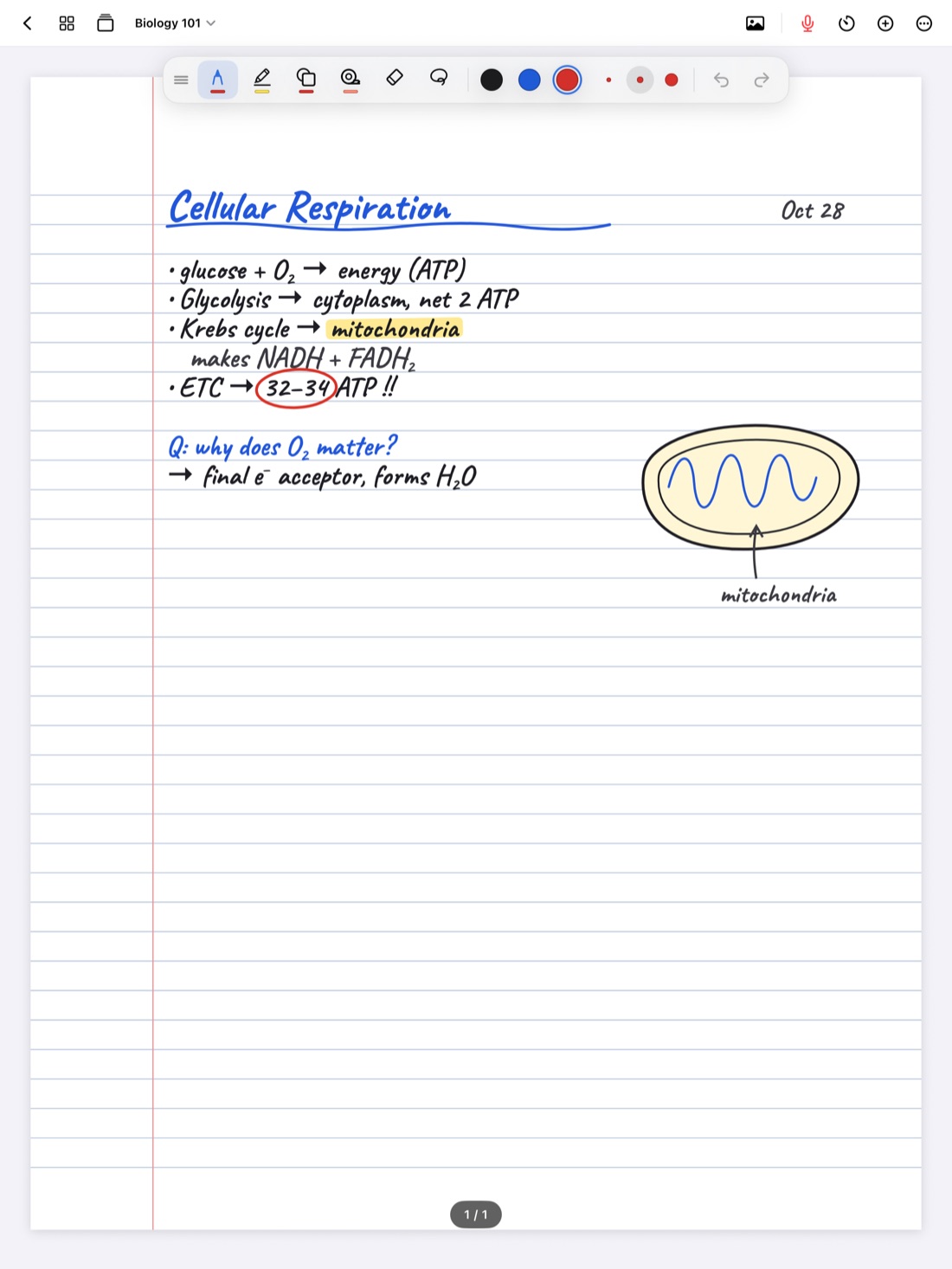
Going paperless in college is never quite complete. Even if every note you take is on an iPad, paper keeps arriving: a handout in Biology, a worksheet in Calculus, a graded quiz handed back with comments in red. It ends up folded in a backpack pocket, and by the final it's either lost or crumpled beyond reading.
The fix is simple: scan paper into the class notebook the day you get it, and put it right next to the lecture it belongs to. This guide covers what's worth scanning, how to get a clean scan, and how to keep scans easy to use and find. If your professor posts slides as PDFs, that's a slightly different job, covered in how to annotate lecture slides on iPad.
What's worth scanning
Not every scrap of paper needs a digital copy. These do:
- Handouts that explain a concept, list key terms or show a diagram you'll need again.
- Worksheets and problem sets, ideally before you fill them in, so you can do the work on your iPad.
- Returned exams and quizzes. These are some of the best study material you'll ever get, because they show exactly how your professor asks questions.
- Readings that only exist on paper, like a chapter photocopied from a book on reserve.
- The whiteboard, when your professor fills it with a diagram you don't have time to copy.
- Paper syllabi and lab instructions, so the details are with you even when the paper isn't.
How to get a clean scan
A few habits make the difference between a scan you can read and one you squint at:
- Use good, even light. Daylight from a window or an overhead light works well. Watch for your own shadow falling across the page.
- Lay the page flat on a surface that contrasts with it. White paper on a dark desk is easier to frame than white paper on a white table.
- Hold the iPad straight above the page, not at an angle, so lines stay straight.
- Fill the frame. Get close enough that the page takes up most of the view.
- Check it before you recycle the paper. Zoom in on the smallest text. If you can't read it, scan it again.
Scanning into Scribba
In Scribba, open the class notebook and scan the handout with the camera. The scan becomes part of your notes, and you can write on it with any pen, highlight it, or add a text box or sticky note, the same as any other page.
You can also turn photos into pages. If you snapped the whiteboard or a handout on the go, add the photo from your library and it becomes a page in the notebook. Photos on a page can be moved, resized and duplicated.
Tip: scan handouts the same day you get them. It takes a minute, and it means there's no paper pile to deal with later.
Keep each scan next to its lecture
Where you put a scan matters as much as making it. A separate "Handouts" notebook sounds tidy, but it splits each lecture in two. When you review week five, you want the handout from week five right there.
- Put the scan right after that day's lecture notes. In Scribba, you can reorder pages in the page sidebar to slot it in place.
- Give it a bookmark with a clear name, like "Week 5 handout: Krebs cycle." Bookmarks in the page sidebar act as the notebook's table of contents.
- If it landed in the wrong class, move it to the right notebook from the page sidebar.
If you take Start Lecture pages, each lecture already has a dated, bookmarked page, which makes it easy to see where a handout belongs. For the rest of the class notebook setup, see how to take notes on iPad in college.
Working on worksheets
A scanned worksheet is a page you can write on directly. Work the problems in the blanks, just as you would on paper.
If the worksheet doesn't leave enough room, don't cram. Add a blank page after it and move it into place from the page sidebar, or drop a sticky note or text box beside the question. Grid or problem set paper on the extra page keeps your work lined up.
Tip: before you start, duplicate the blank worksheet page in the page sidebar. You'll have a clean copy to redo the problems before the exam.
Getting the most from returned exams
A graded exam tells you what your professor thinks is important and which mistakes you tend to make. Scan it, then make it a study tool:
- Correct each mistake in a different color, right next to the original answer.
- Write one line on why you missed it. "Mixed up mitosis and meiosis" is more useful than the right answer alone.
- Cover the answers and retest yourself. Scribba's study tape lets you drag tape over answers and tap to peek. See study tape on iPad.
- Turn missed questions into flashcards. Write them on a Vocabulary or Cornell Notes page, and Scribba turns each row or cue into a card. Flashcards from handwritten notes explains how.
Hold on to the original paper until your final grade is posted, in case you need to ask about a score.
Finding scans later
Scribba searches your handwriting, typed text, PDF text and lecture transcripts, from the library or inside a notebook. A scan is a picture of a page, so the most reliable way to make it findable is to add your own words to it:
- Write a short title on each scan by hand, like "Handout: Krebs cycle" or "Midterm 1, returned." Your handwriting is searchable, so the title is too.
- Name the bookmark clearly, so it shows up in the notebook's table of contents.
- Prefer the PDF when there is one. If the professor also posts the handout online, import the PDF instead of scanning the paper. Text in imported PDFs is searchable.
More on how search works in how to search your handwritten notes on iPad.
Frequently asked questions
Can I write on a scanned handout?
Yes. In Scribba, a scanned handout is part of your notes, so you can write, highlight and add text boxes or sticky notes on it.
Can Scribba find the printed text in a scan?
Scribba searches handwriting, typed text, PDF text and lecture transcripts. To make a scan easy to find, write a short title on it by hand, or import the handout as a PDF if your professor posts one.
Can I share a scanned page with a classmate?
Yes. You can share a page as an image, or select pages in the page sidebar and export them as a PDF. Check with your professor before sharing exams or course materials outside the class.