 Scribba
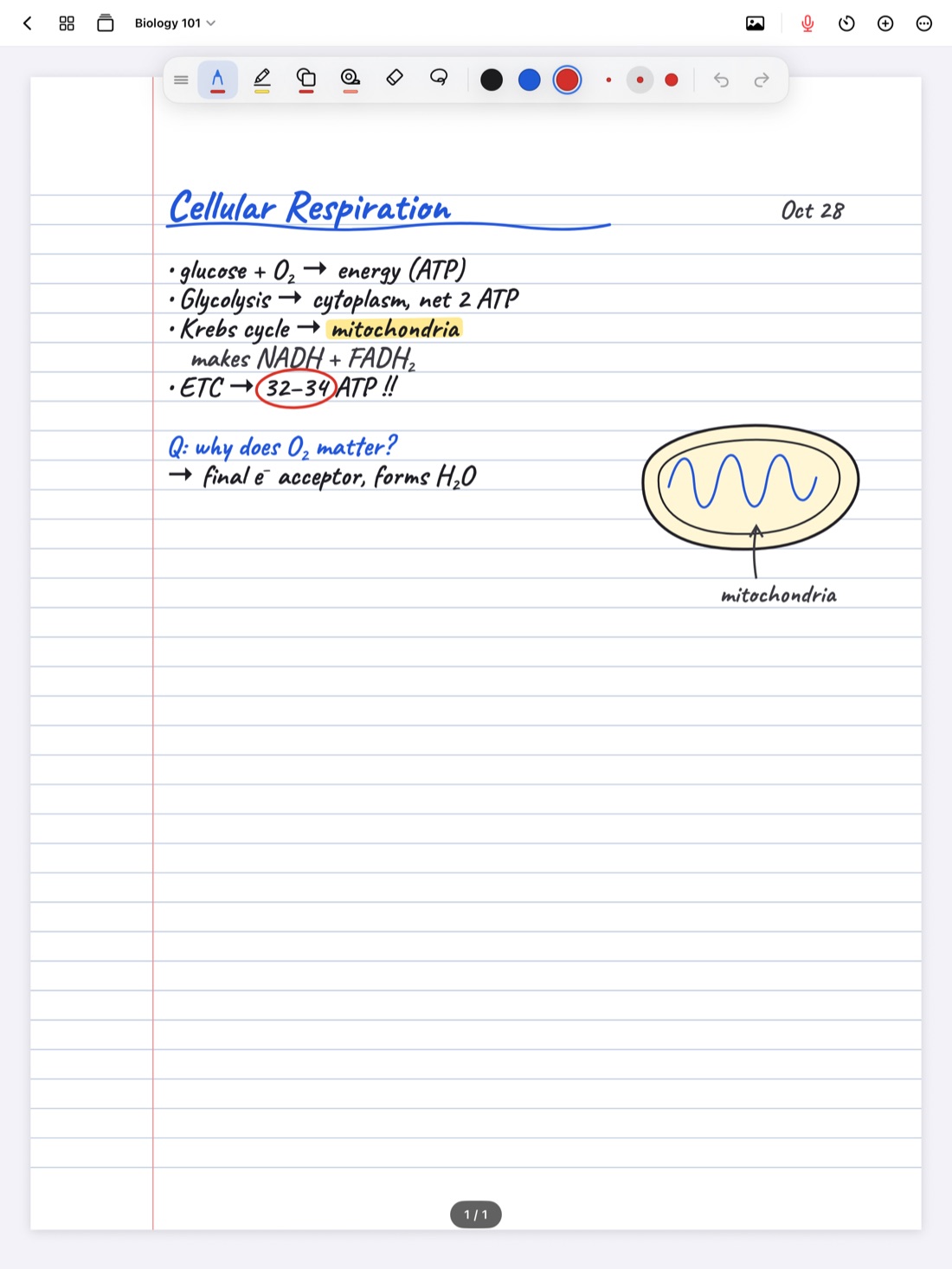
Handwriting is a good way to learn in class. It's a bad way to send an email. Sooner or later you'll want the words from your notes somewhere ink can't go: an essay outline, a message to a lab partner, a study document, a list in your calendar app. Retyping a page by hand takes longer than writing it did.
Handwriting to text does that retyping for you. This guide covers when converting is worth it, how to write so it comes out clean, and how to check the result, because recognition is good but never perfect. Then it shows how to do it in Scribba.
How handwriting becomes text
When you write with an Apple Pencil, the iPad stores strokes, not letters. Handwriting recognition looks at those strokes and works out which words they most likely spell. The result is a best guess for each word, based on letter shapes and on which words usually appear together.
That last part matters. A recognizer doesn't just read letters, it predicts words. So when it's wrong, it often swaps in a real word that looks similar, like "form" for "from". Those mistakes are harder to spot than a typo, because spell check won't flag them.
When converting is worth it
Typed text is easier to paste, edit and share. Ink is better at almost everything else in class. Convert the parts of your notes that need to travel, and keep the page itself as handwriting.
Good things to convert:
- Outlines and plans. A handwritten essay or project plan, ready to paste into a document and build on.
- Lists. Readings, assignment steps, questions for office hours.
- Short summaries. The few lines at the bottom of a page where you summed up the lecture.
- Notes for someone else. A classmate who missed class can read typed text more easily than your shorthand.
- Quotes and references you copied from a reading, so you don't retype them for a paper.
Things that don't convert well:
- Diagrams and drawings. Arrows, boxes and sketches aren't words, so they won't come through.
- Equations. Fractions, exponents and symbols don't turn into formatted math. Scribba doesn't recognize equations, so keep math as ink.
- Heavily abbreviated notes. Text that says "w/ ETC b4 glyc" is no clearer typed than handwritten.
Converting in Scribba
Scribba's handwriting to text takes the handwriting on a page and gives you three choices:
- Copy it, then paste it anywhere: a document, an email, a note in another app.
- Share it straight to another app or person from the iPad's share options.
- Place it on the page as typed text, which is handy when you want a clean typed version next to the original ink.
Recognition runs on the iPad itself, so your notes aren't uploaded anywhere to be read. It's the same recognition that makes your notes searchable, and it doesn't need Apple Intelligence. More on that in how to search your handwritten notes.
If a page has more on it than you want, like a diagram next to the paragraph you need, copy the text and delete the extra lines after you paste. That's usually faster than tidying the page first.
Write so it converts cleanly
The habits that help recognition also make your notes easier to read yourself. You don't need them on every line, just on the pages you know you'll convert.
- Leave clear spaces between words. Run-together words are a common source of errors.
- Keep lines level. Text written at an angle, around a diagram or up the margin is harder to read.
- Write each word once. Letters written over other letters, or over crossed-out words, confuse recognition. Erase instead of overwriting.
- Spell out key terms. Write "electron transport chain" in full at least once. A recognizer can't expand your abbreviations.
- Use quotation marks for quotes. If you copy a line from a reading, mark it, so it's still clearly a quote after you paste it into a paper.
- Write small text with the Zoom Window. Cramped handwriting is where most misreads come from. See the Zoom Window for small handwriting.
More general habits are in our Apple Pencil tips.
Check for misreads
Always read converted text before you send or submit it. A minute of checking is a lot less awkward than an email that gets your professor's name wrong.
Where mistakes tend to hide
- Look-alike letters. "rn" and "m", "cl" and "d", "u" and "v", "a" and "o".
- Letters and numbers. "l" and "1", "O" and "0", "S" and "5". Check every number and date by hand.
- Names and technical terms. Recognizers favor common words, so unusual names and jargon are most likely to come out wrong.
- Units and symbols. "mL", "µm" and "°C" can turn into something else entirely.
- Line breaks. A word split across two lines may come through as two words.
A quick way to check
- Put the ink and the text side by side. Read the typed version one line at a time against the handwriting, not from memory.
- Read it out loud. Your ear catches wrong-but-real words, like "affect" for "effect", that your eye slides past.
- Check the numbers on their own. Go back through for every number, date and unit after the first read.
- Search for the names. If a name or term appears several times, find each one and confirm the spelling is the same.
Tip: when you convert notes for a paper, check spelling against the original source, not just your handwriting. If you misspelled a name in class, conversion will copy the mistake faithfully.
Keep the ink as your original
Converted text is a copy. Your handwritten page still has the arrows, the diagrams, the stars in the margin and, if you recorded the lecture, the link to what the professor was saying when you wrote it. Keep the page, and treat the text as something you made from it. If you're writing an essay from your reading notes, there's more on that workflow in English literature notes on iPad.
Frequently asked questions
Can Scribba turn handwritten math into typed equations?
No. Scribba doesn't recognize equations or convert handwriting to LaTeX. Words convert well, but keep formulas and calculations as ink.
Is my handwriting sent anywhere to be converted?
No. Handwriting recognition in Scribba runs on the iPad, so your notes stay on your device.
Do I need Apple Intelligence for handwriting to text?
No. Handwriting to text isn't one of Scribba's Apple Intelligence features, so it works without it.
Why did it get a word wrong that looks fine to me?
Recognition guesses whole words, so a slightly unclear letter can tip it toward a more common word that looks similar. Spacing words out and writing key terms clearly helps the most.