 Scribba
Online classes look easier to take notes in. You're at your own desk, the slides are right in front of you, and recorded videos have a pause button. In practice, a lot of students come away with less. The video plays at 1.5x while you half-listen, another tab opens, and an hour later your page has four bullet points and a doodle.
The fix is to treat the two kinds of online class differently. A live video lecture is closer to an in-person class: it moves at the professor's pace. A recorded course video is closer to a textbook: it moves at yours. This guide covers both, then how to set up an iPad for them.
Decide where the video goes
Before the first class, decide which screen shows the video and which one takes your notes.
- Two devices is the simplest setup. Video on a laptop or monitor, notes on your iPad flat on the desk. Nothing covers anything, and you can write without switching apps.
- One iPad works too. iPadOS multitasking can show two apps side by side, so the video sits next to your notes. How you set it up depends on your iPad model and iPadOS version. The video gets smaller, so turn on captions if they're available.
- Phone as the video screen is a last resort. Slides are too small to read, and you'll end up copying less.
Whatever you choose, keep the same setup every week. Fiddling with windows at the start of class costs the first five minutes.
Live video lectures
A live class moves at the speed of the person talking, so everything about keeping up in a regular lecture applies. A few things are specific to video:
- Make the space feel like class. Sit at a desk, close other tabs, and put your phone out of reach. At home, distractions don't announce themselves the way a classmate's laptop screen does.
- Get the slides first. If your professor posts them before class, have them open on your notes device so you write on them instead of copying them. See how to annotate lecture slides on iPad.
- Watch the chat. Links, reading changes and due dates often show up only in the chat. Copy anything important into your notes during class, because the chat usually disappears when the call ends.
- Write questions as they come. Keep a small box in the corner of the page for questions, and ask them in the chat or out loud at a natural pause.
- Mark the moment you lose track. A question mark in the margin, then keep going. If the session is recorded by the school, you'll know exactly what to rewatch.
Recorded course videos
Recorded videos are where online notes go wrong most often, because it's easy to watch passively. The pause button is the most useful tool you have. Use it on purpose:
- Preview first. Skim the video's chapters, slides or reading so you know what's coming.
- Watch a segment without writing. A few minutes, or until the topic changes.
- Pause and write what you just heard, from memory. This is the step that turns watching into learning: pulling the idea back out of your own head is active recall.
- Rewind only if you're stuck. Rewatch the part you couldn't reconstruct, then write it.
- Write the timestamp next to each section, like "12:40." Later, you can jump straight to that point in the video instead of rewatching all of it.
Should you speed it up? A little speed is fine for a slow speaker. But if you're pausing constantly to catch up, the speed isn't saving time. Watch at a pace where you can actually think.
Tip: if the course platform has a transcript or captions, use them to check exact wording after you've written your own version, not instead of writing.
Grab the slides you need
In both kinds of class, some slides are worth keeping as they are: a complex diagram, a table, a worked example. Instead of copying them by hand, take a screenshot and put it in your notes, then write your explanation around it. You'll get the diagram right, and your effort goes into understanding it.
About recording online classes
Many online classes are already recorded by the school or the professor, so check your course site before recording anything yourself. If you do want your own recording of a live class, the same rules apply as in a lecture hall: policies vary by school, professor and location, so check the syllabus and ask first. A live call also includes your classmates' voices and faces, which is another reason to ask. Is it OK to record lectures? covers what to check.
Online classes on iPad with Scribba
Here's how the habits above work in Scribba:
- One notebook per class, with a page per session. Start Lecture adds a dated, bookmarked page to a class notebook and starts recording, so every session shows in the notebook's table of contents. If you don't want to record, tap the mic to stop and keep the dated page.
- Slides in the same notebook. Import the slides PDF into the current notebook and write on them. Their text is searchable later.
- Screenshots as photos. Add a screenshot from your photo library to the page, then move or resize it and write around it.
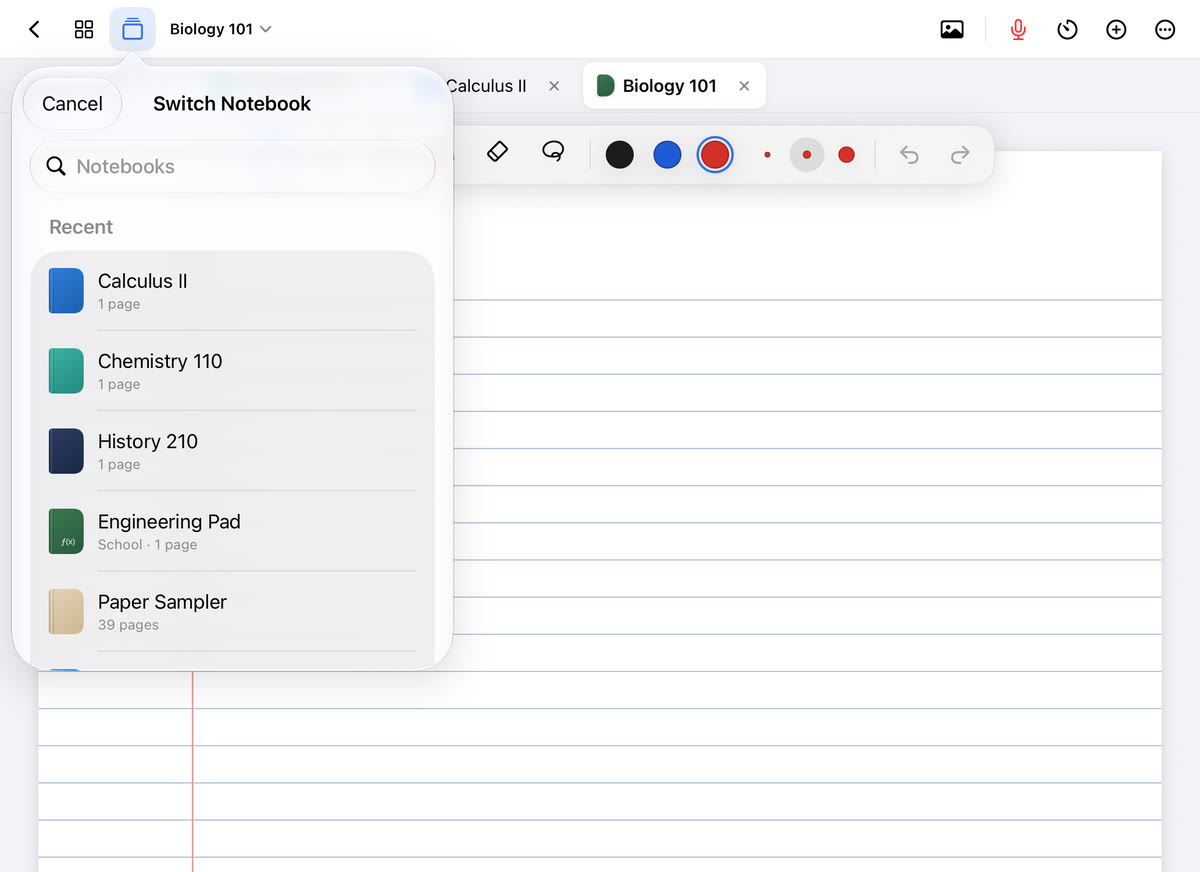
- Video and notes side by side. Use iPadOS multitasking to put the video next to Scribba. If you also want a reading or slides beside your notes, Split View can open a notebook in its own window. Keep other classes as tabs (up to 6) so switching doesn't mean going back to the library.
- Time on screen. Scribba hides the iPad status bar by default. If you want the clock visible during a live class, turn on Settings › Screen › Show Time and Battery.
A note on recording: Scribba records through the iPad's microphone. It isn't a way to capture audio from another app directly. If a live class plays from a laptop's speakers and you have permission, the iPad's mic will hear what's in the room, but the quality depends on volume and noise. For recorded course videos, you rarely need your own recording: the video already is one, and your timestamps point back into it. See how to record a lecture on iPad for how recordings link to your handwriting.
After the video ends
Close the video before you review. Then spend ten minutes filling the gaps you marked, writing a two-line summary, and turning the main ideas into questions. How to review your notes after class has a full routine.
Frequently asked questions
Is it better to type or handwrite notes in an online class?
Typing is tempting when you're already at a computer, but it makes word-for-word copying easy. Handwriting forces you to summarize, and it's better for diagrams. If you type, use the pause-and-recall steps anyway.
Can Scribba record the audio from a video on my iPad?
Scribba records through the iPad's microphone, so it isn't designed to capture another app's audio. For recorded course videos, write timestamps instead, so your notes point to the right spot in the video.
Should I take notes if the class is recorded anyway?
Yes. A recording you never rewatch doesn't help, and writing is what makes you think about the material. Notes with timestamps tell you which few minutes are worth rewatching.