 Scribba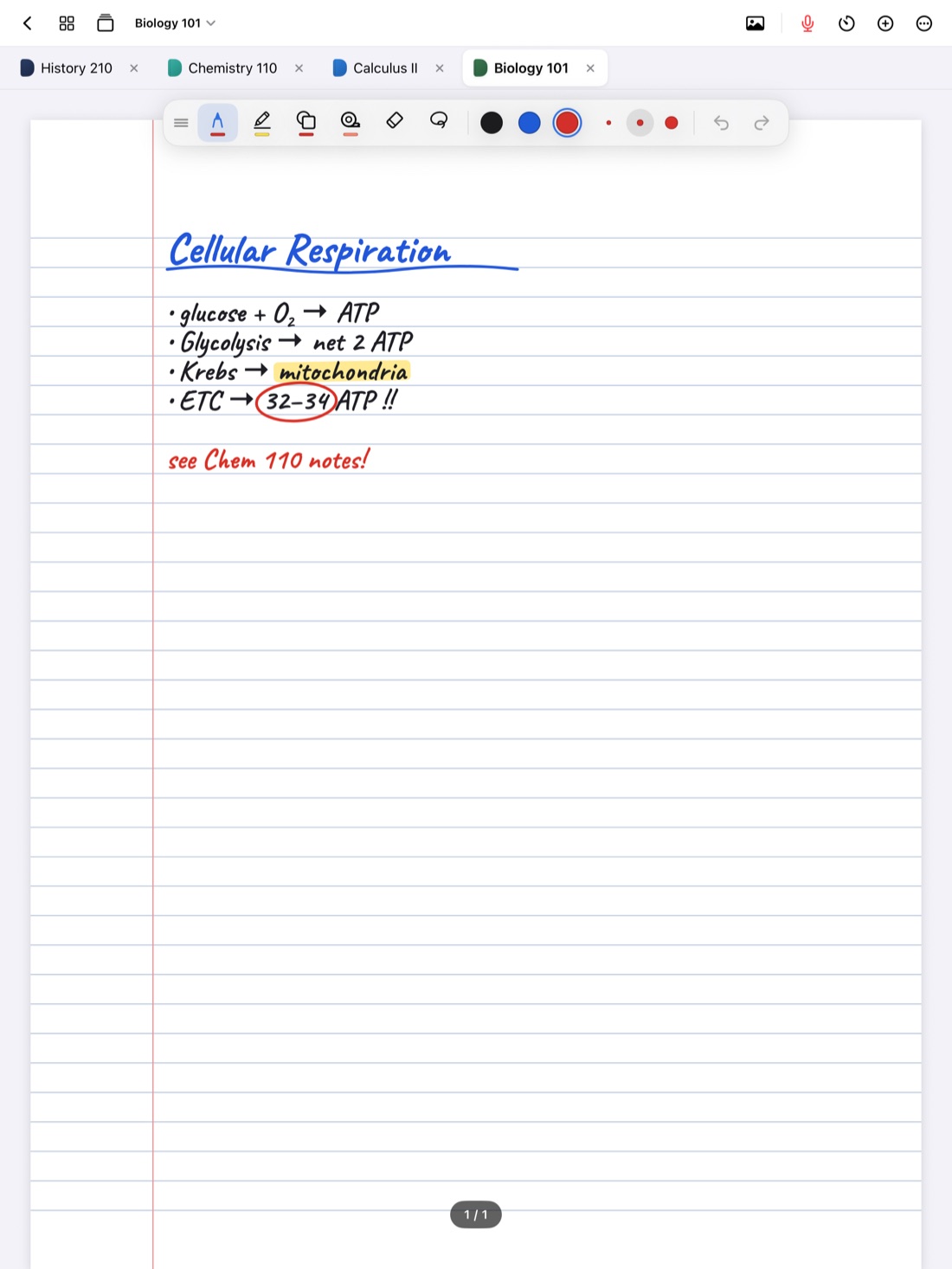
When a professor posts the slides, copying them by hand is wasted effort. The bullet points are already written. What the slides don't have is everything the professor says around them: the explanation, the example, the "this one will be on the exam."
Writing directly on the slides lets you spend class on that part. Here's a workflow that works in any app that can mark up PDFs, and how to do each step in Scribba.
Why write on the slides instead of copying them
Slides give you the outline of a lecture. Your notes should add what the outline leaves out:
- Explanations in your own words, especially for the slides that confused you.
- Examples the professor works through out loud.
- Emphasis. Anything the professor repeats, slows down for or says to remember.
- Connections between slides, like an arrow back to an earlier definition.
- Questions to look up or ask in office hours.
Be careful with highlighting. Highlighting a slide feels productive but doesn't add anything new. If you highlight, keep it for terms you'll need to define, and write something next to each one.
Before class: get the slides onto your iPad
- Download the slides from your course website and save them to the Files app. If they're posted as a slide deck instead of a PDF, open the file and export or share it as a PDF first.
- Import the PDF. In Scribba, you can import a PDF as a new notebook or into the notebook you have open.
- Skim them. Two minutes of flipping through tells you where the lecture is headed and which slides look dense. Those are the ones you'll want room for.
Which import option should you choose? If you keep one notebook per class, importing into the class notebook keeps slides and your own notes together in date order. A separate notebook makes more sense for a long reference deck you'll use for several weeks, or when a professor posts one big PDF for the whole course.
Tip: download slides the night before. Course websites can be slow on a crowded campus network, and you don't want to be waiting for a file when the lecture starts.
During class: make room for your notes
Slides rarely leave enough space to write. A few ways to make room:
- Use the margins for short notes and arrows. The Zoom Window in Scribba lets you write at a comfortable size in a magnified strip while your writing lands small on the page, which is ideal for tight margins. More in our Apple Pencil tips.
- Add a page between slides when one slide needs a full page of notes. In Scribba, add a new page (⇧⌘N on a keyboard), then drag it into place next to the slide in the page sidebar. You can change that page's paper to ruled or dot grid so it's easy to write on.
- Use text boxes or sticky notes for anything you'd rather type.
If you also record the lecture in Scribba, your handwriting is linked to the recording, so you can tap a note later to hear that part of class again. See how to record a lecture on iPad, and ask before recording, since policies vary by school, professor and location.
Keep slides beside your notes with Split View
Some students prefer to keep the slides clean and take handwritten notes in a separate notebook. That works well with the slides on one side of the screen and notes on the other.
In Scribba, you can open a notebook in its own window and use Split View to put your slides beside your notes. If you'd rather switch than split the screen, open both as tabs. Scribba keeps up to 6 notebooks open as tabs, and ⌘⇧[ and ⌘⇧] move between them on a keyboard.
Scan handouts with the camera
Not everything comes as a PDF. For paper handouts, worksheets and readings, use Scribba's camera to scan them into a notebook, then write on them like any other page. You can also turn photos into pages, which is handy for a whiteboard your professor filled during class.
Scanning a handout into the class notebook also means you can stop carrying loose paper. Once it's scanned and filed, it's with the rest of your notes for that class.
After class: organize, search and export
A slide deck you've written on is one of the best study tools you'll have, if you can find things in it later.
- Bookmark the key slides. In Scribba's page sidebar, give bookmarks names like "Week 3: enzymes" so the notebook's table of contents points to each topic.
- Fill gaps the same day. Go back to anything you marked with a question mark while the lecture is fresh.
- Search across everything. Text in your imported PDFs is searchable alongside your handwriting, typed text and lecture transcripts. Read more about how to search handwriting on iPad.
- Export as a PDF when you need a copy outside the app, for printing or to keep with your files. Scribba can export a whole notebook as a PDF, or you can select just some pages in the page sidebar and export those.
On iPads that support Apple Intelligence, with it turned on, Scribba can also pull key points from any page of notes. That's a quick way to check that your annotations caught the main ideas.
Before you share annotated slides with classmates, check your course's rules. The slides are your professor's work, and some prefer that they stay within the class.
For the rest of a note-taking routine, from setting up class notebooks to reviewing after class, see how to take notes on iPad in college.
Frequently asked questions
Can I write on PDF slides in Scribba?
Yes. Import the PDF as a new notebook or into the one you have open, then write, highlight and draw on it with any of Scribba's tools.
Can I add blank pages between slides?
Yes. Add a new page, then drag it next to the slide it belongs with in the page sidebar. You can change its paper to whatever suits your notes.
Is the text in my slides searchable?
Text that's part of the PDF is searchable in Scribba, along with your handwriting. Slides that were saved as pictures rather than text may not have any text to search, but your handwriting on them still is.
Can I export my annotated slides?
Yes. Export the whole notebook as a PDF, or select specific pages in the page sidebar and export just those.