 Scribba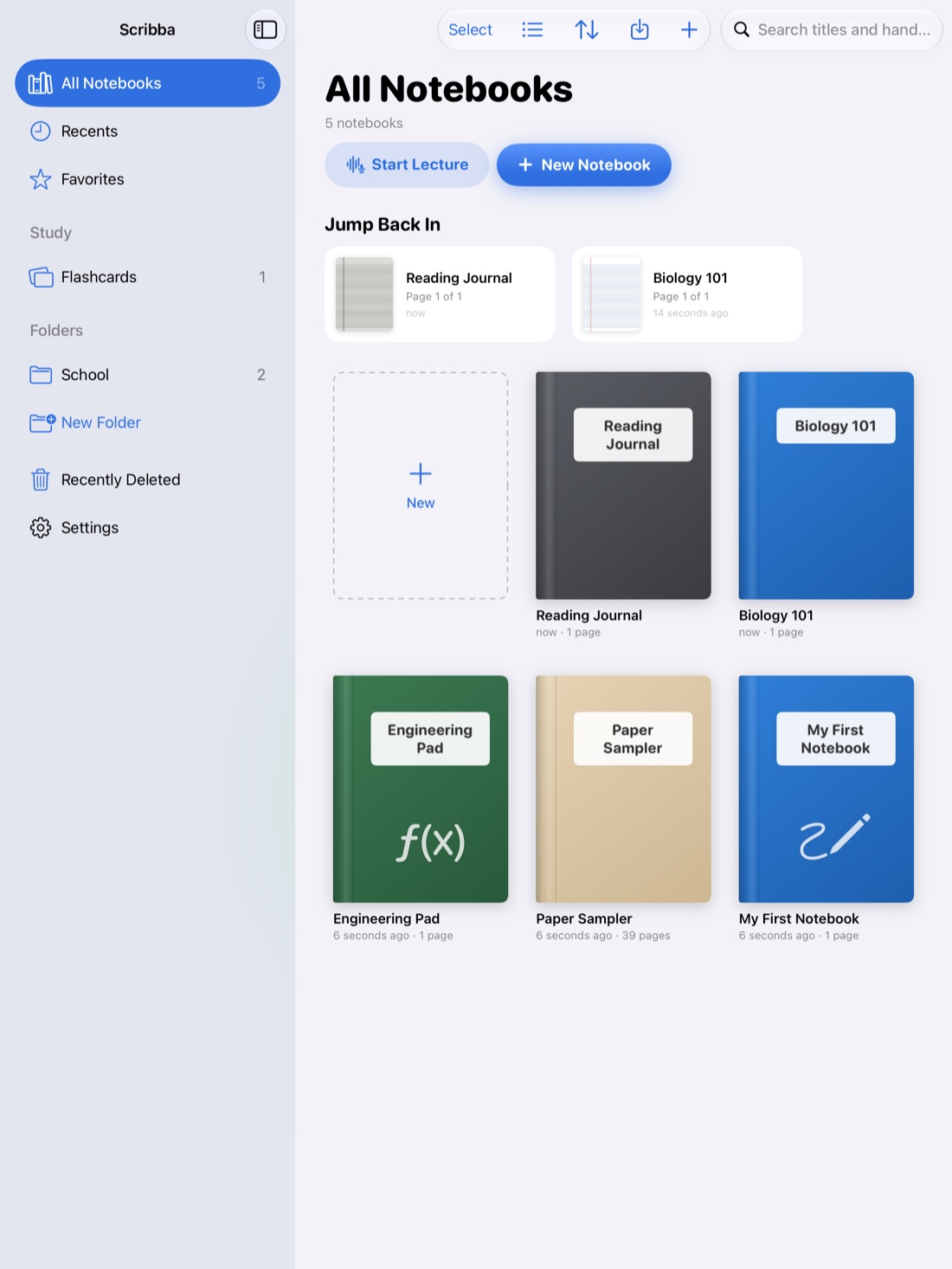
Paper notes have one big weakness: finding things. By November you have a stack of notebooks, and the one page where the professor explained what's on the midterm could be anywhere in them. You flip, skim, give up, and text a classmate.
Handwritten notes on an iPad don't have to work like that. With handwriting recognition, the words you write become searchable, so you can type "osmosis" and land on the page where you wrote it. Here's how that works, how to do it in Scribba, and how to write notes that are easy to find later.
How handwriting search works
When you write with an Apple Pencil, the iPad stores your strokes, not letters. Handwriting recognition looks at those strokes and works out which words they spell. That text is kept alongside your ink as an index, so the page still looks exactly like your handwriting, but a search can find the words in it.
Recognition is good, but it isn't magic. It does best with clear writing and common words, and it can struggle with very rushed scrawl, unusual abbreviations, symbols and words written at odd angles. That's why the way you write makes a real difference. More on that below.
In Scribba, handwriting recognition runs on the iPad itself. Your notes aren't uploaded anywhere to be read.
What you can search in Scribba
Scribba searches more than handwriting. One search covers:
- Handwriting on any page.
- Typed text in text boxes.
- PDF text, such as lecture slides you've imported. Import slides as a new notebook or into the one you're using, and their text is searchable along with your notes on them.
- Lecture transcripts. Recordings are transcribed, so you can search for something the professor said even if you never wrote it down.
Results open on the matching page, so you go straight from a search to the right spot. On a keyboard, ⌘F starts a search.
Search from the library or inside a notebook
There are two places to search, depending on how much you remember.
From the library. If you're not sure which notebook something is in, search from the library. Scribba looks across all your notebooks and shows where the word turns up. This is the one to use for "where did I write about the Treaty of Versailles?"
Inside a notebook. If you know the class, open its notebook and search there. Results are limited to that notebook, which keeps them short when a word comes up a lot in other classes.
Tip: search for the most unusual word you remember, not the most common one. "Phospholipid" finds the page faster than "cell."
If you just need to get to a notebook, not a word, the quick switcher (⌘O) shows your favorites and recent notebooks, with a search of its own.
Turn handwriting into typed text
Sometimes you need your notes as text, not ink. Scribba's handwriting to text takes the handwriting on a page and lets you copy it, share it, or place it on the page as typed text.
A few ways students use this:
- Pasting lecture notes into an essay outline or a study document.
- Sending a classmate notes from a class they missed.
- Turning a quick brainstorm into a typed to-do list.
Read the text over before you send it anywhere, especially names, numbers and technical terms, since recognition can miss a word here and there.
How to write notes that search well
These habits make your notes easier to search in any app, and easier to skim with your eyes too.
- Write key terms clearly. You don't need perfect handwriting everywhere, but slow down for the words you'll want to find later: names, terms, formulas written out in words.
- Spell out a term at least once. Abbreviations save time, but search can't guess what "ETC" stood for. Write "electron transport chain (ETC)" the first time, then abbreviate.
- Use headings. A short, clear heading for each topic gives search something to find, and gives you a structure when you skim.
- Label diagrams in words. A drawing of a neuron can't be searched, but the labels "axon," "dendrite" and "myelin sheath" can.
- Write the date and topic at the top of each page. Searching "week 5" or "photosynthesis" is much easier when every page starts with them.
- Keep words on a level line. Text written sideways, in tiny margins or on top of other marks is harder to recognize.
- Check spelling of names. If you're unsure how a name is spelled, check the slides after class and fix it, or you'll be searching for a misspelling later.
If writing small is what makes your handwriting hard to read, try Scribba's Zoom Window: you write large in a magnified strip and it lands small and neat on the page.
Organize so you know where to look
Search works best on top of a little organization. Keep one notebook per class, so a search inside a notebook stays focused. Name your bookmarks in the page sidebar, which turns them into a table of contents. If you record lectures, Start Lecture adds a dated, bookmarked page for each class, so the notebook lists every session automatically. And keep the notebooks you use most open as tabs, up to six at a time. For a full setup, see how to take notes on iPad in college.
When a word isn't in your notes at all, the recording often has it. See how lecture transcripts work.
Frequently asked questions
Is my handwriting sent anywhere to be recognized?
No. Handwriting recognition in Scribba runs on the iPad, so your notes stay on your device and, if you turn it on, your private iCloud.
Can I search text in my lecture slides?
Yes. Text in imported PDFs is searchable, along with anything you've written on them. See how to annotate lecture slides on iPad.
Can Scribba read messy handwriting?
It reads clear handwriting best, and very rushed writing is harder for any recognizer. Writing key terms and headings clearly is the most reliable way to make sure search finds them.