 Scribba
A bullet journal is a notebook you build as you go. There are no printed pages for Monday or for goals. You log tasks, events and notes in short lines, give each one a symbol, and once a month you sweep through and decide what still matters. The method was created by designer Ryder Carroll, and it caught on because it bends to fit whatever your life looks like that semester.
Moving it to an iPad makes some things easier, like moving a task without rewriting it. But the chore of rewriting is part of what makes the method work. This guide covers both sides.
The four parts of a bullet journal
- Rapid logging: short entries, one per line, each with a symbol.
- The key: the symbols you use, and what they mean.
- Collections: pages grouped by topic, like a monthly log or a reading list.
- Migration: the regular review where unfinished tasks move forward or get crossed off.
Everything else, from habit trackers to decorated spreads, is optional.
Rapid logging
Rapid logging means writing in bullets instead of sentences. "Email Prof. Lin re: extension", not "I need to remember to email Professor Lin about getting an extension." Each line gets a symbol that says what kind of entry it is. The classic set is small:
- • a task
- ○ an event, like a lab or a club meeting
- – a note: something to remember that you don't need to act on
When a task changes, you change its symbol instead of writing a new line. An X over the dot means done. > means you moved it forward (migrated). < means you scheduled it into a future month. A line through the whole entry means it no longer matters.
The point is speed: you should be able to log something in the three minutes between classes.
Build a key that fits school
The standard symbols cover most of life. College adds a few things worth marking. Keep your additions few, because every symbol is something you have to remember.
- \* in front of a task for priority, like anything due this week.
- ! next to a note for an idea worth coming back to.
- A short class code, like "BIO" or "ECON", so you can scan a day's tasks by course.
Write your key on a page near the front. On an iPad you can also make color part of the key, for example one ink color per class. Pick your colors once and don't change them mid-semester, or old pages stop making sense.
Collections: the pages that hold it together
The traditional setup has four core collections:
- Index: a table of contents you update as you add pages.
- Future log: the coming months, for dates further out than this month.
- Monthly log: the month's dates down the page, plus a task list.
- Daily log: today's date, then rapid logging as the day happens.
For school, a few custom collections earn their place: every exam and due date from your syllabi, a reading list, questions to ask at office hours, and a running list for each group project. Give each collection its own page instead of burying it inside a daily log.
Migration: where the method does its work
At the end of each month, go through every open task and decide whether it's still worth doing. If yes, carry it into next month's log and mark the old one with >. If it belongs to a later month, move it to the future log and mark it <. If no, strike it out.
On paper, rewriting is the filter. Copying a task by hand is just annoying enough that you drop the ones that don't matter. On an iPad it's easy to move an item without rewriting it, which is convenient and also a trap. If a task keeps migrating month after month without getting done, ask whether it belongs on the list at all.
Tip: migrate on the same day each month, like the last Sunday. Write it on your monthly log so it actually happens.
Setting up a bullet journal in Scribba
Scribba is an iPad notes app for students, and it has a Bullet Journal paper: a DATE line at the top over a 5 mm dot grid. The dots give you rows for rapid logging and columns for lining up symbols, without lines getting in the way of a tracker or a sketch. For more on why that grid works so well, see dot grid notes on iPad.
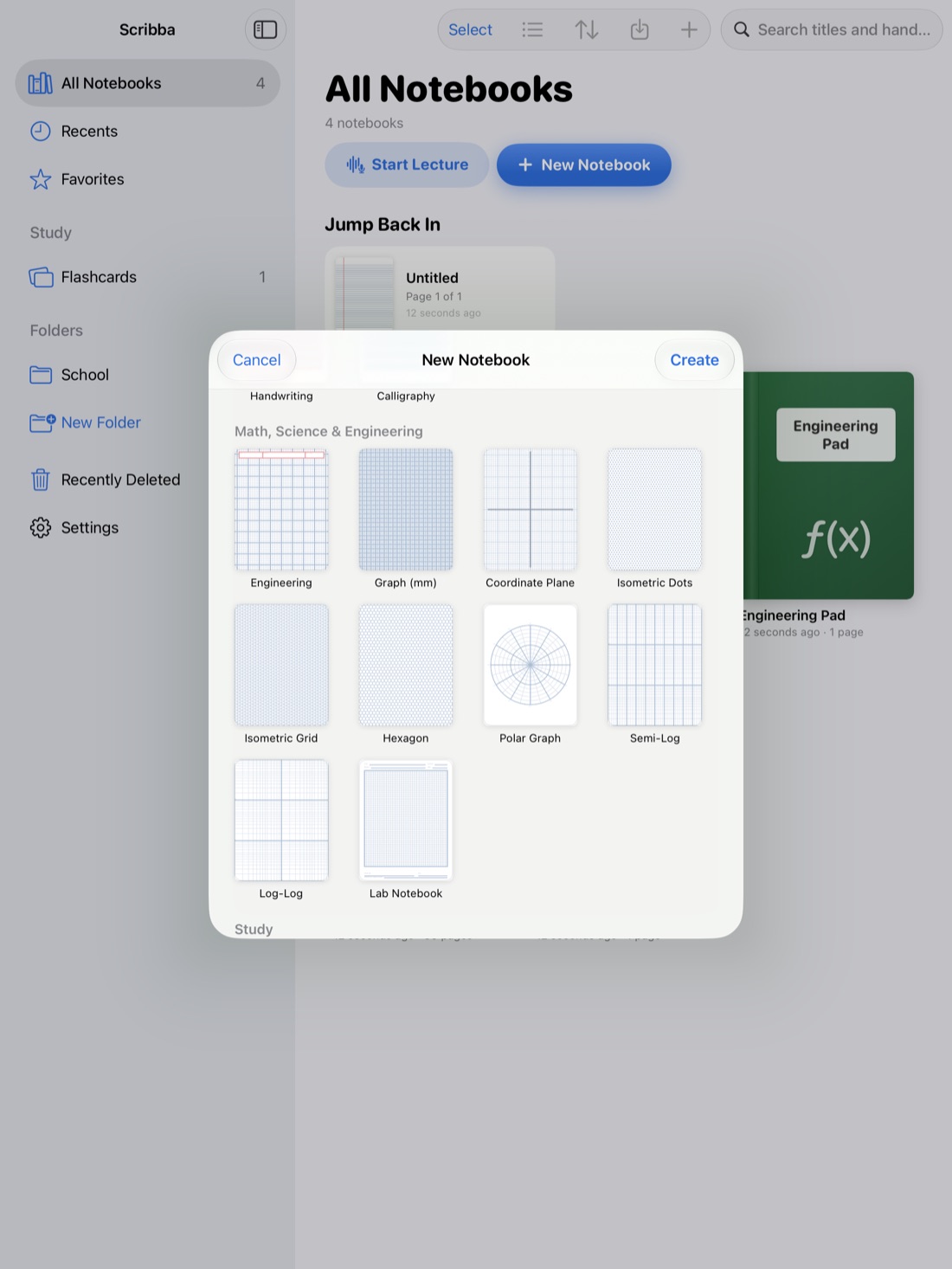
- Create a notebook for your journal. Orientation and page size are chosen per notebook when you create it, so decide now. Portrait is the classic journal shape.
- Pick Bullet Journal paper. It's in the Writing & Journaling section of the paper picker.
- Pull past the last page whenever you need a new one.
- When a collection needs a different layout, change that page's paper from the page sidebar.
That last step is where a digital journal pulls ahead. A collection doesn't have to be dot grid. Use Monthly Calendar paper for a monthly log, Habit Tracker (a HABIT column and 31 day columns) for habits, or To-Do List for a long checklist. If you'd rather not draw calendars at all, Scribba can generate dated planner pages with a month calendar and weekly spreads. See how to set up an iPad planner for the school year.
Index, migration and search on iPad
- Index with bookmarks. The page sidebar lets you add named bookmarks, which become the notebook's table of contents. Bookmark each collection and each month's log, and your index keeps itself.
- Reorder pages. On paper, collections end up scattered between daily logs. In the page sidebar you can reorder pages, so all your collections can sit together at the front.
- Move items with the lasso. The lasso picks up handwriting so you can move it. Use it to drag a task to a new spot, but still mark the old one with > so your record stays honest.
- Search your handwriting. Search reads handwritten words across the notebook, so "Lin" turns up every note about that professor's office hours without paging back.
- Keep it private. If your journal mixes personal notes with school, you can lock the notebook with Face ID, Touch ID or a passcode. See how to lock notebooks with Face ID.
Keep it plain
Decorated spreads look great online, but a journal that takes an hour a week to maintain usually gets abandoned by midterms. Start with the core collections and the basic key, and add a tracker or symbol only when you need it.
Frequently asked questions
Is a digital bullet journal as good as paper?
It depends on what you value. Paper has the rewriting step during migration. An iPad gives you bookmarks, searchable handwriting and pages you can rearrange, and it's one less notebook to carry if you already take class notes on it.
What paper should I use for a bullet journal on iPad?
Dot grid is the standard because it works for both writing and drawing. Scribba's Bullet Journal paper is a 5 mm dot grid with a DATE line, and you can switch single pages to calendar, habit tracker or to-do paper.
Should my bullet journal and class notes share a notebook?
Usually not. Keep the journal in its own notebook so it stays quick to open, and keep a notebook per class for notes. Copy tasks from lectures into your daily log.