 Scribba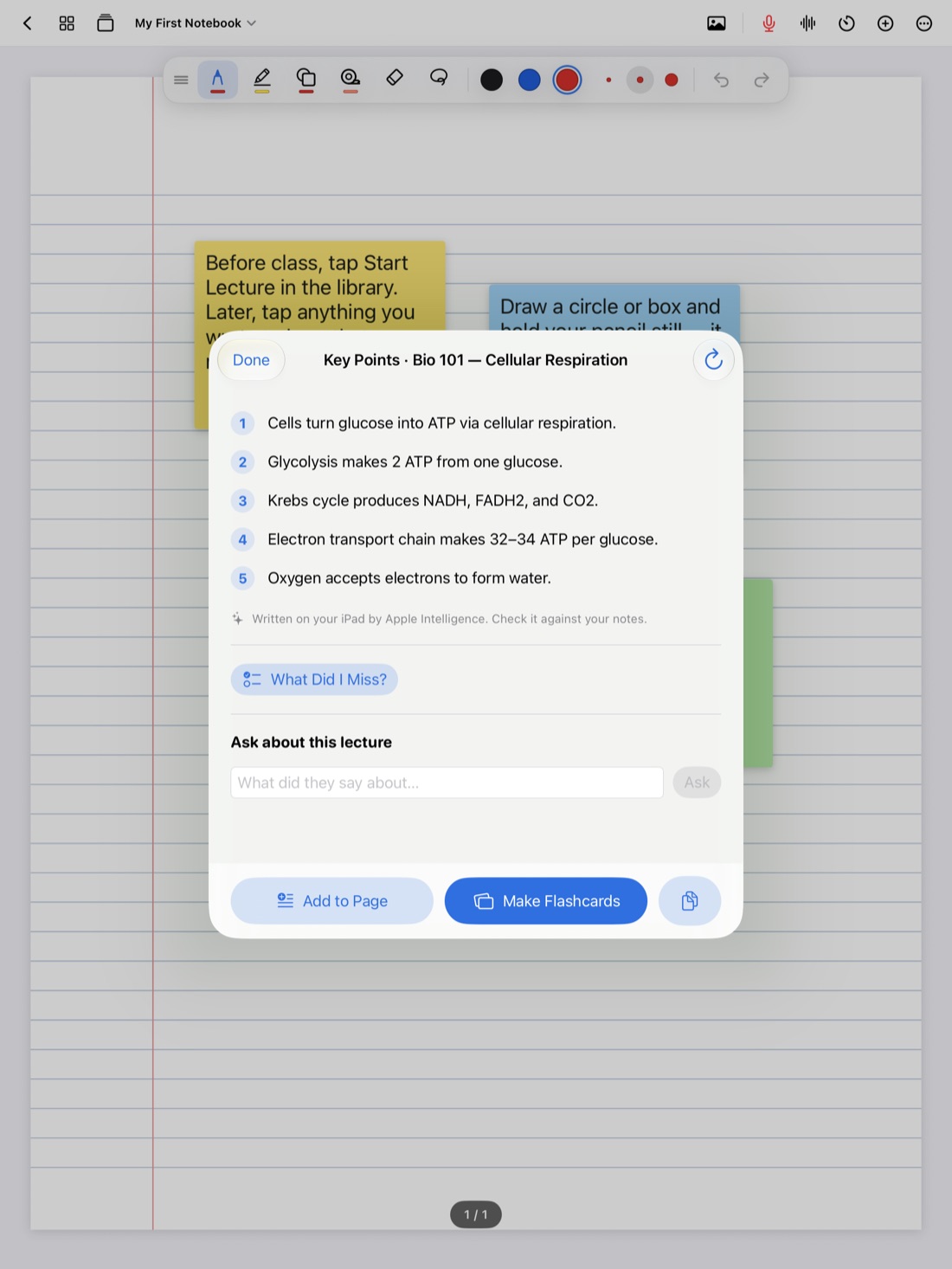
After an hour of lecture, you have pages of notes and a vague sense of what mattered. The hard part of reviewing isn't reading those pages again. It's deciding what the main ideas were, so you know what to study and what to skip.
AI summaries can help with that first step. Used well, they give you a short list of what the lecture covered, which you can check against your notes and build on. Used badly, they become a shortcut that skips the thinking that makes you remember anything. This guide covers both: how to use a lecture summary well, and how Scribba writes key points for you on the iPad, without uploading anything.
What a good lecture summary does
A useful summary of a lecture is short. It names the handful of ideas the class was really about, in plain words, so you can see the shape of the lecture at a glance. It doesn't replace your notes. Your notes have the examples, the diagrams and the little asides that make an idea click.
Think of key points as a table of contents for the lecture. They tell you what to look for. Your notes and the recording are where the actual learning lives.
How to use AI summaries well
AI summaries are a starting point, not an answer key. A few habits keep them honest:
- Try to recall first. Before you read the key points, close your notes and write down the three or four main ideas you remember. Then compare. Pulling ideas out of memory is one of the best-established ways to make them stick, and reading a summary first takes that chance away.
- Check every point against your notes. If a key point matches something you wrote, good. If it doesn't, go back to the recording and find out who's right.
- Watch for what's missing. A summary can't always tell when the professor said "this will be on the exam" or spent ten minutes on one example. Emphasis matters, and you were in the room.
- Watch for what's wrong. AI can misread a sentence or blur two ideas together. Treat anything surprising as something to verify, not something to memorize.
- Rewrite in your own words. Copying key points into your notes word for word doesn't do much. Rephrasing them, or adding an example, does.
- Keep going to class. A summary of a lecture you didn't attend is a list of words without the context that makes them mean something.
Tip: the gaps between your notes and the key points are the most useful part. They show you exactly what to review. That's what What Did I Miss? is built around.
Key points in Scribba
Scribba is an iPad notebook that records the lecture while you write, and transcribes each recording afterward. On iPads that support Apple Intelligence, it can also write the key points of a lecture or a page of notes.
These features need an iPad that supports Apple Intelligence, with Apple Intelligence turned on, running iPadOS 26.
Written automatically after each lecture
You don't have to ask for a lecture's key points. Once a recording has been transcribed, Scribba writes its key points automatically from the transcript. When you open the lecture after class, they're already there.
Because the key points come from the transcript, they cover what was said, including things you didn't have time to write down. Our guide to lecture transcripts explains how transcription works.
From any page of notes
Key points aren't only for recordings. You can also get them from any page of notes. This is useful for a page you wrote from the textbook, notes you took in a class you didn't record, or a dense page you want to boil down before an exam.
Lectures named after their topic
A notebook full of pages called "Lecture" isn't easy to navigate. When Scribba writes a lecture's key points, it also names the recording and that day's page after the lecture's topic. If you use Start Lecture, each class also gets its own dated, bookmarked page, so you can find any lecture from the notebook's table of contents and see at a glance what it was about.
Private by design
Scribba's Apple Intelligence features run on the iPad itself. Your notes and transcripts aren't uploaded to write key points, and there's no per-use cost or monthly AI fee. Scribba collects no data and doesn't use cloud AI services.
If you'd rather not use these features at all, turn them off in Settings › Apple Intelligence.
What to do with key points
Key points are most useful as the start of a study session, not the end of one. A few ways to use them:
- Find your gaps. Tap What Did I Miss? to compare the key points with what you wrote during the lecture, and see what your notes left out.
- Make flashcards. Tap Make Flashcards to turn the lecture into a deck you can review with spaced repetition. More in flashcards from handwritten notes.
- Build a study guide. Before an exam, Scribba's Study Guide gathers the key points of every lecture in a notebook onto one sheet. See how to study for finals with iPad notes.
- Ask a question. If a key point is vague, you can ask the lecture and play the moment the professor explained it.
Frequently asked questions
Are AI key points always accurate?
No. They're usually a good outline, but AI can miss emphasis or get a detail wrong. Check each point against your notes and the recording before you study from it.
Does it work in Spanish?
Yes. Scribba's Apple Intelligence features work in English and Spanish, and write in the language Scribba is showing.
Is my lecture sent to a server to be summarized?
No. Key points are written on your iPad with Apple Intelligence. Nothing is uploaded to write them.
What if my iPad doesn't support Apple Intelligence?
You can still record, read transcripts, search what was said, and make flashcards from Vocabulary and Cornell Notes pages. Key points need Apple Intelligence.