 Scribba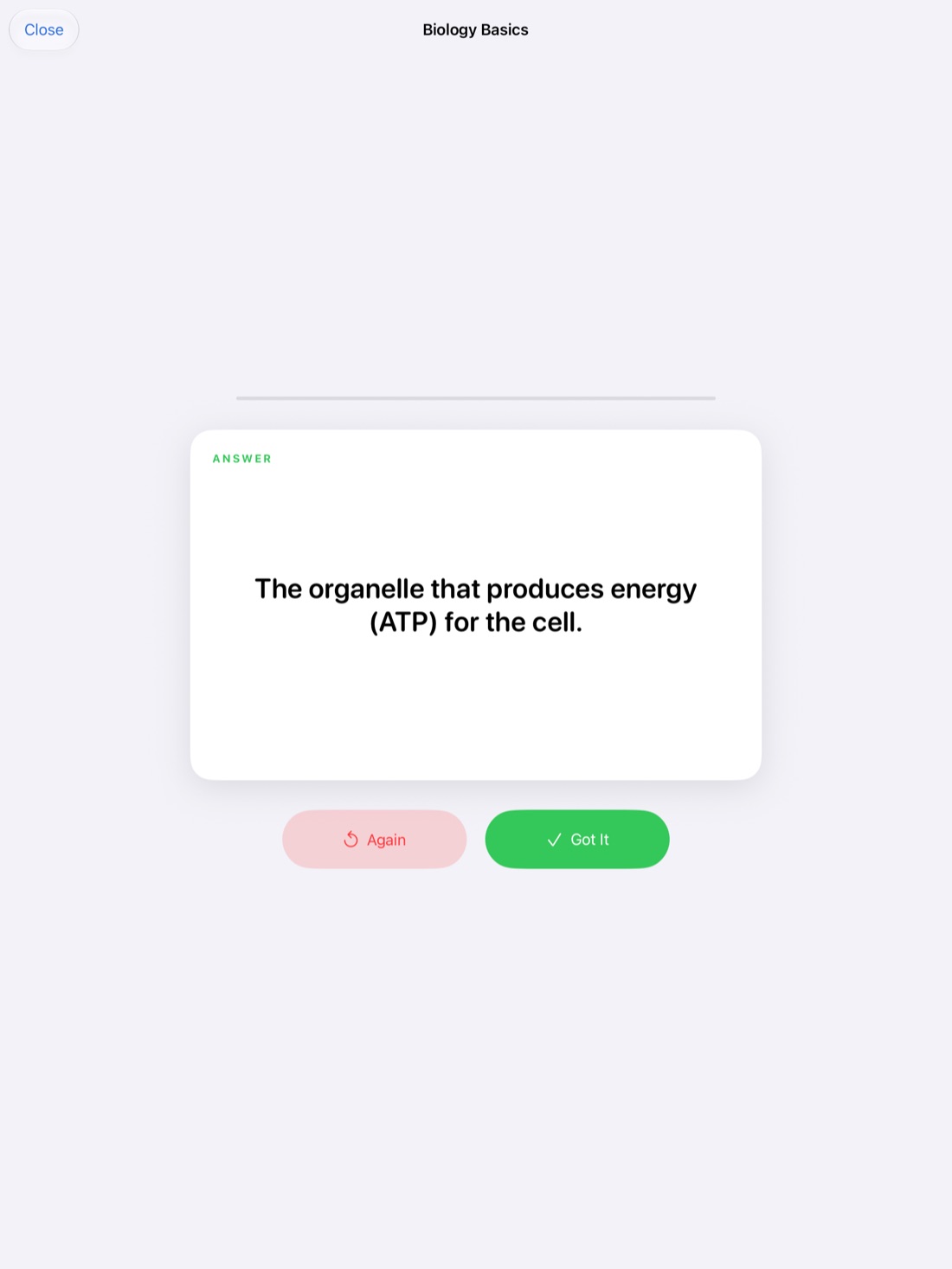
Flashcards are one of the best ways to study, and making them is one of the most tedious parts of college. You already wrote the term and its definition once, in class. Typing all of it again into a flashcard app eats an evening you could have spent actually studying.
This guide covers how to write cards that are worth studying, how to shape your notes so they turn into a deck, and how Scribba makes flashcards straight from your handwriting.
Why flashcards work
A flashcard makes you pull the answer out of memory before you see it. That effort is called active recall, and it's what makes information stick. Rereading notes feels productive because everything looks familiar, but recognizing something isn't the same as remembering it. A card that asks "What does the Golgi apparatus do?" tells you right away whether you know.
Flashcards also pair well with spaced repetition: reviewing each card just as you're about to forget it. We cover that in how spaced repetition works.
How to write good flashcards
A deck is only as good as its cards. These habits apply in any app, or on paper:
- One idea per card. If the answer has four parts, make four cards, or one card that asks for the list and separate cards for each item.
- Ask a real question. "Krebs cycle" on the front invites a vague answer. "Where in the cell does the Krebs cycle happen?" has one clear answer you can check.
- Keep answers short. If you can't say the answer in a sentence, the card is trying to do too much.
- Use your own words. Copying the textbook definition word for word lets you memorize phrasing without understanding it.
- Go both ways when it matters. For a language class, it helps to practice from Spanish to English and from English to Spanish.
- Add context to look-alikes. If two terms are easy to mix up, mention the difference on the back of each card.
Tip: make cards the same day as the lecture, while you still remember what the professor stressed. A card you write a week later is usually vaguer.
Shape your notes so they become cards
The easiest flashcards come from notes that are already shaped like cards: a prompt on one side, an answer on the other. Two page layouts do this naturally.
- Vocabulary lists. A term in one column and its meaning in the next. Every row is a card waiting to happen. This works well for biology terms, historical figures, legal concepts and foreign-language words.
- Cornell notes. A narrow cue column on the left holds questions or key words, and your notes sit beside them. Each cue is a ready-made question. If you haven't tried the method, read how to take Cornell notes on iPad.
Even if you don't use either layout for everything, it's worth switching to one for the parts of a class you know you'll need to memorize.
Turn handwritten notes into flashcards in Scribba
Scribba has Vocabulary and Cornell Notes paper built in. When you write on either one, Scribba reads your handwriting and turns each vocabulary row, or each Cornell cue, into a card. This doesn't need Apple Intelligence, so it works on any iPad that runs Scribba.
- Add a Vocabulary or Cornell Notes page. Pick the paper in the paper picker, or change an existing page's paper from the page sidebar.
- Write your notes: a term and its meaning on each vocabulary row, or questions and key words in the Cornell cue column.
- Ask Scribba to make flashcards from the page. It reads your handwriting and lays out each card.
- Review the cards and fix any words. Handwriting recognition is good but not perfect, especially with abbreviations, chemical formulas or a rushed scrawl at the end of class. Correct anything it misread before you study.
- Study the deck. Say each answer before you flip the card, so you know whether you really knew it.
Because Scribba reads the handwriting itself, you keep writing the way you normally do. There's no separate typing step and no second app.
Flashcards from any page or lecture
Not every class fits a vocabulary list. On an iPad that supports Apple Intelligence, with it turned on, Scribba can also write flashcards from any page of notes or from a lecture's transcript. That covers the messy pages: a page of diagrams and arrows, a problem walkthrough, or a lecture where you were too busy listening to write much.
There are a few ways in. You can make cards from a page or a recorded lecture directly. A lecture's key points have a Make Flashcards button, and a notebook's Study Guide, which gathers the key points of every lecture in it, can also become a deck. See key points from lectures for how those are written.
These features run on the iPad itself, so your notes and recordings aren't uploaded anywhere. Treat the cards they write as a first draft: read them through and check them against your notes before you trust them for an exam.
Study, then export if you want
Every deck in Scribba uses spaced repetition, so cards come back after 1, 3, 7, 14 and 30 days instead of all at once. When you sit down to study, you can study all your due cards at once rather than opening deck after deck.
If you also study on your phone, or share decks with a study group, you can export a deck to Quizlet or Anki. That's also handy since Scribba runs only on iPad.
Tip: once you've made the cards, cover the answers on the original page with study tape too. Quizzing yourself on the full page, diagrams included, catches things a single card can't.
Frequently asked questions
Do I need Apple Intelligence to make flashcards?
No. Flashcards from Vocabulary and Cornell Notes pages work on any iPad that runs Scribba. Only cards made from any page or from a lecture transcript need an iPad that supports Apple Intelligence, with it turned on.
What if Scribba misreads my handwriting?
You review the cards before you study them, so you can fix any word it got wrong. Writing key terms clearly, and spelling them out at least once instead of abbreviating, helps recognition a lot.
Can I use my cards in Quizlet or Anki?
Yes. Export a deck from Scribba to Quizlet or Anki and keep studying there.