 Scribba
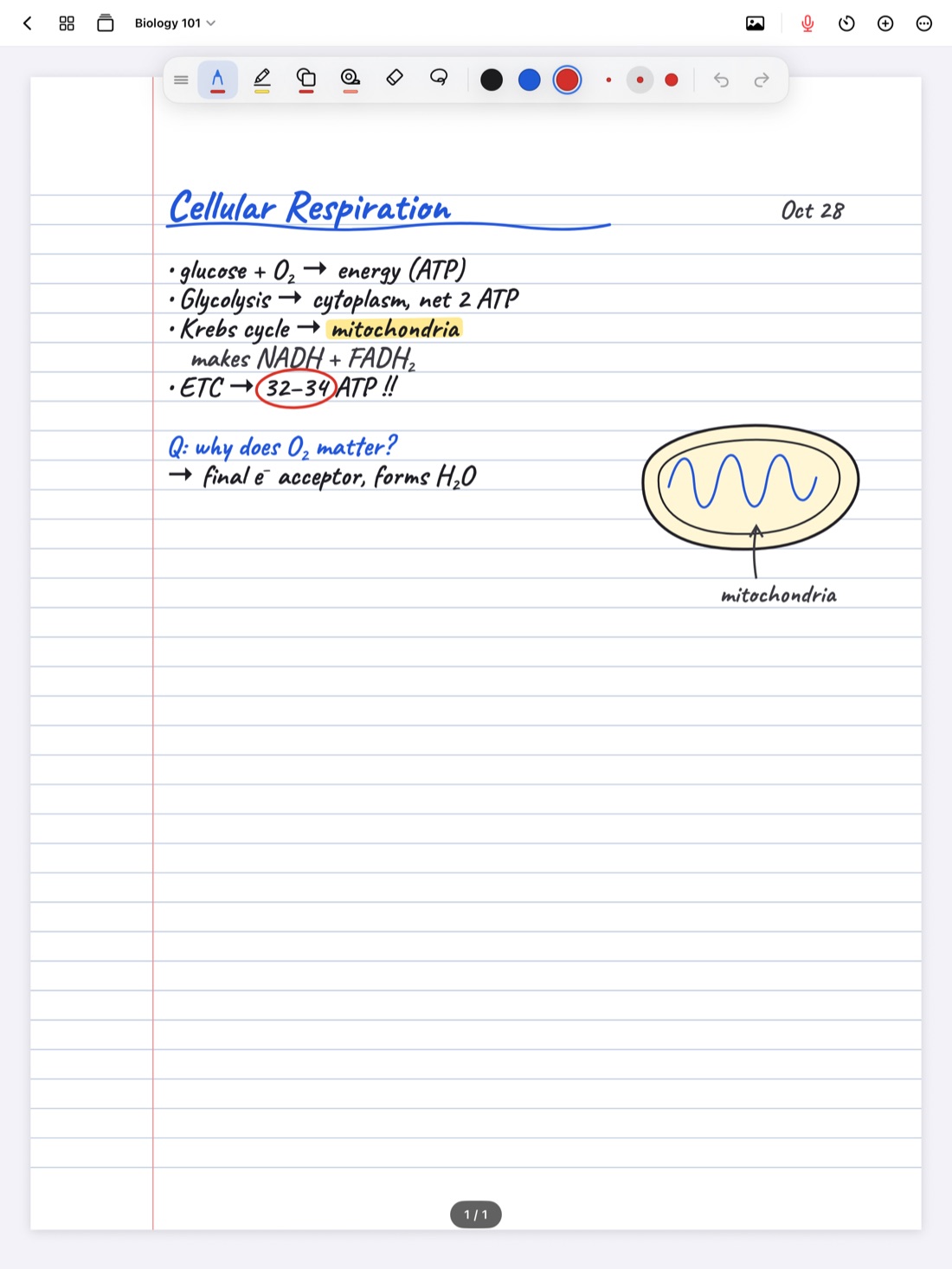
An iPad is a great notebook. It's also a device built to show you messages, videos and everything else on the internet. In class, those two jobs compete. One banner about a group chat, one quick look at a website, and ten minutes of lecture are gone.
The fix isn't willpower. It's setting up your iPad so the distractions don't show up in the first place, and having a plan for the moments when your attention wanders anyway. Most of this works with any notes app.
Silence notifications with a Focus
Notifications are the biggest source of interruptions, and they arrive whether you're paying attention or not. iPadOS has a built-in answer: Focus modes.
A Focus silences notifications while it's on, except from the people and apps you choose to allow. You'll find Focus in the Settings app, and you can turn one on quickly from Control Center.
A few ways to set it up for class:
- Use Do Not Disturb as a quick option. It silences nearly everything.
- Create a dedicated Focus for class, and allow only the people who might really need you, like family in an emergency.
- Schedule it. A Focus can turn on automatically at set times, so it can match your class schedule and you don't have to remember.
- Turn off banners and badges for social apps in their notification settings, so they stay quiet even when a Focus isn't on.
Focus settings can share across your Apple devices, so silencing your iPad can silence your phone too. Check how yours is set up.
Keep one app on screen
Every visible app is a reason to tap somewhere else. During a lecture, keep your notes app full screen and close anything else that's floating around.
- Avoid Split View and Slide Over unless you need two things side by side, like slides next to your notes. A browser sitting beside your notebook is too easy to wander into.
- Get everything into one place before class. If the slides are in your notebook, you don't need to open the course website mid-lecture. See how to annotate lecture slides on iPad.
- Close browser tabs you won't need in class, so there's nothing half-read waiting for you.
Tidy the home screen and set limits
What you see when you leave your notes app matters too.
- Move social and video apps off the Dock and off the first home screen. A folder on a later page adds a small pause before opening them.
- Use Screen Time to limit distracting apps, if you want a harder stop. You'll find it in the Settings app.
- Consider Guided Access for exams or very important lectures. It's an accessibility feature that keeps the iPad in one app until you end it. Look for it in Settings under Accessibility.
Prepare before class
Many distractions start with a small, legitimate task: checking the syllabus, finding the slides, looking up a reading. Do those before class.
- Charge your iPad and Pencil so you're not hunting for a cable.
- Download the slides and put them where you'll write.
- Open the right notebook to a fresh page.
- Turn on your class Focus if it isn't scheduled.
- Put your phone in your bag, not face down on the desk.
When the urge hits anyway
Your mind will wander. The goal is to come back quickly.
- Write it down instead of acting on it. Keep a small "later" list in the corner of the page. "Reply to Sam," "look up that movie." Once it's written, it's easier to let go.
- Mark where you drifted. A question mark in the margin tells you where to fill in later, so you don't spend the next five minutes trying to reconstruct the bit you missed.
- Sit nearer the front. It's harder to drift when the lecture fills more of your view, and fewer screens are in front of you.
Tip: if you finish class with a "later" list, deal with it in the first few minutes after. Then it doesn't follow you into your study session.
How Scribba keeps the screen quiet
Scribba is an iPad notebook for class, and a few of its defaults help you stay on the page.
- No status bar. Scribba hides the iPad's status bar by default, so your notes get the whole screen and the clock isn't there to check every few minutes. If you want the time and battery back, turn on Settings › Screen › Show Time and Battery.
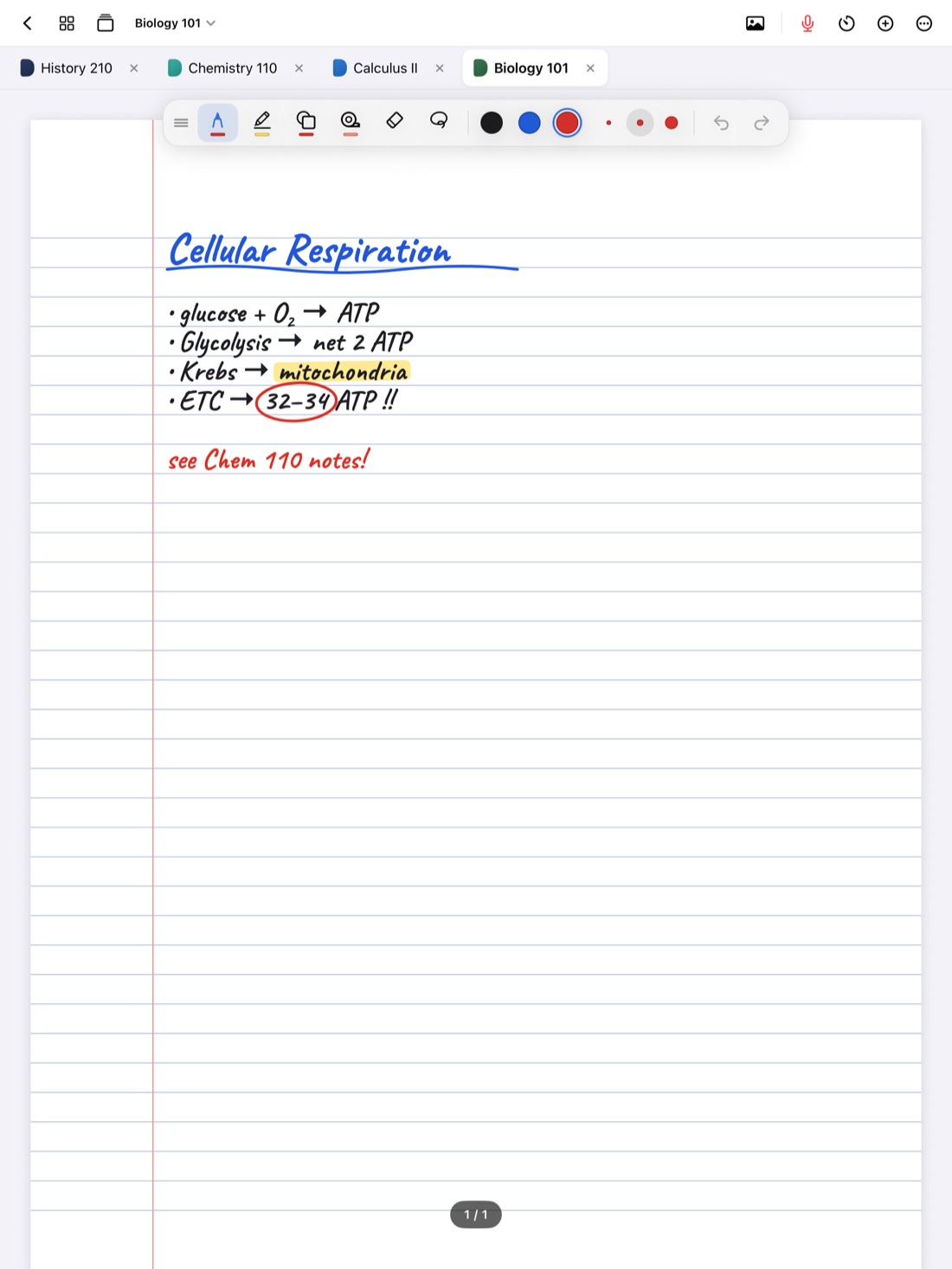
- Classes as tabs, not apps. Up to six notebooks stay open as tabs, so moving between your lecture notes and the reading doesn't mean leaving the app. Press ⌘O for the quick switcher if you use a keyboard.
- Slides inside the notebook. Import PDF slides as a notebook or into the current one and write on them, so you don't need a second app open. If you do want slides beside your notes, Split View can open a notebook in its own window. See Split View for notes on iPad.
- No ads, no account, nothing to sign in to. Scribba opens straight to your library.
- Recording keeps going if the screen locks. If you record (with permission), you can lock the iPad during a discussion and nothing stops.
For studying after class, Scribba's focus timer is a Pomodoro timer that follows you between notebooks. How to use a Pomodoro timer for studying covers how to plan sessions with it.
Frequently asked questions
Can I still get emergency calls with a Focus on?
Yes, if you allow them. When you set up a Focus, you can choose which people can still reach you. Check your Focus settings to make sure the right people are on the list.
Is it better to just use paper?
For some people, yes. But an iPad with notifications silenced and one app on screen is close to paper, and you keep searchable notes, recordings and slides in one place.
How do I see the time in Scribba?
Scribba hides the status bar by default. Turn on Settings › Screen › Show Time and Battery to show it.