 Scribba
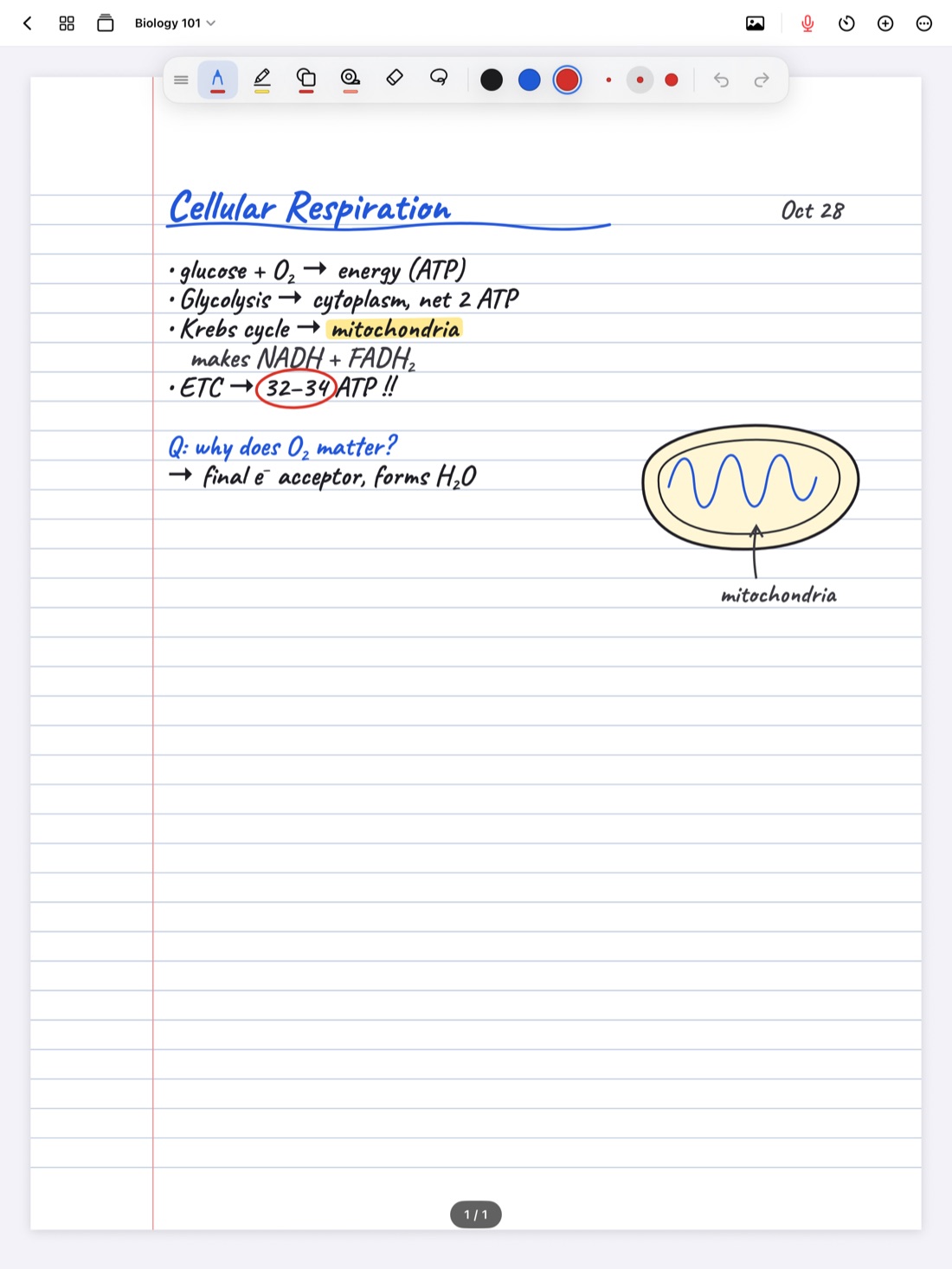
If you're left-handed, you probably know the paper notebook problems by heart. Spiral rings dig into your wrist. Ring binders are in the way of every other page. Ink smears across your hand as you write left to right, and the side of your palm turns gray from pencil by the end of a lecture.
An iPad removes several of those problems at once and brings a couple of new ones. This guide covers both, with general tips for any left-handed writer and the specific settings that help in Scribba.
What an iPad fixes for lefties
A few paper problems simply go away:
- No smudging. Digital ink is dry the moment it appears. Your hand can drag across a line you just wrote and the line stays sharp, and your palm stays clean.
- No spiral or binder rings. The page has no binding side, so writing near the left edge is as comfortable as writing near the right.
- No "wrong side" notebooks. You can move tools and angle the screen to suit your hand instead of a right-handed default.
If you've built habits around smudging, like hovering your hand above the page or writing very fast to let ink dry, you can start letting them go.
What's still tricky
Your hand still covers what you just wrote. Writing left to right with the left hand means the hand trails over the words before them. Ink won't smear, but you can't see the last few words while you're writing the next ones.
And tools placed for a right-handed writer can end up right under your palm, where you bump them by accident.
The rest of this guide is about those two things.
Put the tools where your hand isn't
Watch where your hand rests during a normal minute of writing. That's where the toolbar shouldn't be.
For many left-handed writers who write with the hand below the line, the palm rests to the lower left of the pen. Tools on the left edge or along the bottom get bumped. For "hook" writers, who curl the wrist so the hand comes from above the line, the top of the screen is the danger zone instead.
In Scribba, the tool palette floats. Drag it to the top, bottom or either side of the screen:
- Underwriters often do best with it at the top or on the right.
- Hook writers often prefer it at the bottom or on the right.
Try a position for a full lecture before deciding. A spot that feels odd at first is often fine once your eyes learn where it lives. If the palette still feels crowded, Customize Toolbar in the More menu lets you hide buttons and tools you never use. See customizing the toolbar and palette.
Angle the iPad like your paper
Left-handed writers are often taught to turn paper clockwise, tilting the top of the page to the right, so the hand sits below the line instead of over it. You can do the same with an iPad.
- Lock the screen rotation first, from Control Center, so the display doesn't flip when you tilt the iPad.
- Turn the iPad to the angle you'd use for paper, often more than feels normal on a desk.
- Use a low stand if you like a tilt toward you as well. A flat iPad on a desk often feels better for left-handed writers than a steep one.
This one change often fixes hook writing on its own. When the page is angled well, the wrist doesn't need to curl to see the line.
Hook writing is fine, but rest your hand
Many lefties hook because it keeps the hand out of wet ink. On an iPad that reason is gone, so if you want to unlearn the hook, this is the easiest place to try. If you don't, that's fine too: there's nothing wrong with hooking on a screen.
Either way, rest your hand on the glass. iPads are designed to ignore your palm while you write with an Apple Pencil, so you don't need to hover. Hovering tires your wrist and makes letters shakier.
In Scribba, if you write with a Pencil, leave Settings › Draw with Finger off, so only the Pencil writes and a stray knuckle doesn't leave marks.
Pen settings that steady push strokes
Right-handed writers mostly pull the pen across the page. Left-handed writers push it, which can make strokes catch, skip or wobble, especially on slippery glass. Two settings help:
- Stabilization smooths small wobbles. In Scribba, double-tap the pen tool to open pen settings and raise stabilization a little at a time. Too much can make the line feel like it lags behind the tip.
- Pressure sensitivity varies the line with how hard you press. If your push strokes come out uneven, try turning it down.
The pen type matters too. A fineliner or ballpoint keeps an even line however you move, while a fountain pen or brush shows more variation. Test a few at your normal lecture speed. More in how to write neater on iPad.
Tip: a matte screen protector adds friction, which some left-handed writers find helps with push strokes that skate on glass. Try the pen settings first, since they cost nothing.
Seeing what you just wrote
Since your hand hides the last few words, a couple of habits help:
- Write in the upper part of the screen, then scroll the page up as you go. Your hand covers less of what you've written above.
- Use the Zoom Window. In Scribba, open it from the + menu in the notebook's top bar. You write big in a magnified strip, and your writing lands small and neat on the page. Because the strip slides along the line as you fill it, your hand doesn't have to travel across the whole page. See the Zoom Window for small handwriting.
- Lift your hand at the end of a line, not mid-word, to glance back.
Use your right hand too
Your non-writing hand is free, so give it jobs:
- Two-finger tap to undo and three-finger tap to redo, without moving your pen hand.
- Scroll and zoom with your right hand while your left keeps the Pencil ready.
- Keyboard shortcuts if you have a keyboard: ⌘Z to undo, and ⌘1 to ⌘6 to switch tools. See iPad keyboard shortcuts for notes.
With an Apple Pencil Pro, squeezing switches between pen and highlighter in Scribba, so you can mark something without reaching for the palette at all.
Frequently asked questions
Does digital ink smudge when you're left-handed?
No. Ink on an iPad is dry the moment it appears, so dragging your hand across it doesn't smear anything.
Where should a left-handed writer put the toolbar?
Wherever your hand doesn't rest. In Scribba you can drag the palette to the top, bottom or either side; many lefties like the right side or the top.
Is there a left-handed mode in Scribba?
There's no separate mode. Instead, you move the floating palette to any side and adjust pen settings like stabilization to suit how you write.