 Scribba
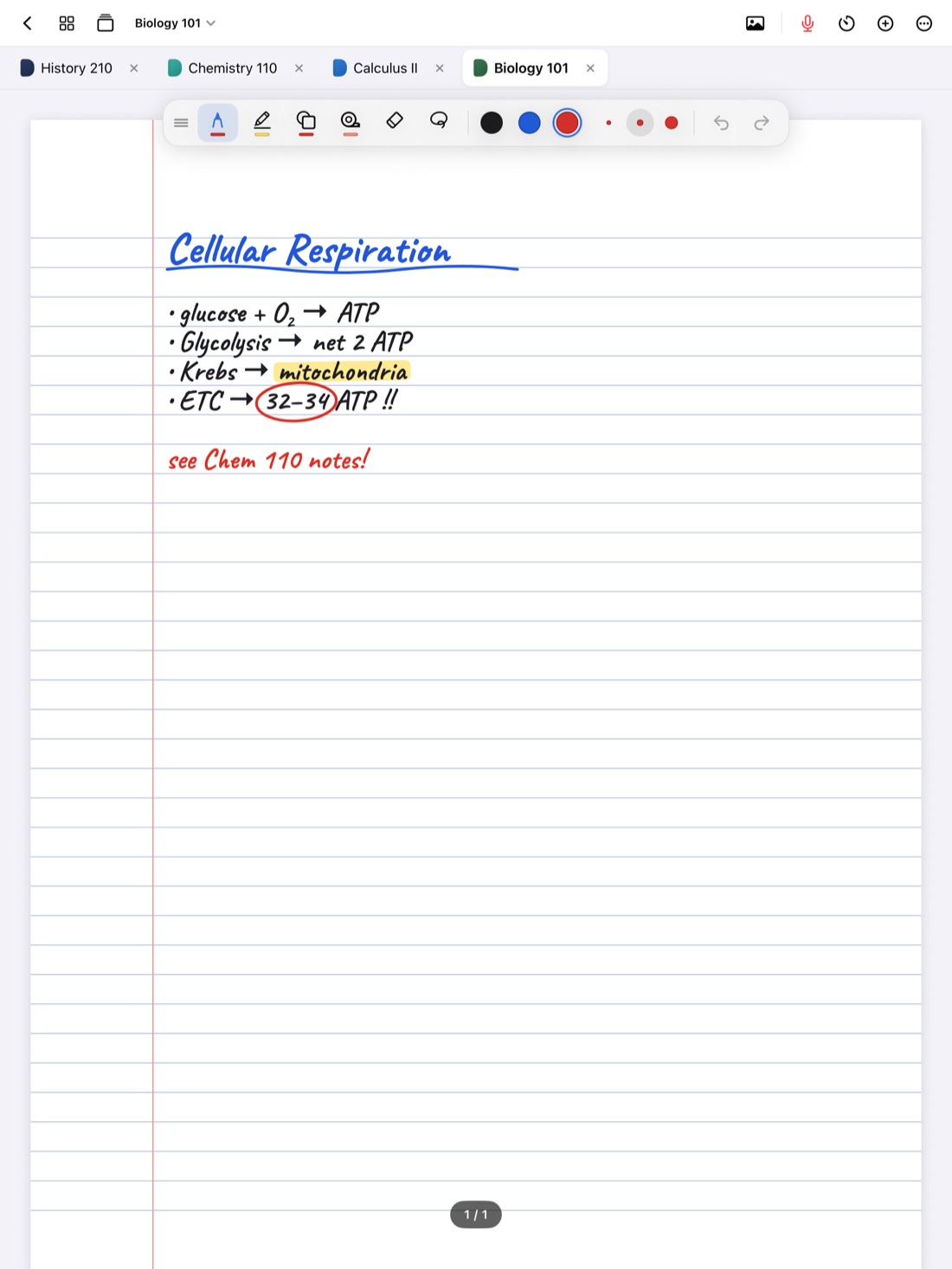
Taking notes from a reading on one screen usually means flipping: read a paragraph, switch to your notes, write, switch back, find your place again. Do that forty times and you've spent a real part of the hour finding your place. With two windows side by side, only your eyes move.
This guide explains when a split screen is worth it, how iPad multitasking works in general, and how to make a narrow notes window comfortable to write in.
When side by side beats switching
Side by side works best when you're making one thing out of another:
- Notes from a reading, with the PDF on one side and your notebook on the other.
- Notes from a video lecture, with the video playing in a browser beside your notebook.
- A study guide from your lecture notes, condensing as you read.
- A problem set beside the worked examples you're following.
Switching is better when you mostly work in one place and only need a quick look at something else. For that, tabs and a quick switcher are faster than a split screen. How to switch between class notebooks fast covers that side.
How iPad multitasking works
iPadOS has offered several ways to show more than one window at a time, and which ones you see depends on your iPad model, your iPadOS version and your multitasking settings:
- Split View puts two windows next to each other, with a divider you can drag to change how much room each gets.
- Slide Over keeps a narrow window floating over another, which you can pull in and push away.
- Stage Manager and newer windowing on recent versions of iPadOS let you resize windows and arrange them more freely.
The exact steps have changed between versions. In general, you open the first app, then bring in the second one, either from the Dock or with the window controls at the top of the window, and place it on one side of the screen. If you don't see the option you expect, look at the multitasking settings in your iPad's Settings app, and check Apple's support pages for your iPadOS version.
A few things help no matter which version you have:
- Use landscape. Two windows side by side are far more comfortable on an iPad held sideways.
- Give your notes the bigger side. You read the source in a glance but write in your notes constantly, so drag the divider toward the source.
- Put your notes on the side of your writing hand, so your hand doesn't cover the reading while you write.
Split View in Scribba
Scribba can open a notebook in its own window (in the library, touch and hold a notebook and choose Open in New Window), which means you can have two notebooks on screen at once. A common setup is a slides notebook on one side and a handwritten notes notebook on the other, so the slides stay clean. You can also put a Scribba window beside another app, like a browser with an online reading or a video lecture.
Make a narrow window easy to write in
A notebook in half the screen shows a smaller page. A few tricks help:
- Double-tap the paper with a finger to fit the page to the window. Zoom in from there with a pinch; the paper stays sharp at any zoom.
- Use the Zoom Window to write at a normal size in a magnified strip. Your writing lands small and neat on the page, which works well in a narrow window.
- Move the tool palette. The floating palette can sit at the top, bottom or either side, so drag it to the side away from the divider, where it's out of your way.
- Choose page size and orientation with this in mind. Both are set per notebook when you create it. A portrait page fits a tall, narrow window better than a wide landscape page, which shrinks to fit the narrow width. If you mostly write in Split View, a portrait notebook is easier to use.
Tip: if you have a keyboard attached, ⌘O opens Scribba's quick switcher in the main Scribba window, and ⌘⇧[ and ⌘⇧] move between its tabs. Keep your notes in that window and you can change what's open without reaching for the screen. A notebook opened in its own window shows just that notebook.
Setups that work well
A reading and your notes
Put the PDF reading on the side where you read comfortably and a notebook on the other. Write a short summary at each heading, plus a page reference, like "p. 14," so you can go back to the passage. If you'd rather write on the reading itself, how to annotate PDF readings covers that approach.
A video lecture and your notes
For a recorded lecture or online class, play the video in a browser on one side and take notes on the other. The big advantage over a live lecture is that you can pause. Do it often: pause at the end of each idea, write the idea in your own words, then continue. Jot the video's timestamp next to anything you might want to rewatch, like "23:40, derivation."
Slides and handwritten notes during class
If your professor posts slides, open them in one notebook and your notes in another. Write in your notes, and glance at the slides for the exact wording of a definition or a diagram you'd rather not copy. How to annotate lecture slides on iPad describes the other option, writing straight on the slides.
Your notes and a study guide you're writing
Before an exam, put a week of lecture notes on one side and a fresh page on the other. Condense each lecture into a few lines and questions as you go. That rewriting is studying in itself, and it's much faster when the source never leaves the screen. See how to make a study guide from lecture notes.
When not to split the screen
- In a fast lecture, a half-size page can slow you down. Use the full screen and rely on tabs.
- When the second window is a distraction. A messaging app or social feed beside your notes will pull your attention all hour. Keep the second window for the material you're studying.
- On a small iPad, two windows can each feel cramped. Try Slide Over for a quick look instead, if your iPad offers it.
Frequently asked questions
Can I open two Scribba notebooks side by side?
Yes. Scribba can open a notebook in its own window, so you can place it beside another notebook, for example slides on one side and notes on the other.
Why don't I see Split View on my iPad?
Multitasking options depend on your iPad model, iPadOS version and settings. Check the multitasking settings in your iPad's Settings app, and Apple's support pages for your version.
Should I use Split View or tabs?
Use Split View when you need to see two things at once, like a reading and your notes. Use tabs when you're moving between notebooks one at a time.