 Scribba
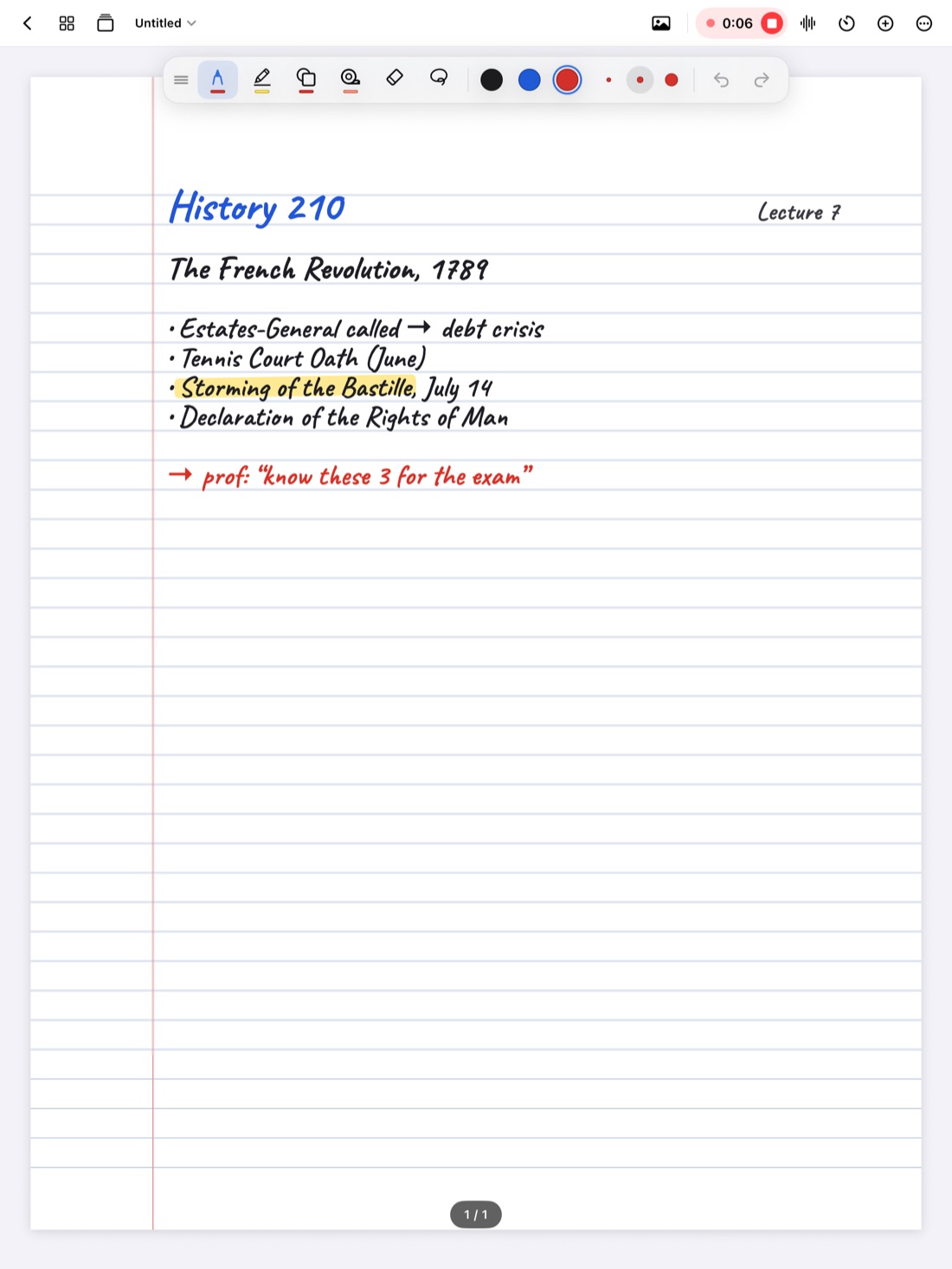
Recording a lecture is the easy part. The hard part is that a 75-minute class takes 75 minutes to listen to again, and nobody has that time for every class, every week. So most recordings sit untouched until the night before the exam, when there are fifteen of them.
The answer isn't to listen faster to everything. It's to listen to less, on purpose, and to move through the parts you do play at the right speed. This guide covers how to do that with any recording, and how Scribba's playback tools are built for it.
Go in with a list, not a play button
Replaying a whole lecture from the start feels thorough, but it's mostly passive. Your attention drifts the same way it did in class, and you spend most of the time hearing things you already wrote down.
Before you press play, spend two minutes with your notes:
- Mark the gaps. Circle anything unfinished, confusing or followed by a question mark.
- Write the questions. "What was the second cause?" is something you can listen for. "Review lecture 6" isn't.
- Note anything said out loud only. Assignment details, exam hints and "people always get this wrong" warnings rarely make it onto slides.
Now you have a short list of moments to find, instead of an hour to sit through.
Choose the right speed for the moment
Playback speed isn't one setting for the whole lecture. Change it as the material changes:
- Speed up for parts you mostly understood, for a slow or repetitive speaker, and when you're scanning for where a topic starts.
- Play at normal speed for explanations you missed, worked examples and anything you'll need to write down word for word.
- Slow down for dense derivations, unfamiliar terms, a heavy accent, or a lecture in a language you're still learning.
Raise the speed a little at a time. Most people can follow speech somewhat faster than normal, but understanding drops off when you push too far. If you catch yourself skipping back again and again, you're going too fast for that section.
Tip: speed is for listening, not for learning. When you reach the part you came for, slow down, pause, and write the fix in your own words before moving on.
Playback in Scribba
Scribba is an iPad notebook that records the lecture while you write and links every stroke to the moment you wrote it. That link is what makes targeted review possible: your notes become the index into the recording. Here are the tools, and what each is good for.
Tap your ink to jump
Tap any word, arrow or diagram you wrote, and playback starts from that moment. This is the fastest way to work through your list of gaps: tap the question mark, hear the explanation, write the answer, tap the next one.
As the recording plays, the ink you were writing lights up and the page follows along. That makes it easy to tell where you are in the lecture without watching a timer.
Change the playback speed
Scribba has adjustable playback speed. Turn it up to move through familiar stretches, and back down when you reach the part that matters.
Skip 15 seconds back or forward
The 15-second skip is the most useful button for review. Skip back to hear a sentence again when the professor said something fast. Skip forward past a tangent, a pause or a question from the back of the room.
Read the timeline markers
Markers on the playback timeline show where you were writing. Use them as a map of the lecture:
- Dense clusters are the parts where a lot was happening. They're often the core of the class.
- Long empty stretches mean you weren't writing. That might be a discussion, a video or a break. It might also be the five minutes you were lost. If your notes feel thin on a topic, check those stretches first.
Scrub to move far
Drag along the timeline to move anywhere in the recording. Scrubbing is quickest when you know roughly when something happened, like "near the end, before the homework announcement."
Read instead of listening when you can
Sometimes the fastest way through a recording is not to play it at all. Scribba transcribes each recording, so you can:
- Search what was said. Search for a word from the library or inside a notebook, even if you never wrote it down.
- Read along as it plays, and tap a line of the transcript to jump to that moment.
Reading is usually quicker than listening for finding things. Listening is better for tone and emphasis, and for checking that the transcript got a word right. Use both. Our guide to lecture transcripts covers searching and reading in detail.
A review routine that respects your time
Put it together and a review session looks like this:
- Skim your notes and mark the gaps.
- Tap each gap and listen at normal speed. Skip back 15 seconds when you need to.
- Write each fix on the page in a different color.
- Check the long empty stretches on the timeline at a faster speed.
- Search the transcript for anything you still can't find.
- Close everything and summarize the lecture from memory.
The last step matters most. Listening again helps you fill gaps, but trying to recall the lecture is what makes it stick. For the full same-day routine, see how to review your notes after class.
Frequently asked questions
Do I need Apple Intelligence for playback?
No. Playback speed, skipping, scrubbing, timeline markers, tapping your ink and transcripts all work without Apple Intelligence.
What if I didn't write anything during part of the lecture?
Use the timeline. Scrub to the stretch you want, or search the transcript for a word you remember and tap that line to jump there.
Should I re-listen to every lecture?
Usually not. Listen to the parts your notes flag as unclear or incomplete. Re-listening to whole lectures takes a lot of time for little gain compared with active review.
Does it work for lectures I didn't record in Scribba?
No. Scribba plays and transcribes lectures you record in Scribba. To get started, see how to record a lecture on iPad.