 Scribba
By week ten, a class notebook can run past a hundred pages. You need the lecture on the Krebs cycle, so you start scrolling: past problem sets, past a scanned handout, past three pages of a diagram you redrew. A paper notebook would have sticky tabs on its edge by now. A digital notebook needs the same thing, and bookmarks are it.
This guide is about building a table of contents that stays useful all semester: what to bookmark, how to name bookmarks so the list is easy to scan, and how to use that list when you study.
Why a long notebook needs a table of contents
A table of contents does two jobs.
The obvious one is navigation. Jumping to a page beats scrolling through dozens of others, especially in the last week before an exam, when you're moving around the notebook constantly.
The less obvious job is studying. A good list of bookmarks is an outline of the course in your own words. Reading down it shows you how topics connect and which ones you've forgotten, before you open a single page.
What to bookmark
Bookmark the places where you'd want to start reading. That usually means:
- Each lecture. The first page of every class session.
- Readings. The first page of an imported reading, or your summary page for it.
- Problem sets and homework, so you can find your worked solutions when a similar problem shows up on the exam.
- Reference pages you come back to: a formula sheet, a glossary, the exam dates, a page of rules for lab reports.
- Review pages, like a practice exam or the page where you wrote up what was on the midterm.
- Labs or sections, if they live in the same notebook as lectures.
Don't bookmark every page. If everything is bookmarked, the list is as long as the notebook and you're scrolling again. One bookmark per lecture, plus a few for the pages above, is plenty for most classes.
Name bookmarks so the list scans well
A bookmark is only as useful as its name. "Oct 14" tells you nothing at exam time. "Enzymes" alone doesn't tell you whether it's a lecture or a problem set. A short prefix plus a topic solves both:
- Lectures: "L7: Enzymes" or "Wk 4: Reconstruction"
- Readings: "Reading: Ostrom, commons"
- Homework: "PS3: Projectile motion"
- Reference: "Ref: Formula sheet"
- Review: "Review: Midterm 1"
A few more habits help:
- Match the syllabus. If the syllabus calls it Unit 3, use "U3" too. When a review sheet says "Units 3 to 5," you'll know exactly where to look.
- Use the topic you'll remember. Name a lecture after its main idea, not the slide title.
- Keep names short, so they're easy to read at a glance.
- Be consistent. "L7" for one lecture and "Lecture 8" for the next makes the list harder to scan.
Tip: keep reference pages at the front of the notebook. Drag your formula sheet or glossary to the start in the page sidebar, so it's always the first entry in the list. How to move and reorder pages shows how.
Bookmarks in Scribba
In Scribba, named bookmarks live in the page sidebar, where they act as the notebook's table of contents. To bookmark the page you're on, choose Bookmark Page from the + menu in the notebook's top bar. To name it, touch and hold the page in the page sidebar and choose Name Bookmark; naming a page there bookmarks it too. Switch the sidebar to Bookmarks to see just the list, and tap one to go to that page.
Let Start Lecture do the lecture bookmarks
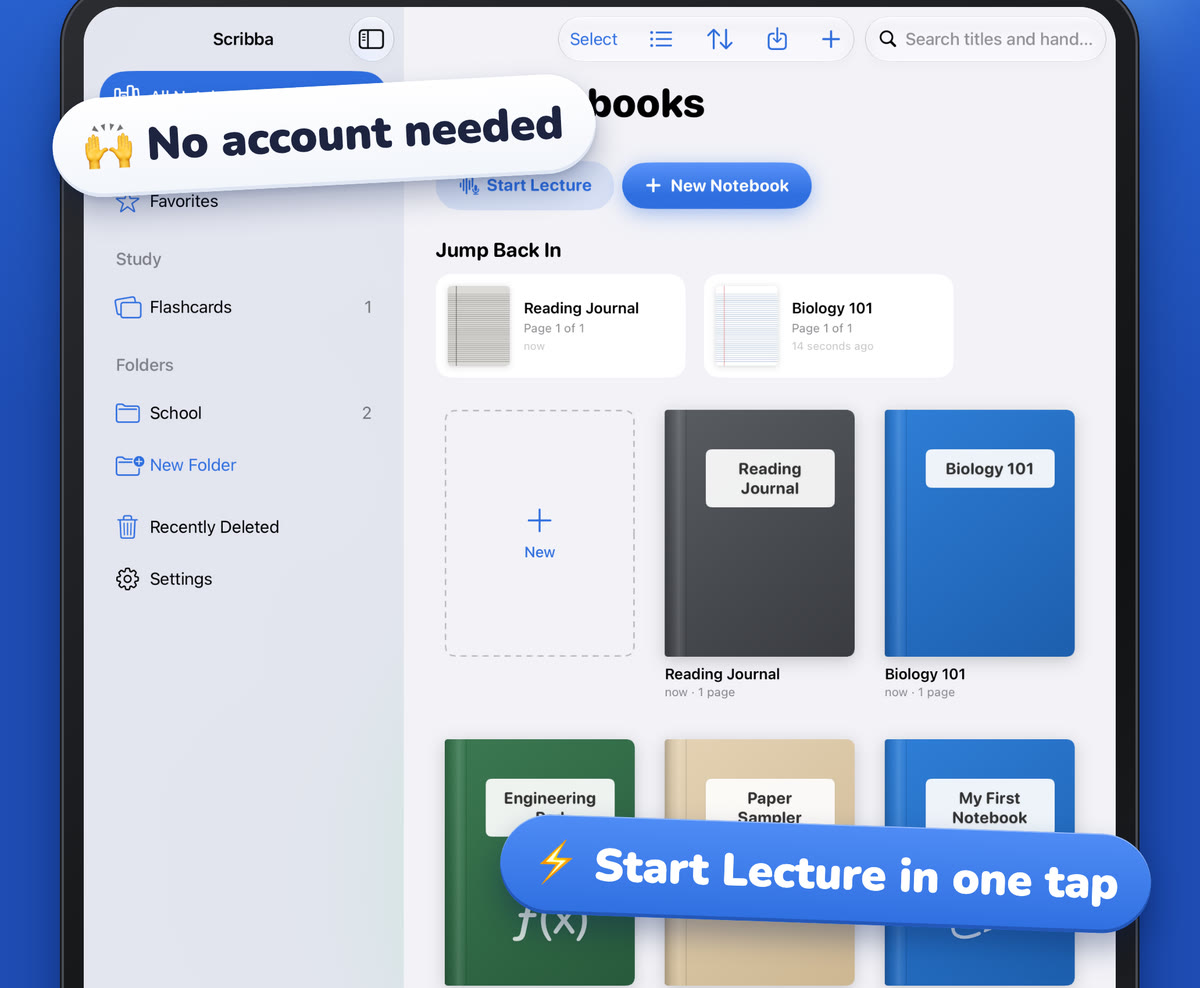
If you start each class with Start Lecture, you don't have to add lecture bookmarks yourself. One tap from the library adds a dated, bookmarked page to the class notebook and starts recording, so every class session shows up in the table of contents automatically. You can also start it with Siri by saying "Start a lecture in Scribba." See Start Lecture and Siri.
On iPads that support Apple Intelligence, with it turned on, Scribba also names the recording and that day's page after the lecture's topic once the lecture has been transcribed.
Add the rest as you go
For everything Start Lecture doesn't cover, like readings, problem sets and reference pages, add the bookmark when you create the page. It takes a few seconds then. Adding bookmarks to a hundred pages in week twelve takes much longer, and by then you won't remember what half the pages were for.
A two-minute weekly check
Once a week, open the page sidebar of each class notebook and read down the bookmarks:
- Look for gaps. Did a lecture or problem set go without a bookmark? Add it.
- Fix vague names. Change anything like "notes" or a bare date into a topic.
- Move stray pages. If a page belongs with an earlier lecture, drag it there.
It fits nicely at the end of a weekly review of your notes.
Use the table of contents to study
Once the list is in good shape, it doubles as a study tool:
- Quiz yourself from the list. Read a bookmark name, then say or write what you remember about that topic before you open the page. If you can't recall much, that's where to spend your time. This is active recall, one of the most reliable ways to make material stick.
- Plan your exam review. Count the bookmarks between the last exam and this one, and spread them over the days you have.
- Turn it into a study guide. On iPads that support Apple Intelligence, Scribba's Study Guide gathers the key points of every lecture in a notebook onto one sheet, split at each Start Lecture page. How to make a study guide from lecture notes explains it.
When you don't remember which lecture covered something, search is faster than the table of contents. Scribba searches your handwriting, typed text, PDF text and lecture transcripts, and results open on the matching page. See how to search handwriting on iPad.
For the bigger picture of folders and notebooks around these bookmarks, read how to organize iPad notes by semester.
Frequently asked questions
How many bookmarks should a class notebook have?
Roughly one per lecture, plus a few for readings, problem sets and reference pages. If the list gets as long as the notebook, you're bookmarking too much.
Are bookmarks the same as favorites?
No. Favorites are notebooks you keep one tap away in the library. Bookmarks are pages inside a notebook, listed in its page sidebar.
Does Start Lecture add a bookmark?
Yes. Start Lecture adds a dated, bookmarked page to the class notebook and starts recording, so every lecture appears in the table of contents.
Can I bookmark pages of an imported PDF?
Yes. Once a PDF is in a notebook, its pages are part of that notebook, so you can bookmark a key slide or the first page of a reading.