 Scribba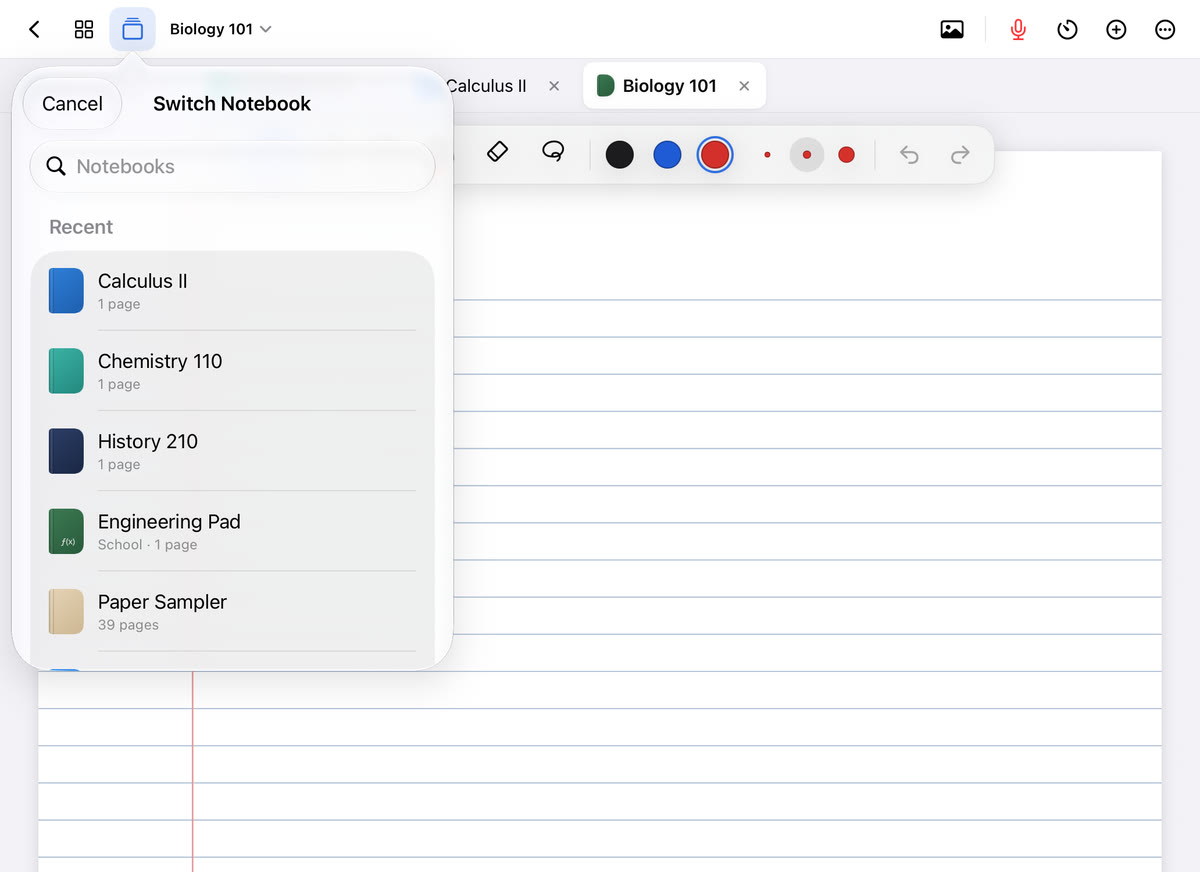
Real studying rarely happens in one notebook. A lab report pulls from your lecture notes, last week's lab notebook and the slides. A problem set sends you back to the worked examples from class. A study night moves from Chemistry to History to Spanish vocab and back again.
If every switch means going back to the library, scrolling, opening a notebook and finding your page again, you lose your train of thought each time. This guide covers how to set up your notebooks so switching is quick, and the tools Scribba has for it: tabs, a quick switcher, favorites, Jump Back In and Split View.
Start with a library that's easy to scan
Fast switching starts before you open anything. A few setup habits make every tool below work better:
- One notebook per class. It's the simplest system that holds up all semester. You always know which notebook something is in.
- Short names you'd say out loud. "Orgo" or "Bio 101" is faster to recognize, and faster to type into a search box, than a full course code.
- A different look for each class. A color or icon on each cover lets you spot a notebook without reading.
- A folder per semester. When the term ends, the folder becomes an archive and your current classes stay front and center.
In Scribba, notebooks and folders are unlimited, and covers can be a color, a subject icon or a photo. For the rest of a semester setup, see how to take notes on iPad in college.
Keep your working set small
Whatever tools you use, the trick to juggling notebooks is deciding which ones you're juggling. Before a study session, pick the two or three notebooks the task actually needs. Open those, and leave the rest alone. Fewer open notebooks means less to scan every time you switch.
When the task is done, close what you don't need. A tidy set of open notebooks at the start of the next session is worth the two seconds.
Tabs: up to six notebooks open at once
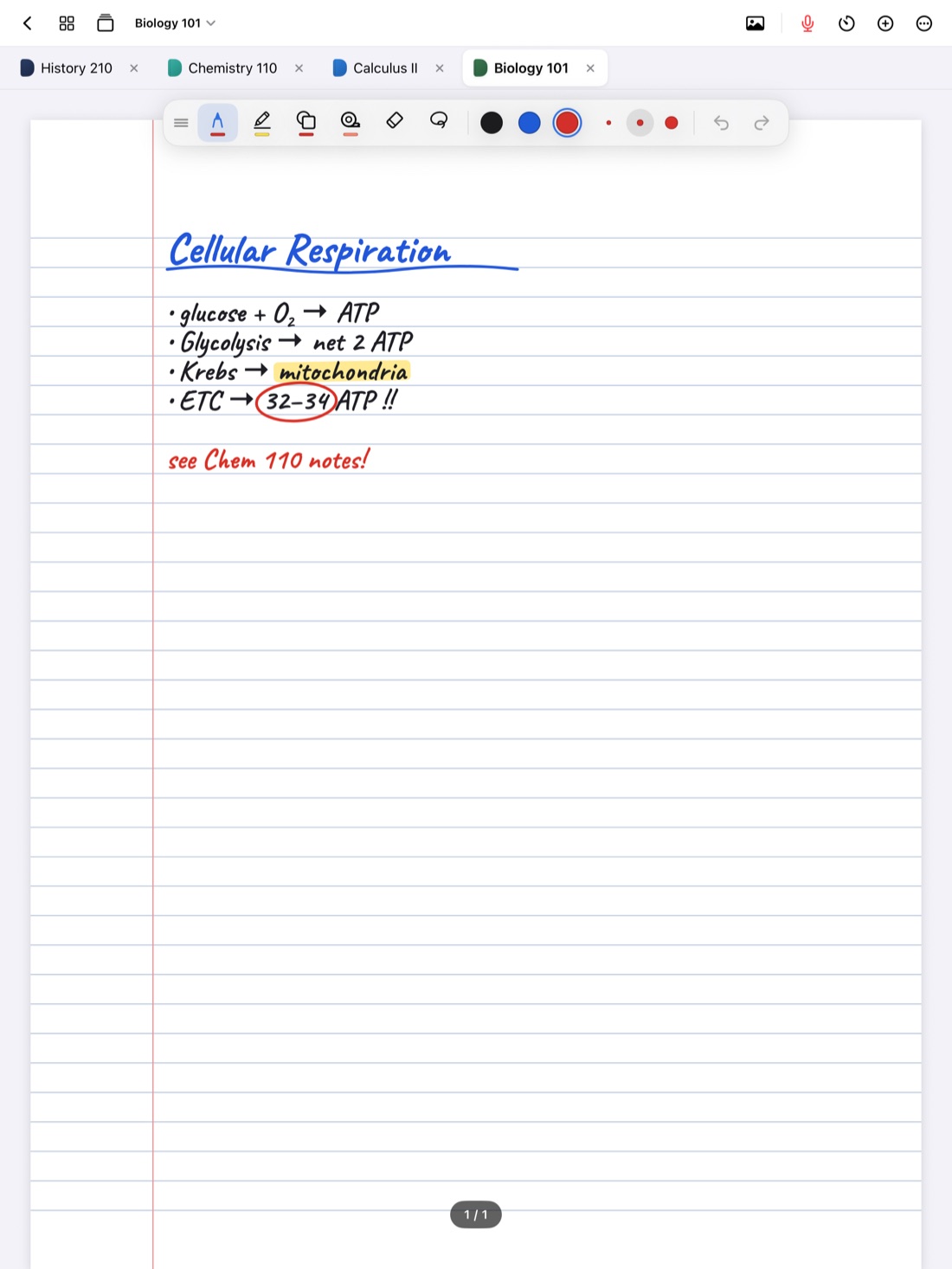
Scribba keeps up to 6 notebooks open as tabs, like tabs in a web browser. Tap a tab to switch. Each notebook reopens where you left off, so you land back on the page you were reading, not page one.
Tabs fit most of the juggling you'll do in a week:
- Lecture notes and a problem set. Keep the class notebook in one tab and the homework in another.
- Several classes in one study session. Open each class you plan to review, then work through them in order.
- Slides and notes. Import the lecture slides as their own notebook and keep it in a tab beside your handwritten notes. More in how to annotate lecture slides on iPad.
With a keyboard, press ⌘⇧[ and ⌘⇧] to move to the previous or next tab without lifting your hand.
The quick switcher: ⌘O
When the notebook you want isn't in a tab, press ⌘O to open the quick switcher. It shows three things:
- Favorites. The notebooks you've marked as favorites, usually your current classes.
- Recents. The notebooks you've opened lately.
- Search. Type a few letters of a notebook's name to find it.
This is where short notebook names pay off. Press ⌘O, type "bio," and you're there.
Tip: at the start of each semester, mark this term's classes as favorites and remove last term's. In Scribba, you can select several notebooks at once to favorite them in one go.
Jump Back In
Sometimes you just want to carry on where you stopped. Jump Back In in the library reopens a notebook on the page you left. It's the fastest way to get back to last night's studying, or back to the lecture you were reviewing before you got interrupted.
Split View: two notebooks side by side
Tabs show one notebook at a time. When you need to see two at once, Split View is better. In Scribba, you can open a notebook in its own window and put it beside another.
Good uses for two notebooks side by side:
- Slides on one side, handwritten notes on the other, during class or while reviewing.
- Worked examples beside a problem set, so you can follow the method without flipping back and forth.
- Lecture notes beside a study guide you're writing, so you can condense as you read.
- Your textbook notes beside your lecture notes, to check they agree.
As a rule of thumb, use tabs when you're switching between notebooks and Split View when you're comparing them.
When you don't know which notebook it's in
Switching tools work when you know where you're going. When you don't, search. Scribba searches handwriting, typed text, PDF text and lecture transcripts, from the library or inside a notebook, and results open on the matching page. Read more in how to search handwriting on iPad. With a keyboard, ⌘F opens search.
A study session, start to finish
Here's what this looks like on a typical night with three classes to review:
- Open the library and mark your current classes as favorites if you haven't yet.
- Open the three notebooks you plan to study. They appear as tabs.
- Start Scribba's focus timer for a study block. It follows you between notebooks, so it keeps running when you switch tabs.
- Work through the first class, then press ⌘⇧] to move to the next.
- If you need something from a notebook that isn't open, press ⌘O and type its name.
- When you're done, close the tabs you won't need tomorrow.
For more keyboard shortcuts, see iPad keyboard shortcuts for notes.
Frequently asked questions
How many notebooks can I have open at once in Scribba?
Up to 6, as tabs. You can also open a notebook in its own window and use Split View to see two side by side.
What's the shortcut for the quick switcher?
⌘O. It shows your favorites and recent notebooks, and you can search by name.
Will a notebook open on the page I left?
Yes. Notebooks reopen where you left off, and Jump Back In in the library reopens a notebook on the page you left.