 Scribba
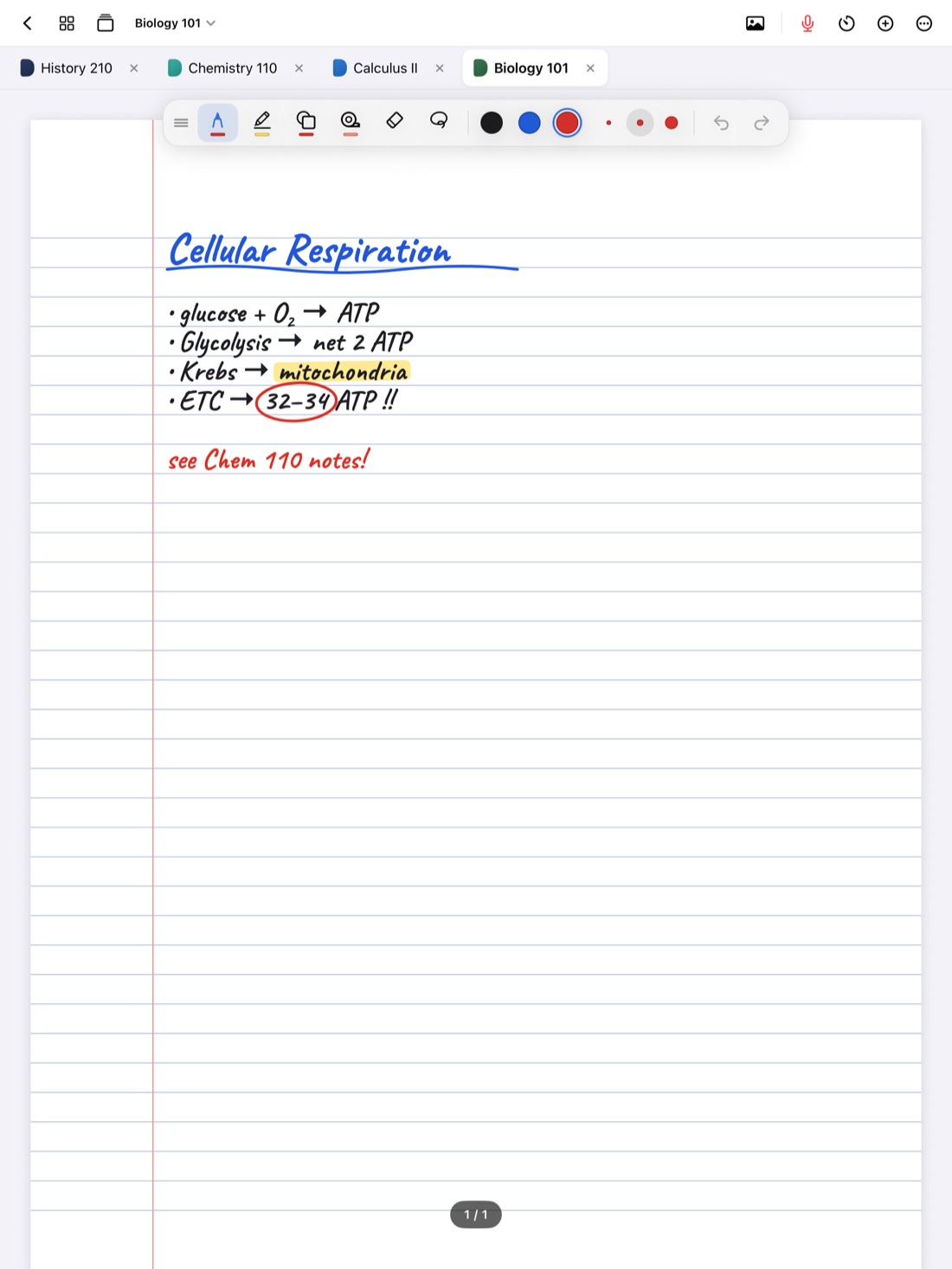
Plenty of students end up with two iPads. A big one stays on the desk for studying and a small one goes to class. An older iPad lives at home after an upgrade. A family iPad gets borrowed for a weekend. Whatever the reason, the goal is the same: pick up either one and find the notes you wrote this morning, on the page where you left them.
This guide covers how note sync works, what to check before you rely on it, and how to set up iCloud Sync in Scribba so two iPads stay in step.
What you need before syncing
Sync between iPads usually runs through a cloud account both devices can reach. For apps that use iCloud, that means:
- Both iPads signed in to the same Apple Account, with iCloud turned on in the iPad's own Settings app.
- Enough free iCloud storage. Handwritten notes are small. Imported PDFs and audio are not. If your iCloud storage is full, nothing new can sync.
- A network connection on both iPads. Changes made offline wait until the iPad is back online.
- The same app on both. Scribba runs only on iPad, so this works between iPads, not with a phone or a computer.
Tip: check your free iCloud storage in the iPad's Settings app before the semester starts, not the night before an exam when a notebook refuses to show up.
What syncs in Scribba
Scribba's iCloud Sync keeps your notebooks in your own private iCloud. There's no Scribba account and no Scribba server in the middle. What travels between your iPads:
- Notebooks and folders
- Your ink, photos and imported PDFs
- Flashcards
- Lecture recordings, unless you choose to leave them out
Turn on iCloud Sync
- On the first iPad, open Scribba's Settings › iCloud and turn on iCloud Sync.
- Check the status shown there to see how syncing is going.
- On the second iPad, install Scribba, open Settings › iCloud and turn it on there too.
- Give the first sync some time on Wi-Fi, especially if you have long recordings or big PDFs. Keep Scribba open while it catches up.
- If you want changes to go right away, tap Sync Now in the same place.
Turn it on for both iPads before you start writing on the second one. That way the second iPad starts from your existing library rather than from an empty one.
Decide whether recordings should sync
Lecture recordings are by far the biggest thing in most libraries. An hour of audio takes up far more space than an hour of handwriting. That's why Settings › iCloud has an option to leave recordings out.
Leave recordings out if:
- Your iCloud storage is tight and you'd rather spend it on notebooks and PDFs.
- You always record and review on the same iPad.
- You'd rather keep recordings of class, which include other people's voices, on one device only.
Keep recordings in if you review on a different iPad from the one you take to class. If you record lectures on a small iPad and study on a big one, you'll want to tap your notes on the big one and hear the professor.
With recordings left out, everything else still syncs. The audio stays on the iPad that recorded it.
Writing on the same page on both iPads
Sync gets tricky when two devices change the same thing. Many apps handle that by keeping only the newest version, which can quietly throw away work.
In Scribba, each page syncs on its own. If you write on the same page on two iPads, the ink from both is kept. Nothing you wrote is thrown away.
That's the safe choice, but it's worth knowing how it looks in practice. If you wrote different things on the same page on each iPad before they synced, you'll find both sets of strokes on that page afterward. You might need to tidy it up, but you won't have lost a line.
An open notebook picks up changes from your other iPad when you close it. So if you're about to switch iPads, close the notebook on the one you were using, and open it fresh on the other.
Habits that keep two iPads in step
Sync handles the copying. A few habits make sure it has a chance to:
- Finish on one iPad before you start on the other. Close the notebook, and if you're in a hurry, tap Sync Now.
- Open Scribba on the second iPad and let it catch up for a moment before you write, especially after a long gap.
- Be careful with offline writing. If one iPad was offline all day, connect it and let it sync before you pick up the other.
- Give each iPad a job. For example, the small iPad records and takes class notes, and the big one is for review, flashcards and problem sets. Clear roles mean you'll rarely edit the same page in two places.
- Keep the same folders on both. Since folders sync, a tidy structure on one iPad is a tidy structure on both. See how to organize iPad notes by semester.
Sync is not a backup
Sync keeps the same notes on both iPads, so it gets you up and running fast on a new iPad. But sync carries your changes to both iPads, mistakes included, and it doesn't keep a copy from last Tuesday. For snapshots you can go back to, turn on Auto Backup as well. Our guide on how to back up iPad notes walks through it.
Studying away from your iPads
Since Scribba runs only on iPad, sync won't put your notes on a phone or a laptop. Two things help:
- Flashcards: export a deck to Quizlet or Anki and review it on your phone. See how to export flashcards to Quizlet or Anki.
- Notes: export a notebook, or just the pages you need, as a PDF and open it anywhere.
Frequently asked questions
Can I sync Scribba notes to my iPhone or Mac?
No. Scribba runs only on iPad, so iCloud Sync works between iPads. Export notebooks as PDFs or flashcard decks to Quizlet or Anki to study on other devices.
Do I need a Scribba account to sync?
No. Scribba has no accounts. Sync uses your own private iCloud, so both iPads need to be signed in to the same Apple Account.
What happens if I write on the same page on both iPads?
Each page syncs on its own, and the ink from both iPads is kept. You won't lose either set of strokes, though you may want to tidy the page.
What does Sync Now do?
It starts syncing right away instead of waiting. It's handy just before you put one iPad down and pick up the other.