 Scribba
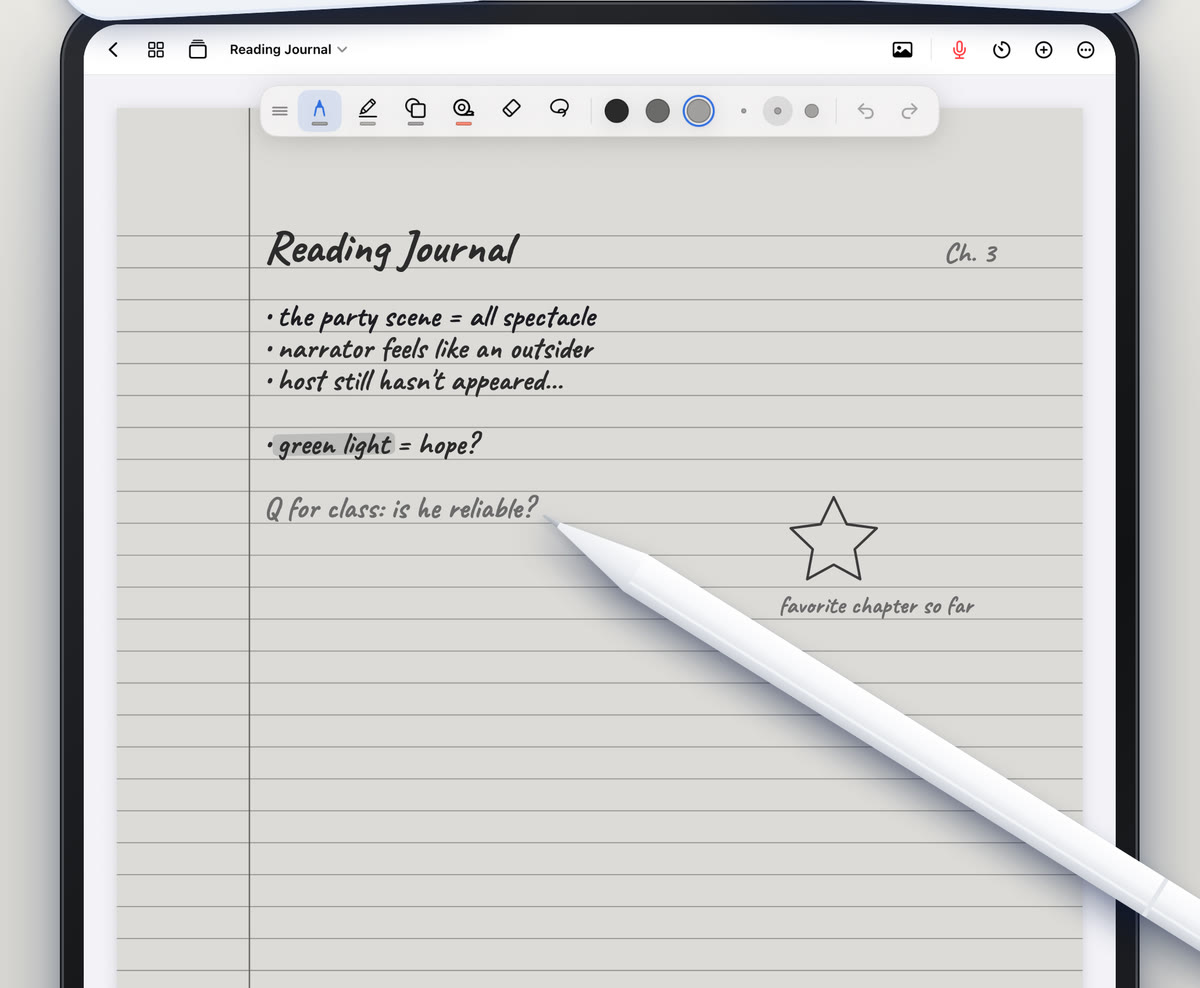
The same hand that writes tidy notes on paper can produce wobbly, ballooning letters on an iPad. It isn't that your handwriting got worse overnight. The surface, the scale and the setup are all different, and each one nudges your writing in a messier direction.
Once you know which of those is causing the problem, most of it is fixable. Our Apple Pencil tips cover the basics in a few lines each. This guide goes deeper on handwriting alone.
Why handwriting looks worse on glass
A few things work against you at once:
- Less friction. Paper grips the tip of a pen. Glass doesn't, so small movements overshoot. Loops get bigger, letters lean, and the end of a stroke skids past where you meant to stop.
- No feedback. A pen scratches and drags. A Pencil tip on glass feels much the same whatever you do, so your hand gets less information about what it's drawing.
- Everything is magnified. On paper you see your writing at actual size. On an iPad you're often zoomed in, so every wobble looks bigger than it would in a notebook.
- The angle is wrong. An iPad propped up in a case is closer to a whiteboard than a desk. Writing on a tilted surface is harder to control.
- You're rushing. A lecture doesn't wait. Speed makes handwriting messier on any surface, and on glass it adds to everything else.
The fixes below go roughly from quickest to most work.
Choose a forgiving pen
Some pen styles hide unevenness; others show it off.
- Even pens, like a fineliner (always the same width) or a ballpoint with pressure sensitivity turned down, draw a steady line. They're the most forgiving for fast notes.
- Fountain and brush pens change width with pressure and direction. They look lovely when you write slowly, but fast writing makes them uneven.
- A pencil style can look more like paper and make your writing feel less stark.
- Line width matters too. A very thin line shows every tremor. A slightly thicker one hides small wobbles, as long as it's not so thick that small letters fill in.
Scribba has six pen types: ballpoint, fineliner, fountain, pencil, brush and crayon. Double-tap the pen tool to open pen settings, where you can see each pen type with a live preview and change its thickness. More in pen types for iPad notes.
Tune pressure and stabilization
Two settings in Scribba's pen settings change how your writing looks more than anything else.
Pressure sensitivity makes lines thicker when you press harder. When you write fast, your pressure varies a lot, so letters come out heavy in some places and faint in others. Turn it down for lecture notes.
Stabilization smooths small wobbles in your strokes. A little makes shaky writing look much cleaner. Too much can round off corners in letters like k and z, because it smooths each stroke when you lift the Pencil. Raise it in small steps until the wobble is gone, then stop.
Tip: test settings with a real sentence, at real lecture speed. Write the same line three times at three different settings, zoom out to normal size, and keep the one you can read most easily. Judging a single slow word up close tells you very little.
Write at the right size
A lot of messy iPad handwriting comes down to size. If you force yourself to write small on slippery glass, control drops off fast. If you write as big as is comfortable, a page holds only a few lines.
Two fixes:
- Zoom in, then zoom back out. Writing in a slightly zoomed view lets you write at a comfortable size, and the writing looks smaller and neater at normal zoom.
- Use the Zoom Window. In Scribba, you write big in a magnified strip and the writing lands small and neat on the page, sliding along the line as you go. It's the most direct fix for cramped writing. See the Zoom Window for small handwriting.
Paper helps too. Wide Ruled suits big writers, College Ruled is a sensible default, and Narrow Ruled only works if you naturally write small. Lines keep your baseline straight, which is half of what makes writing look neat.
Fix your posture and grip
Your body setup matters as much as any setting.
- Lay the iPad flat or at a low angle, like a notebook on a desk.
- Rest your hand on the screen. iPads ignore your palm while you write with an Apple Pencil. Hovering your wrist makes writing shaky and tires you out.
- Hold the Pencil loosely. A tight grip causes tremor and cramps. You should be able to slide the Pencil out of your fingers easily.
- Support your forearm on the desk, and move your hand along the line instead of stretching your fingers to reach the next word.
- Angle the iPad the way you angle paper. Most people tilt a page slightly to suit their writing hand. Do the same with the iPad.
- Move the tool palette out of your way. In Scribba it floats, so drag it to the top, bottom or either side, wherever your hand doesn't land.
Add friction with a matte screen protector
Since glass is the root cause, changing the glass helps. A matte, paper-textured screen protector adds friction, so the tip drags slightly the way a pen does on paper. Many people find their writing gets more controlled with one.
The trade-offs: the screen can look slightly less sharp, and textured surfaces wear Pencil tips down faster. Keep a spare tip in your bag if you use one.
Slow down only where it counts
You don't need every word to be neat. Spend your care on what you'll read in a hurry later: key terms, numbers, formulas, names and diagram labels. Let everything else be fast. Abbreviations help, because fewer letters means more time for each one. How to keep up with fast lecturers has more ways to write less.
Practice on the right paper
If particular letters keep going wrong, practice them for a few minutes a day. Scribba's Handwriting paper has practice lines with a solid top line, a dashed midline and a colored baseline, which show exactly where letters drift in height. The Calligraphy paper adds ascender, x-height and descender guides with slanted lines at 55 degrees if you want to work on a consistent slant. See handwriting practice paper on iPad.
Neat handwriting pays off
Clear letters aren't only easier for you to read. Scribba recognizes your handwriting on the iPad, which is what lets you search your handwritten notes and turn Vocabulary or Cornell Notes pages into flashcards. The neater the writing, the more reliable that recognition is.
Frequently asked questions
Is a matte screen protector worth it?
For many students, yes. It adds paper-like friction that makes writing easier to control. The downsides are a slightly less sharp screen and faster Pencil tip wear.
Does stabilization make handwriting neater?
A little does. It smooths small wobbles. Too much rounds off sharp corners, so raise it gradually.
Will my iPad handwriting ever look like my paper handwriting?
It usually gets much closer with practice and the right setup. Give yourself a couple of weeks of regular writing, with the settings above, before you judge.