 Scribba
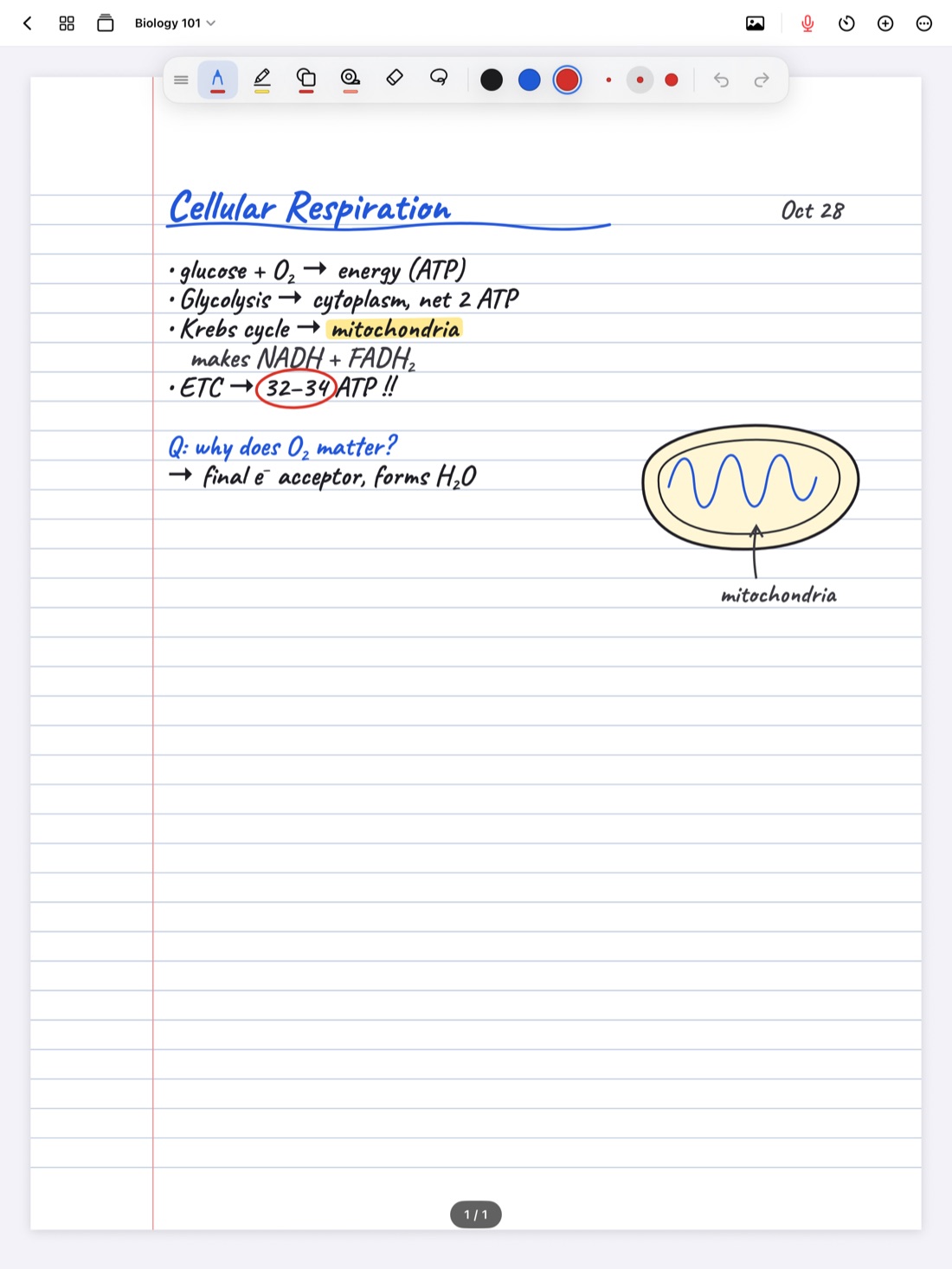
On paper, erasing is slow and smudgy, so you mostly don't bother. On an iPad it's instant, and that changes how people write. Some students spend half a lecture polishing one diagram. Others never learn the quicker ways to fix a mistake and keep reaching for the toolbar.
This guide covers the two kinds of digital eraser, the gestures that erase or undo without switching tools, and the question that matters more than any setting: when you should erase at all.
Pixel eraser vs whole-stroke eraser
Most iPad note apps offer two kinds of eraser, and they suit different jobs.
A pixel eraser works like a rubber eraser on paper. It removes only the ink it touches, so you can trim the end of a line, clean up a corner of a diagram, or cut a gap in an arrow to make room for a label.
A whole-stroke eraser removes an entire stroke the moment you touch any part of it. Touch one letter and the whole letter goes, or the whole word if you wrote it in one motion. It's much faster for wrong words, stray marks and anything you want gone completely.
A rough rule:
- Use whole-stroke for writing. Words are made of strokes, so it removes a mistake in one or two touches without leaving fragments behind.
- Use pixel for drawings. Diagrams, graphs and sketches often have long strokes where you only want to fix one part.
- Watch out for long strokes. If you drew a whole outline or curve without lifting the Pencil, the whole-stroke eraser takes all of it. Undo right away, then switch to pixel.
Scribba has both a pixel and a whole-stroke eraser. If you mostly write words, whole-stroke makes a good everyday choice, and you can switch to pixel when you're fixing a drawing.
Scribble to erase
The fastest eraser is no eraser at all. In Scribba, scribble back and forth over writing with your pen and it's erased, the same motion you'd use to scratch something out on paper. You never leave the pen, so it's ready for the right word straight away.
It works best on small things: a misspelled word, a wrong number, a label in the wrong spot. Make the scribble clearly back and forth and cover the writing you want gone.
If you shade areas, cross-hatch in sketches or color in diagrams, a deliberate back-and-forth stroke can look like a scribble. If that happens to you, switch scribble to erase off in Scribba's Settings. The eraser tool and undo still work as normal.
Don't confuse this with Apple's own Scribble feature in the iPad's Settings › Apple Pencil, which turns handwriting in text fields into typed text. They share a name but do different things.
Undo is often better than erasing
For a mistake you made a second ago, undo is usually faster and cleaner than erasing. It removes exactly the last thing you did, with nothing left behind. It also brings back anything you erased by accident.
In Scribba:
- Two-finger tap anywhere on the page to undo.
- Three-finger tap to redo.
- ⌘Z and ⇧⌘Z if you have a keyboard. The rest are in iPad keyboard shortcuts for notes.
- Undo and redo buttons in the tool palette.
Undo steps back one action at a time, so it's best for the last few seconds of writing. For something you wrote five minutes ago, erase it instead, or you'll undo everything you wrote since.
Tip: tap with your non-writing hand while the Pencil stays in position. Two quick taps and you're back to writing.
Put the eraser on your Pencil
If your Apple Pencil supports double-tap, you choose what it does in the iPad's Settings › Apple Pencil, and switching to the eraser is one of the choices. Scribba follows that system setting. Set it once, and you can double-tap, erase, and double-tap again to get your pen back.
On Apple Pencil Pro, squeezing in Scribba switches between pen and highlighter. That pairs well with double-tap for the eraser: your three most-used tools, all without touching the screen. Apple Pencil tips for faster, neater notes covers more Pencil settings.
When to erase and when to leave a mess
This is the habit that matters most. During a lecture, erasing costs attention. While you're cleaning up a word, the professor is already on the next point.
- In class, cross out instead. One line through a wrong word takes a fraction of a second and keeps you listening. You'll still know what it meant later.
- Keep the wrong attempts you worked through. In problem sets and practice questions, a crossed-out first try shows what you got wrong. That's the mistake you're likely to make again on the exam, so it's worth seeing when you review.
- Erase when the mess will mislead you. A wrong formula, date or diagram label should go before you study from it. A crossed-out wrong value next to the right one is fine. An uncorrected wrong value is a trap.
- Tidy up during review, not during class. The best time to clean a page is when you review your notes after class, while the lecture is fresh and you can fill gaps properly.
- Don't chase perfect pages. A slightly messy page that covers the whole lecture beats a beautiful one that stops halfway through.
If you record lectures in Scribba, there's one more reason to go easy on the eraser in class. Every stroke you write is linked to its moment in the recording, so you can tap it later to hear that part again. Ink you erase can't be tapped. A crossed-out word still works as a bookmark into the lecture. More in how to record a lecture on iPad.
Clearing a bigger area
For more than a few words, erasing letter by letter is slow. Sweep the whole-stroke eraser across the area instead, since it takes every stroke it touches in one pass. If you want to keep the writing but move it out of the way, for example to make room for a diagram, select it with the lasso tool rather than erasing and rewriting.
And if a page has gone badly wrong, sometimes the fastest fix is a fresh one. In Scribba, pull past the last page of a notebook to add a new page and start over.
Frequently asked questions
What's the difference between a pixel eraser and a stroke eraser?
A pixel eraser removes only the ink it touches, like a rubber eraser. A whole-stroke eraser removes any stroke you touch, all at once. Whole-stroke is faster for words; pixel is better for fixing part of a drawing.
How do I turn off scribble to erase?
In Scribba's Settings. Turn it off if shading or cross-hatching keeps getting erased. The eraser tool and undo still work.
I erased something by accident. Can I get it back?
Yes, if you catch it quickly. Tap with two fingers to undo the erase, or press ⌘Z on a keyboard. Undo steps back one action at a time, so do it before you write much more.