 Scribba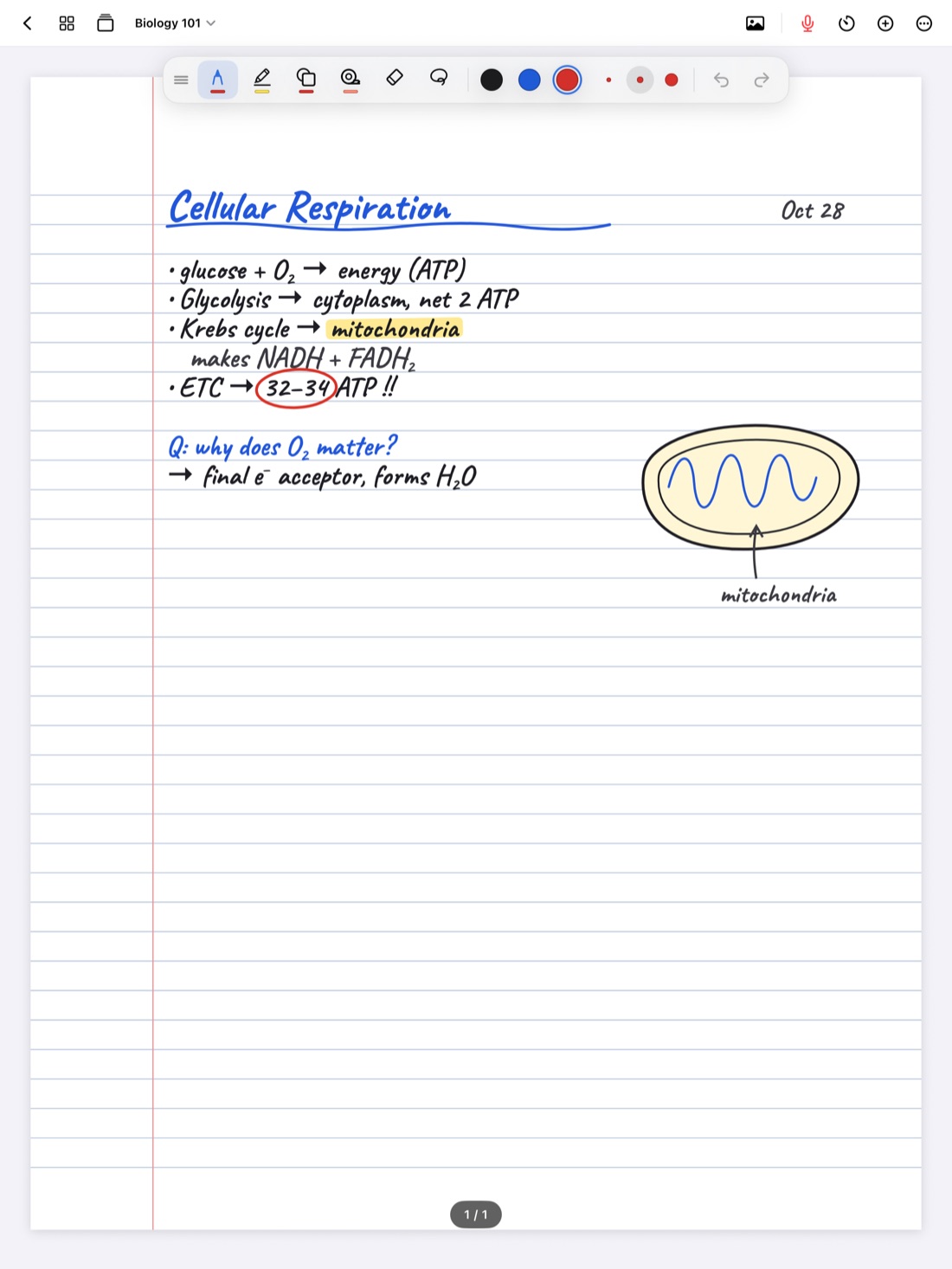
Maybe you haven't bought an Apple Pencil yet. Maybe yours is dead, lost or sitting on your desk at home while you're in class. Either way, you can still take good notes on an iPad. You just take them a bit differently.
The trick is to stop trying to do with a finger exactly what you'd do with a Pencil. Write less, type some, record when you're allowed to, and save handwriting for the things that need it. This guide covers each of those, with general advice that works in most apps and the specific settings in Scribba.
Pick the right method for each class
Different classes suit different no-Pencil approaches:
- Discussion and reading-heavy classes (history, literature, sociology): typing works well, because notes are mostly words.
- Lectures with slides: write on the slides with your finger, adding short notes and highlights rather than full sentences.
- Classes with diagrams and equations (biology, chemistry, math): a mix. Type the words, sketch the diagrams with your finger and keep them simple.
- Fast lectures: record, if you're allowed to, and write only the keywords that help you find your place later.
You don't need one method for everything. Use whatever fits the class.
Writing with your finger
Finger handwriting is slower and bigger than Pencil handwriting. That's fine if you plan for it:
- Write keywords, not sentences. "ATP → made in mitochondria" captures the idea in a few strokes.
- Write bigger and zoom out later. Zooming in on the page gives your finger more room. Scribba's paper stays sharp at any zoom.
- Use your index finger, steadily. Rest the side of your hand on the desk, not the screen, and write a little slower than feels natural.
- Draw simple diagrams. Boxes, arrows and labels beat detailed drawings when you're using a fingertip.
- Leave space after each idea, so you can add more after class.
Scribba settings for finger writing
In Scribba, turn on Settings › Draw with Finger. Then a few tools make finger writing much easier:
- Stabilization. Double-tap the pen tool to open pen settings and raise stabilization a little. It smooths out the wobbles a fingertip makes.
- Zoom Window. Write big in a magnified strip and your writing lands small and neat on the page, sliding along the line as you go. It suits a fingertip well.
- The Shape tool. Every stroke snaps into a clean shape, so boxes, circles and arrows come out tidy even when your finger doesn't.
- A thicker pen. A slightly wider line hides small shakes and is easier to read later.
- Two-finger tap to undo and three-finger tap to redo, so you can fix a mistake without reaching for a button.
For more on pen settings and gestures, see our Apple Pencil tips. Most of them apply to a finger too.
Typing: text boxes and a keyboard
If you type faster than you write, typing will probably carry most of your no-Pencil notes.
In Scribba, typing happens in text boxes on the page. Add one from the + menu in the notebook's top bar, then type with the on-screen keyboard or a hardware keyboard. Text boxes and sticky notes can be moved, resized, recolored and duplicated, so you can type a definition and then drag it next to the diagram it explains. Typed text is searchable along with everything else.
A hardware keyboard helps a lot here. Any keyboard that works with your iPad will do. With one connected, you also get Scribba's keyboard shortcuts, like ⌘Z to undo and ⌘O to jump to another notebook. See iPad keyboard shortcuts for notes.
Tip: type the words and draw the pictures. A page with typed notes and a few finger-drawn arrows connecting them is easier to follow than either one alone.
Record so you can write less
The less you need to write, the less a missing Pencil matters. Recording the lecture lets you jot keywords and trust the recording for the rest.
In Scribba, tap the mic and write as normal. Every stroke is linked to the moment in the recording, so a single word you wrote with your finger becomes a bookmark into the lecture. Later, tap it to hear what the professor was saying. Scribba also transcribes the recording after class, so you can read along and search what was said. See how to record a lecture on iPad and lecture transcripts on iPad.
Ask before you record. Policies vary by school, professor and location, and students with accommodations may be able to record as part of them. Our guide is it OK to record lectures? covers what to check.
Highlighting and study tape with a finger
Some of the most useful study tools barely need handwriting at all.
- Highlight imported slides. Import your professor's slides as a PDF and highlight the lines that matter. Scribba's highlighter strokes snap straight, so a quick finger swipe stays on the line.
- Use study tape. Drag tape over answers, terms or diagrams, then tap to peek. It turns any page into a self-test with a few swipes. More in study tape on iPad.
- Scan handouts. Scan a paper handout with the camera and mark it up instead of copying it out.
When a stylus is worth getting
You can get through a semester without a Pencil, especially in classes that are mostly words. A stylus starts to make a real difference when:
- You have lots of math, chemistry or diagrams. Equations, structures and labeled figures are slow and messy with a finger.
- You want neat handwriting you can search. Scribba recognizes handwriting to make it searchable and to turn Vocabulary and Cornell Notes pages into flashcards, and clearer letters make that more reliable.
- You handwrite most of your notes and finger writing is slowing you down.
- Your hand gets tired from long sessions of finger writing.
If you decide to get one, look for an Apple Pencil compatible with your iPad. Not every Pencil works with every iPad, so check Apple's compatibility list for your model before you buy.
Frequently asked questions
Can I use Scribba without an Apple Pencil?
Yes. Turn on Settings › Draw with Finger to write with your finger. You can also type in text boxes and record lectures without a Pencil.
Does recording a lecture need an Apple Pencil?
No. Recording works with any notes, and even a few words written with your finger link to the moment you wrote them.
Can I type all my notes in Scribba?
You can type in text boxes on the page. Scribba is built around handwriting, though, so it doesn't have a separate typed-notes editor.