 Scribba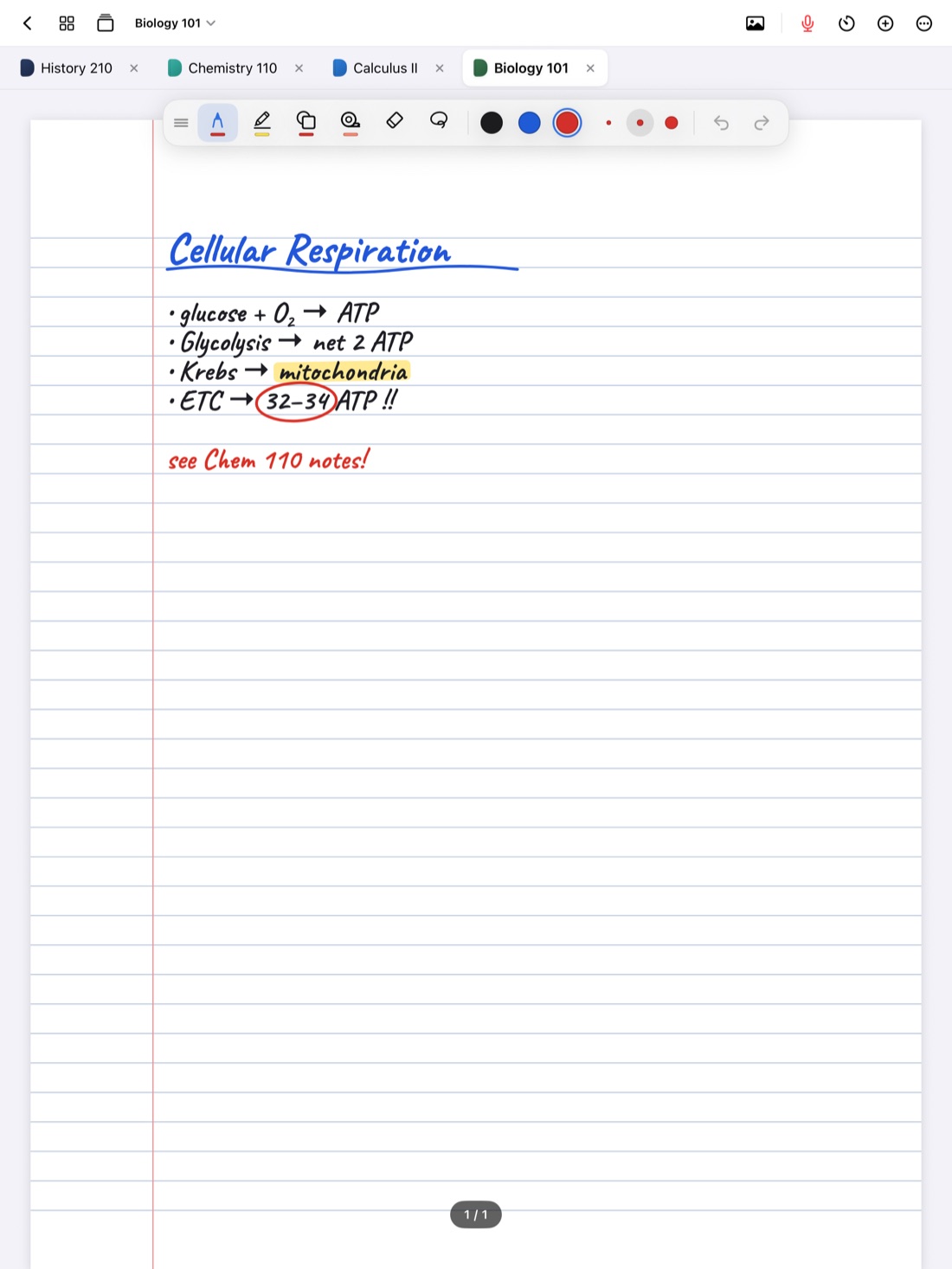
An iPad note-taking setup usually starts with a Pencil. But plenty of students also have a keyboard case or a spare keyboard in their bag, and it can do more than type. With a few shortcuts, your other hand can switch tools, start a recording or jump to another class while the Pencil stays on the page.
This guide covers when a keyboard actually helps with notes, how to set one up, and every keyboard shortcut in Scribba.
When a keyboard helps
A keyboard isn't better or worse than a Pencil. They're good at different things:
- Typing headings and labels. A typed heading at the top of each section is easy to scan and easy to search.
- Longer passages. Quotes from a reading, a definition copied from the slides, or a paragraph you want to keep word for word are faster to type than to write.
- Lists and to-dos. Due dates, readings and steps in a lab procedure are quick to type and neat to read.
- Shortcuts. Switching tools, undoing, searching and moving between notebooks without reaching for the screen.
- Fast talkers. If you type much faster than you write, typing the gist and sketching only the diagrams can help you keep up.
The Pencil is still better for diagrams, equations, arrows, annotations on slides and anything spatial. Many students settle into a mix: handwriting for the body of the notes, a few typed lines where they help.
Choosing and connecting a keyboard
You don't need a particular keyboard. Some options:
- Apple's own keyboards for iPad, such as the Magic Keyboard for compatible iPad models.
- Any Bluetooth keyboard. Pair it in the iPad's Settings › Bluetooth. A small, light one is easy to carry.
- A keyboard case from another maker, if it fits your iPad model.
Whatever you use, check that it works with your iPad model before you buy. And think about how you'll write: a keyboard case that holds the iPad upright is great for typing but awkward for handwriting, so make sure you can lay the iPad flat or at a low angle when you want the Pencil.
Every Scribba keyboard shortcut
Scribba is an iPad notebook for class, built around handwriting and recording. These are its keyboard shortcuts, grouped by what they do.
Writing
- ⌘Z undo.
- ⇧⌘Z redo.
- ⌘1 to ⌘6 switch between tools.
Undo and redo are the ones you'll use most. With the Pencil in one hand and the other on the keyboard, you can fix a mistake without stopping.
Pages and recording
- ⇧⌘N add a new page.
- ⌘R record.
⇧⌘N is handy when you're writing on imported slides and need a blank page for a long explanation. Add the page, then drag it next to its slide in the page sidebar. See how to annotate lecture slides on iPad.
⌘R starts a recording without hunting for the mic. Your handwriting is linked to the recording as you write, so you can tap a line later to hear that moment. Ask before you record: policies vary by school, professor and location. How to record a lecture on iPad covers the rest.
Finding and switching
- ⌘F search.
- ⌘O open the quick switcher, with your favorite notebooks, recent notebooks and search.
- ⌘⇧[ and ⌘⇧] move between open notebook tabs.
These three save the most time across a semester. Scribba keeps up to 6 notebooks open as tabs, so you can keep Chemistry and its lab notebook open and hop between them. For a full walkthrough, see how to switch between class notebooks fast.
Tip: learn two shortcuts a week. Start with ⌘Z and ⌘O. Trying to memorize them all at once usually means remembering none of them.
Typing in Scribba: text boxes
Scribba is a handwriting notebook, so typing happens in text boxes on the page rather than in a separate typed document. Add one from the + menu in the notebook's top bar, then type. You can move, resize, recolor and duplicate text boxes, and sticky notes work the same way.
Some good uses for text boxes:
- A typed title at the top of each lecture page.
- Definitions you want word for word.
- Quotes from a reading, with the page number.
- Questions for office hours, collected in one box at the bottom of the page.
Typed text is searchable along with your handwriting, PDF text and lecture transcripts.
If you'd rather write by hand and get typed text later, Scribba can also turn a page's handwriting into text that you can copy, share or place on the page.
Shortcuts that work across your iPad
A few iPadOS shortcuts are worth knowing too, because they work in every app:
- ⌘Space opens Spotlight, where you can search your iPad or open an app.
- ⌘Tab switches between recent apps, which is handy when you're moving between your notes and a browser for research.
In Scribba, you can run Start Lecture from Spotlight. It adds a dated, bookmarked page to a class notebook and starts recording, so with a keyboard, ⌘Space and a few letters are usually all it takes to start class.
Keep your hands comfortable
A keyboard plus a Pencil is a lot of gear on a small lecture desk. A few habits help:
- Put the keyboard where your non-writing hand naturally rests, so shortcuts don't mean reaching across the Pencil.
- Lay the iPad flat or nearly flat for handwriting. Writing on an upright screen tires your arm quickly.
- Move the tool palette out of the way. Scribba's palette floats, so you can drag it to the top, bottom or either side of the screen.
For more on writing faster and more neatly with the Pencil itself, see our Apple Pencil tips.
Frequently asked questions
Do I need a keyboard to use Scribba?
No. Everything works with an Apple Pencil or your finger. A keyboard adds shortcuts and makes typing in text boxes faster.
Can I type my notes in Scribba?
Yes, in text boxes on the page. Scribba doesn't have a separate typed-notes editor; it's built around handwriting, with typing where you want it.
What's the shortcut to start recording?
⌘R. You can also tap the mic in the tool palette.