 Scribba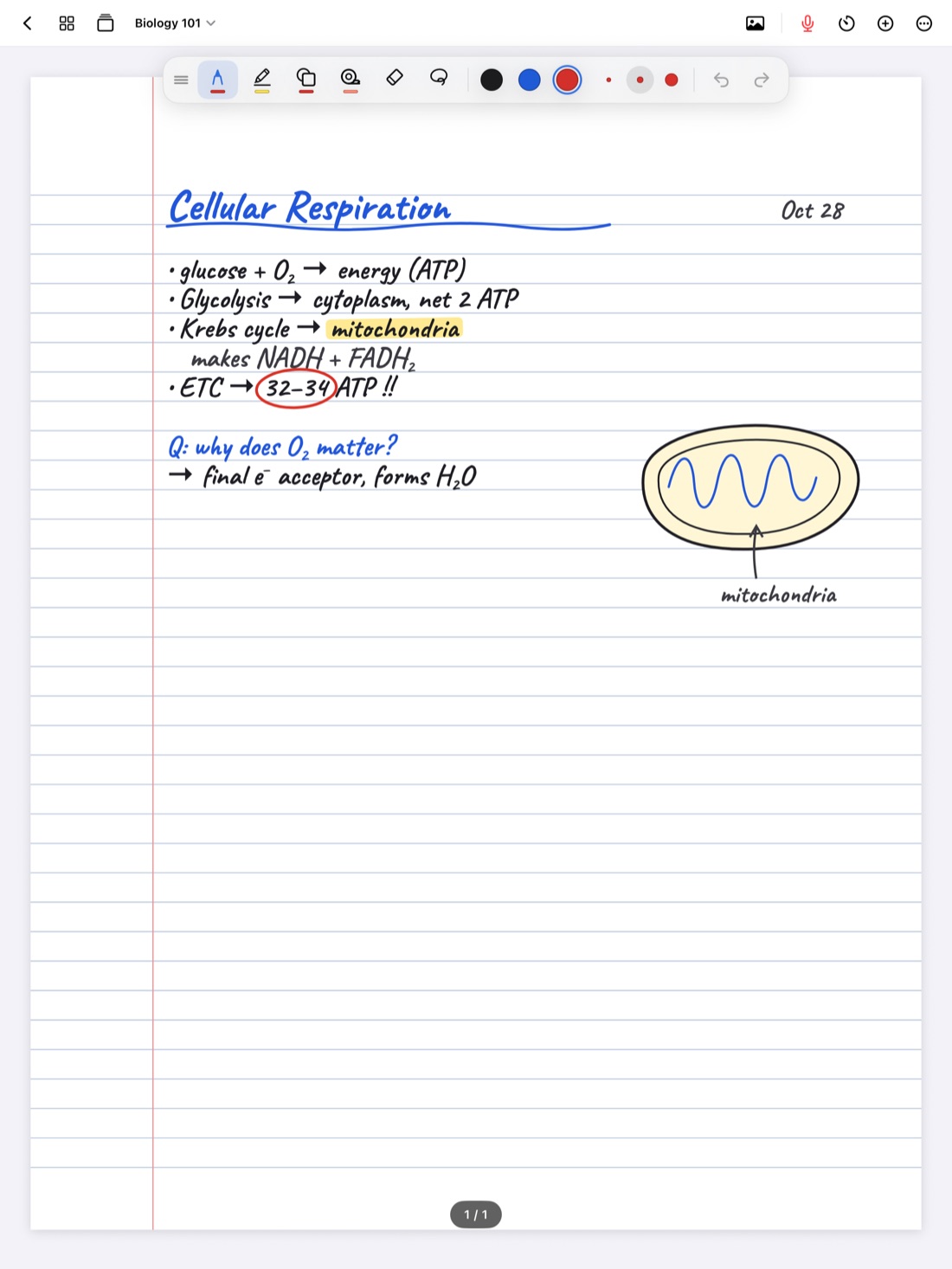
Writing on glass feels different from writing on paper. In the first week or two, a lot of students find their iPad handwriting comes out bigger, shakier and slower than it does in a paper notebook. That usually fades with practice, and a few settings and habits speed it up.
This guide covers the ones that help most in class. Most of them apply to any notes app. Along the way, we'll show how each one works in Scribba.
Choose one pen and stick with it
Switching pens all the time costs you seconds you don't have in a fast lecture. Pick one everyday pen for notes and one highlighter, and save the rest for when you actually need them.
- For speed, a fineliner or ballpoint style is a good starting point. Simple, even lines stay readable when you write quickly.
- For a paper feel, many people like a pencil style.
- For headings, a thicker line or a second color is enough. You don't need a different pen.
Scribba has six pen types: ballpoint, fineliner, fountain, pencil, brush and crayon. Each tool remembers its own colors and widths, and you can keep three to six favorite colors within reach. Fewer colors are faster. One for notes, one for key terms and one for things to check later is plenty for most classes.
Tune pressure and stabilization
Two settings change how your handwriting looks more than anything else.
Pressure sensitivity makes lines thicker when you press harder. It looks lovely in slow, careful writing. When you write fast, though, your pressure varies a lot, and letters can come out uneven. If your quick notes look messy, try turning it down.
Stabilization smooths out small wobbles in your strokes. A little makes shaky handwriting look cleaner. Too much can make the line feel like it trails behind the Pencil tip. Start low and raise it until the wobbles go away.
In Scribba, pens have settings for thickness, pressure sensitivity and stabilization. Before the semester starts, spend five minutes writing the same sentence at a few different settings, at your normal lecture speed, and keep whatever looks best.
Write small with the Zoom Window
A common iPad problem: your handwriting is much bigger than it is on paper, so each page holds less. Forcing yourself to write smaller on a slippery screen usually makes it harder to read.
Scribba's Zoom Window solves this. You write big in a magnified strip, and your writing lands small and neat on the page. As you fill the strip, it slides along the line. It's especially useful for dense subjects, labeled diagrams and squeezing notes into the margins of slides.
Let shapes snap
Hand-drawn boxes and arrows take time and rarely look clean. In Scribba, draw a shape and hold the Pencil still at the end of the stroke. It snaps into a clean line, arrow, circle, ellipse, triangle, rectangle or polygon. If you're drawing lots of shapes, like a flowchart or a cycle diagram, switch to the Shape tool and every stroke snaps.
The highlighter works in a similar spirit: its strokes snap straight, so a quick swipe stays on the line.
Learn the gestures
Gestures keep your hand on the page instead of reaching for the toolbar. These are the ones worth memorizing in Scribba:
- Two-finger tap to undo, and three-finger tap to redo.
- Scribble back and forth over writing to erase it, without switching to the eraser.
- Double-tap the paper with a finger to fit the whole page on screen.
- Double-tap the Apple Pencil, on models that support it, to do whatever you've chosen in your iPad's Apple Pencil settings, such as switching to the eraser.
- Squeeze Apple Pencil Pro to switch between pen and highlighter.
If you use a keyboard case, ⌘Z and ⇧⌘Z undo and redo, and ⌘1 to ⌘6 switch tools.
Tip: learn one new gesture a week. Trying to change every habit at once just slows you down in class.
Find a comfortable hand position
iPads are designed to ignore your palm while you write with an Apple Pencil, so you can rest your hand on the screen the way you would on paper. A few habits make that more comfortable:
- Rest your hand naturally. Hovering your wrist above the glass tires you out and makes writing shakier.
- Tilt the iPad slightly. A low stand or a folded case brings the page closer to the angle of a notebook on a desk.
- Move the toolbar out of the way. Scribba's tool palette floats. Drag it to the top, bottom or either side of the screen, wherever your hand doesn't land.
- Zoom in when you need room. Writing in a slightly zoomed view gives you bigger lines without changing your handwriting.
Consider a matte screen protector
Glass is slippery, and that's a big part of why handwriting feels different on an iPad. A matte, paper-textured screen protector adds friction, so the Pencil tip drags a little the way a pen does on paper. Many students find their writing gets neater and more controlled with one.
There are trade-offs. The screen can look slightly less sharp, and textured protectors tend to wear down Pencil tips faster. If you use one, keep a spare tip in your bag.
Neat handwriting pays off later
Neater notes aren't only nicer to look at. Scribba recognizes your handwriting on the iPad, which is what lets you search your handwritten notes and turn Vocabulary or Cornell Notes pages into flashcards. Clear letters make recognition more reliable.
Paper lines help too. If your writing drifts or grows, try a narrower ruled or dot grid paper as a guide. Our guide to note paper templates explains the options.
No Apple Pencil? Use your finger
You can still take handwritten notes without a Pencil. In Scribba, turn on Settings › Draw with Finger. Finger writing is slower, so lean on short phrases, the Zoom Window and snapped shapes, and add longer explanations in a text box when you have time. More in how to take notes on iPad without an Apple Pencil.
Practice before the lectures speed up
Like any tool, it gets easier with use. In your first week, take notes from a recorded talk or a textbook chapter for ten minutes a day, and try one new setting or gesture each time. By the time your classes pick up pace, the basics will be automatic. For the bigger picture of setting up your classes, see how to take notes on iPad in college.
Frequently asked questions
Why does my handwriting look worse on iPad?
Mostly friction. Glass is smoother than paper, so the Pencil tip slides more. Turning down pressure sensitivity, adding a little stabilization, using the Zoom Window and trying a matte screen protector all help.
What does double-tap or squeeze do in Scribba?
On Apple Pencil Pro, squeeze switches between pen and highlighter. On Pencils with double-tap, Scribba does whatever you've chosen for double-tap in your iPad's Apple Pencil settings.
Can I take handwritten notes without an Apple Pencil?
Yes. Turn on Settings › Draw with Finger in Scribba and write with your finger.