 Scribba
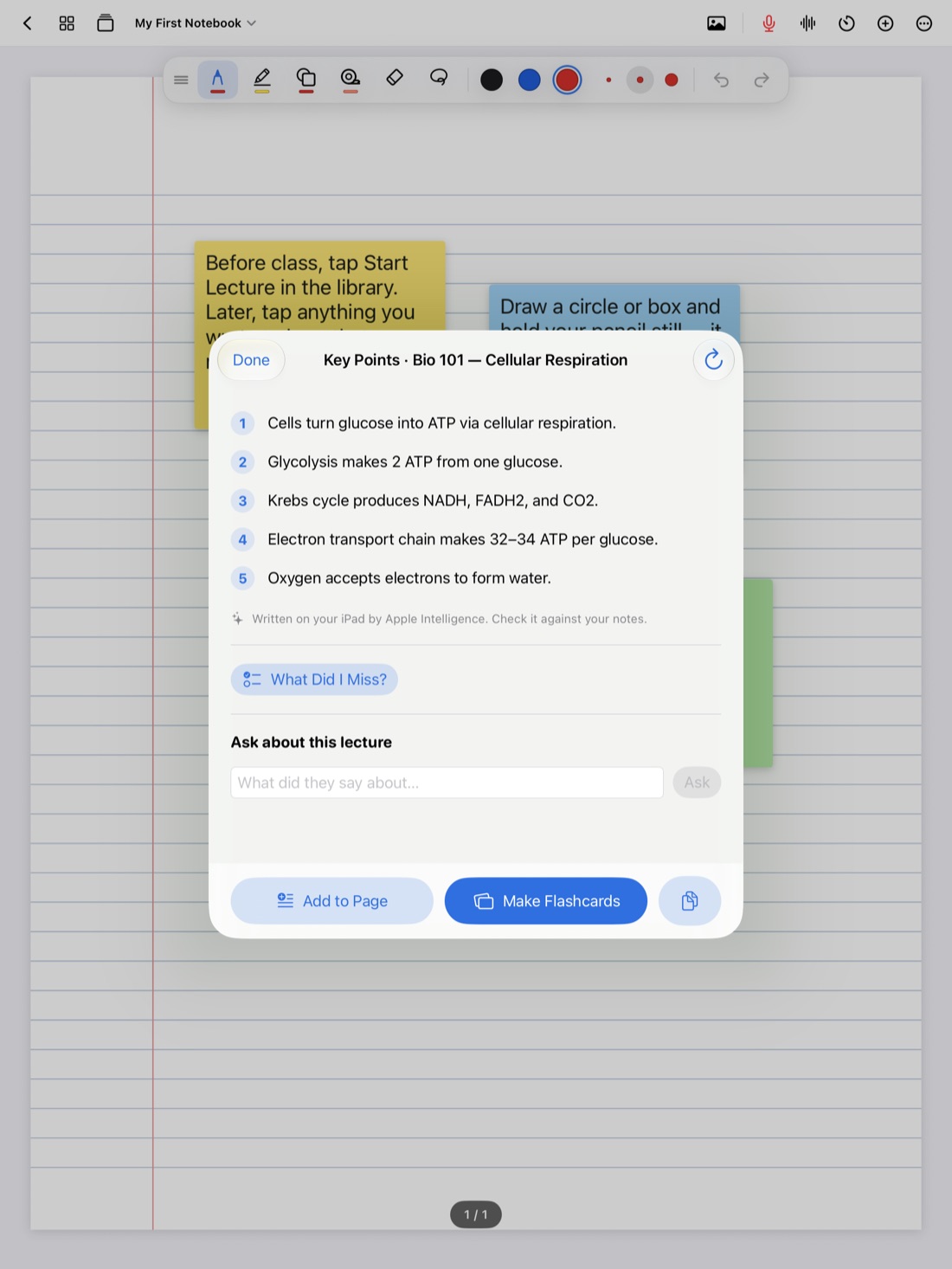
AI in school tends to get talked about in two ways: as a shortcut that does your work for you, or as a cheat that gets you in trouble. The more useful version is quieter. It's a set of tools that help you review your own classes: find what you missed, pull out the main ideas, and turn notes into something you can study.
This guide is an honest overview of what Apple Intelligence does inside Scribba, what it needs, what it doesn't do, and how to turn it off if you'd rather not use it.
Use AI to study, not to skip studying
Before the features, a few ground rules that apply to any AI tool you use for school:
- Check your course's policy. Rules on AI vary by school, department and professor. A syllabus that bans AI for writing assignments may say nothing about study aids, or it may. When in doubt, ask.
- Let it organize, not think. AI is good at sorting, summarizing and finding. The learning still happens when you recall, explain and practice on your own.
- Recall before you read. Try to list a lecture's main ideas from memory before you look at a summary. That effort is what makes ideas stick.
- Treat every output as a draft. AI can misread a sentence, miss emphasis or get a detail wrong. Check it against your notes and the lecture.
What you need
Scribba runs on iPads with iPadOS 17 or later. Its Apple Intelligence study tools need more:
- An iPad that supports Apple Intelligence
- Apple Intelligence turned on
- iPadOS 26
Not sure if yours qualifies? Scribba's Settings shows Study Assistant status: whether Apple Intelligence is ready, or why not.
The five tools
All five work from your own class material: your lecture transcripts and your notes.
Key points
After class, Scribba pulls the key points from a lecture transcript or from any page of notes. A lecture's key points are written automatically once it's transcribed, and the recording and that day's page are named after the lecture's topic, so your notebook stops being a list of pages called "Lecture."
Best for: seeing the shape of a lecture at a glance. More in key points from lectures.
What Did I Miss?
This compares a lecture's key points with what you wrote during it and lists what your notes left out, ready to add to the page. It doesn't change your notes on its own. You decide what to add.
Best for: finding gaps the same day, while they're easy to fill. See what did I miss.
Ask the lecture
Type a question, like "When is the midterm?", and get an answer in a sentence from the transcript, with a button that plays the moment it was said.
Best for: announcements, definitions and "wait, what did she say about that?" See ask your lecture questions.
Study Guide
One sheet with the key points of every lecture in a notebook, from your handwriting, typed notes and recordings, split at each Start Lecture page. Add it to the notebook as pages, or turn it into flashcards.
Best for: the start of exam prep. See how to make a study guide from lecture notes.
Flashcards from a lecture or any page
Scribba can write a flashcard deck from a lecture transcript or any page of notes. A lecture's key points also have a Make Flashcards button.
Best for: turning a lecture into practice the same day. See how to make flashcards from a lecture.
What it doesn't do
Knowing the limits helps you trust the rest:
- No live transcript. Lectures are transcribed after you stop recording, so the AI tools work after class, not during it.
- No math solving or equation recognition. It won't work problems for you.
- No speaker identification. It doesn't tell your professor's voice apart from a classmate's.
- Two languages. The tools work in English and Spanish, and write in the language Scribba shows.
- Not always right. Every tool here can be wrong. Check before you study from it.
Private by design
Scribba's Apple Intelligence tools run on the iPad itself. Your notes and transcripts aren't uploaded for them, and there's no per-use cost or monthly AI fee. Scribba doesn't use cloud AI services, has no accounts and collects no data.
The transcripts the tools work from are made on the iPad on models that support on-device speech recognition. On other iPads, Apple's speech service processes them. Scribba doesn't upload your recordings to servers of its own.
How to turn it off
If your class doesn't allow AI study aids, or you'd simply rather do the summarizing yourself, go to Settings › Apple Intelligence. That turns off key points, study guides, What Did I Miss? and questions about a lecture.
Flashcards from Vocabulary and Cornell Notes pages still work, since Scribba makes those by reading your handwriting rather than with Apple Intelligence.
Tip: try a week with the tools off before a big exam season. If you find yourself recalling more on your own, that's a good sign the habit is there, and the tools can go back on as a check rather than a crutch.
What works without Apple Intelligence
If your iPad doesn't support Apple Intelligence, or you turn it off, most of Scribba is unchanged:
- Recording linked to your ink: tap anything you wrote to hear that moment
- Lecture transcripts, with read-along and search
- Search across handwriting, typed text, PDFs and transcripts
- Flashcards from Vocabulary and Cornell Notes pages, with spaced repetition and export to Quizlet or Anki
- Study tape and the focus timer
Frequently asked questions
Does Apple Intelligence in Scribba cost extra?
There's no per-use cost or AI fee. The tools run on your iPad.
Is my lecture sent to a server for AI?
No. The Apple Intelligence tools run on the iPad, and nothing is uploaded for them.
Can I use Scribba without Apple Intelligence?
Yes. Recording, transcripts, search and flashcards from Vocabulary and Cornell Notes pages work on any iPad that runs Scribba.
How do I know if my iPad supports it?
Check Scribba's Settings. Study Assistant status shows whether Apple Intelligence is ready, or why not.