 Scribba
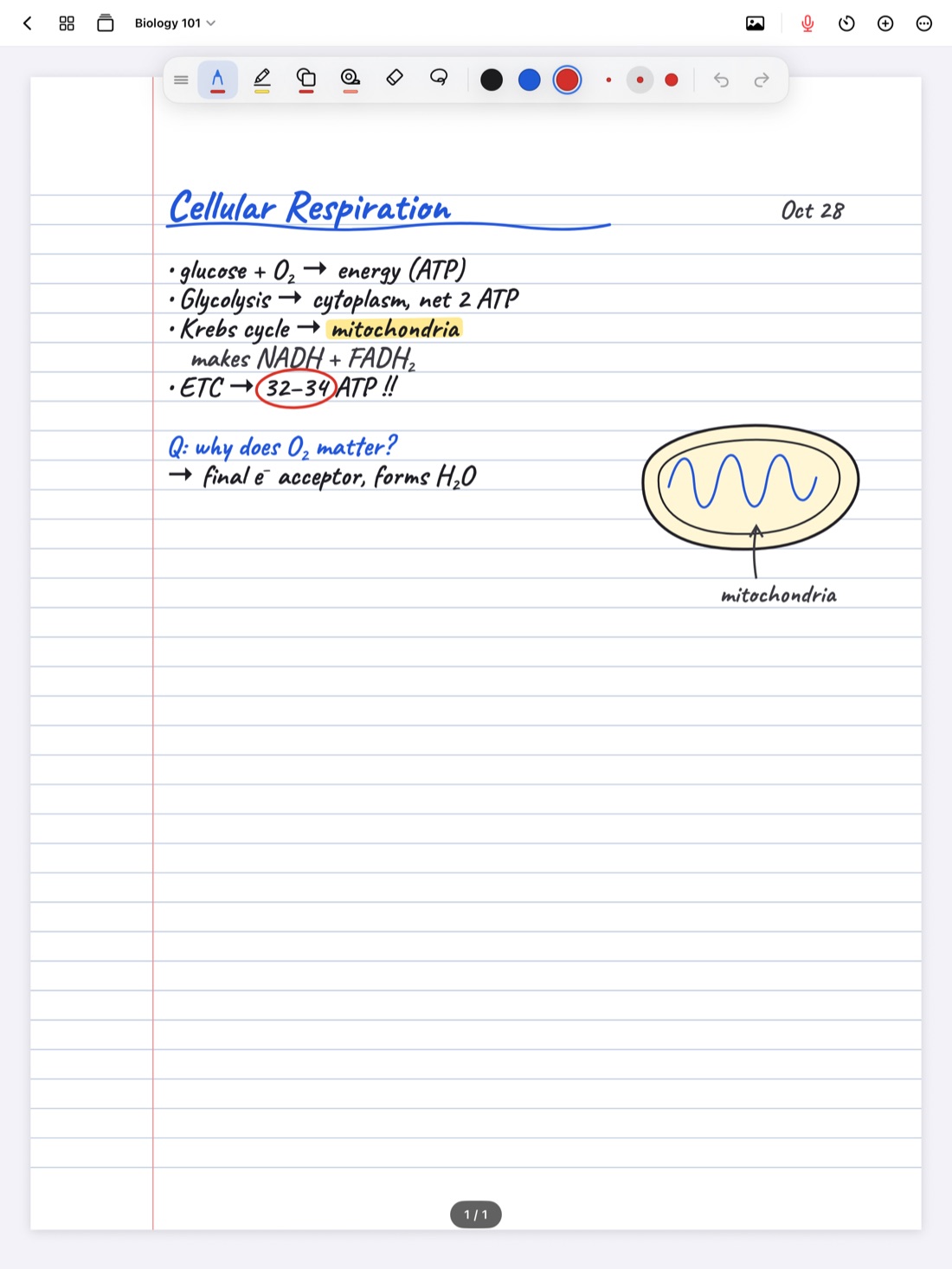
Search for iPad accessories and you'll find hundreds of cases, stands, grips, sleeves and gadgets, all promising better notes. Most of them don't change how you take notes at all. A few change it a lot.
This guide sorts them by what they do for note-taking specifically, in the order most students would buy them. There are no brands or prices here, because those change every year. Instead, you'll find what to look for, what to check before you buy, and what you can safely skip.
Start with what you already have
Before buying anything, take notes for a week with just the iPad. You'll learn quickly what actually bothers you: the glass feels slippery, your wrist hurts, you type more than you thought, or the battery runs out by your last class. Buy for the problem you have, not the one an ad says you'll have.
In Scribba, you can write with your finger by turning on Settings › Draw with Finger, or type in text boxes, so you can get through that first week without any accessories. How to take notes on iPad without an Apple Pencil covers that setup.
1. A stylus: the one that matters most
If you plan to handwrite notes, a stylus is the accessory that makes the biggest difference. Writing with a finger works for keywords, but equations, diagrams and full sentences are slow and messy without a pen.
What to check:
- Compatibility first. Not every Apple Pencil works with every iPad. Find your iPad's model in its Settings, then check Apple's compatibility list before you buy.
- Pressure and tilt. Some styluses sense how hard you press, which lets pens and pencils vary their line the way real ones do. Others don't. If you care about natural-looking handwriting, this matters.
- How it charges and where it lives. A stylus that attaches to the iPad is harder to lose and easier to keep charged than one that rides loose in your bag.
- Spare tips. Tips wear down with use. A spare in your bag saves a lecture.
An Apple Pencil also brings a few shortcuts. In Scribba, double-tap follows whatever you set in your iPad's Apple Pencil settings, and squeezing Apple Pencil Pro switches between pen and highlighter. Our Apple Pencil tips cover the settings worth tuning once you have one.
2. A stand or case that tilts
This is the accessory people underrate. Writing on an iPad lying flat on a desk means hunching over it for an hour. Writing on an iPad propped too upright feels like writing on a wall.
The sweet spot is a low angle, close to how a paper notebook sits when you lean it slightly toward you. Look for:
- A low writing angle that stays put when you press with a pen. Some cases fold into a slight tilt for writing and a steeper angle for watching.
- Stability. If the stand wobbles or slides when you write near the top of the page, it'll bother you every class.
- A small footprint. Lecture hall desks are tiny, sometimes just a fold-out tray. A stand that needs a lot of desk is a stand you'll leave at home.
A case with a cover also protects the screen in your bag, which matters if you carry the iPad between buildings all day.
3. A keyboard, if you type a lot
Whether you need a keyboard depends on your classes. If your notes are mostly words, as in history, literature or seminars, a keyboard can carry half your note-taking. If they're mostly diagrams and equations, you might never use one.
What to consider:
- Weight and bulk. A keyboard case can add a lot to what you carry. A separate keyboard you leave in your dorm room is fine for essays but useless in class.
- Whether it gets in the way of writing. Some keyboard cases make it awkward to lay the iPad down for handwriting. If you switch between typing and writing in the same class, try the motion before you commit.
- A trackpad, if you want one. Handy for essays, not needed for notes.
In Scribba, typing happens in text boxes on the page, which you can move and resize next to your handwriting. With a keyboard attached you also get shortcuts: ⌘R starts recording, ⌘O opens the quick switcher between notebooks, and ⌘1 to ⌘6 switch tools. See iPad keyboard shortcuts for notes.
4. A matte screen protector, maybe
Glass is slippery. A matte, paper-textured screen protector adds friction so the pen tip drags slightly, the way a pen does on paper. Many people find their handwriting gets neater with one. Others can't stand how it feels.
The trade-offs are real: the screen can look a little less sharp, and textured protectors tend to wear down stylus tips faster. It's worth trying one if your handwriting on the iPad looks noticeably worse than on paper. If it doesn't, you may not need one.
Tip: before buying a protector, try Scribba's pen settings first. Double-tap the pen tool and raise stabilization a little, or switch to the pencil or fineliner pen type. Sometimes a setting fixes what you thought needed hardware.
5. A charger and a longer cable
A dead iPad mid-lecture costs you that day's notes. What helps:
- A charger and cable that live in your bag, separate from the ones at home, so you never forget them.
- A longer cable. Outlets in lecture halls and libraries are usually along the walls or under the desk, not where you sit.
- A portable battery for long days, if your schedule keeps you away from outlets. Check that it can actually charge an iPad, not just a phone.
If you record lectures, budget more battery: an hour of recording with the screen on uses a good amount. Scribba keeps recording when the screen locks, so locking the iPad during a long discussion saves some power without stopping the recording.
What you can usually skip
- An external microphone, at first. The iPad's built-in microphones are good enough for most lectures, especially if you sit near the front. See how to record a lecture on iPad for seating tips.
- Grips and pen sleeves, unless you have a specific comfort problem.
- Multiple styluses. One good one and a spare tip beat three cheap ones.
- Anything that promises to make you study more. No accessory does that.
A sensible order to buy in
- Use the iPad alone for a week and note what bothers you.
- Add a compatible stylus if you handwrite.
- Add a stand or tilting case.
- Add a keyboard if your classes are word-heavy.
- Try a matte protector only if writing still feels wrong.
- Keep a charger in your bag from day one.
For the rest of your week-one setup, see how to set up your iPad for college.
Frequently asked questions
Do I need an Apple Pencil to take notes on iPad?
No, but it helps a lot for handwriting, math and diagrams. In Scribba you can write with your finger by turning on Settings › Draw with Finger, or type in text boxes.
Is a keyboard worth it for note-taking?
If your classes are mostly words, often yes. If they're mostly equations and diagrams, a stylus matters more.
Will a matte screen protector make my handwriting better?
It often helps by adding friction, but it can make the screen look slightly less sharp and wear tips faster. Try adjusting pen stabilization first.