 Scribba
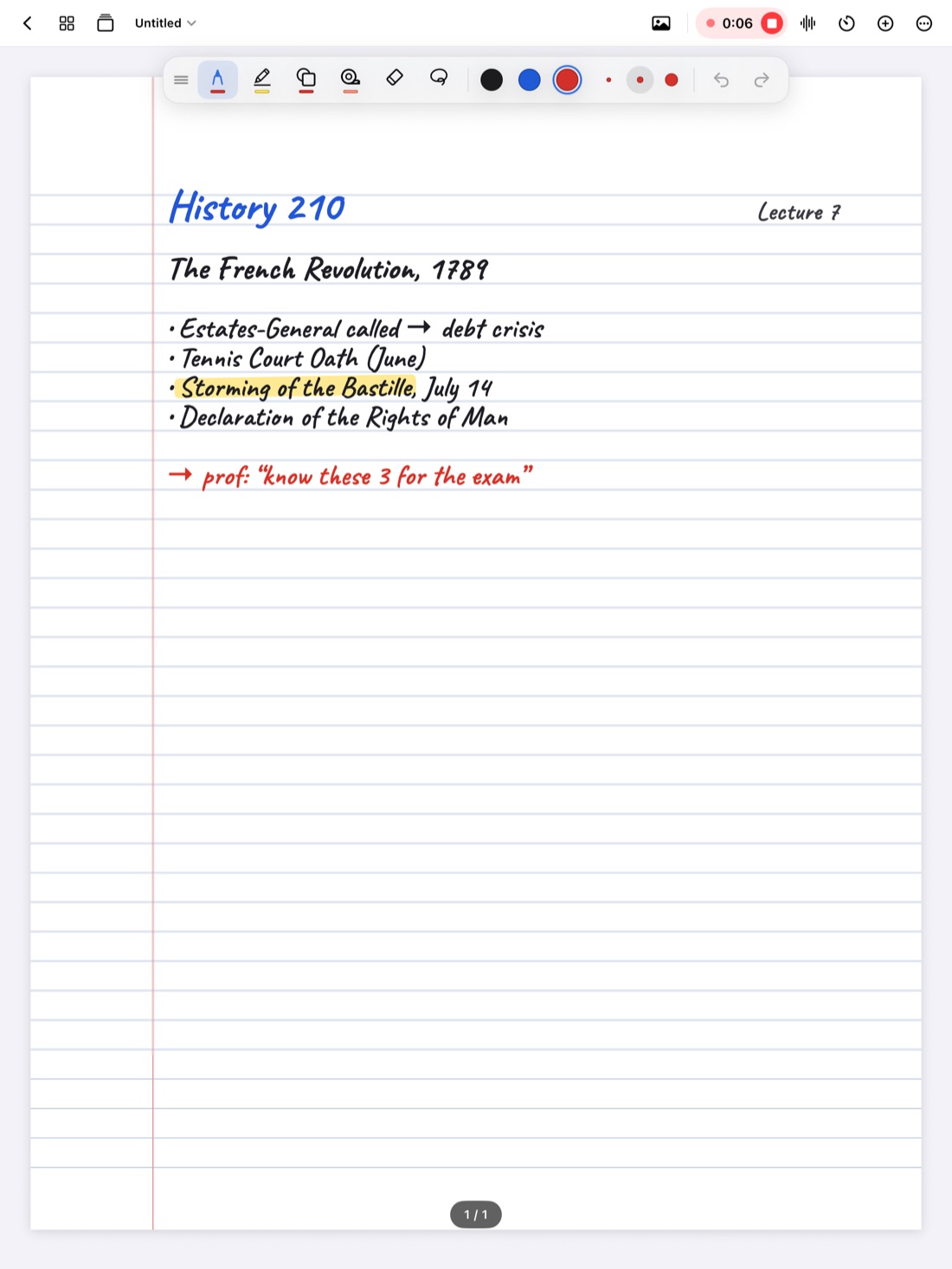
Most students set up their notes app once, on the first day, and never touch the toolbar again. That's a shame, because the toolbar is where a lot of lecture time quietly goes: reaching across the page, hunting for a color, opening a menu to change a pen width you change every class.
Ten minutes of setup fixes most of it. This guide shows how to work out what your toolbar should hold, then how to set it up in Scribba.
Start by watching how you write
Before you change anything, take notes in one or two normal classes and notice what you actually use. Most people find it's a short list:
- One main pen, in one or two colors.
- A highlighter.
- An eraser, or an undo gesture instead.
- Something for diagrams, like shapes or the lasso.
- Recording, if you record lectures.
Also notice the friction. Do you keep changing pen width for headings? Do you reach over your writing hand to get to the toolbar? Do you scroll through colors to find the one you use for key terms? Each of those is something setup can fix.
Move the palette where your hand isn't
In Scribba, tools live in a floating tool palette that you can drag to the top, bottom or either side of the screen. Where you put it makes more difference than people expect.
- Right-handed writers often do well with the palette on the left or at the top, so reaching for it never means crossing the writing hand.
- Left-handed writers usually prefer the right side or the top, for the same reason.
- In landscape, a side position leaves the full height of the page for writing, which helps with slides and wide diagrams.
- In portrait, the top or bottom keeps the full width of the page clear.
- Writing near the bottom of the page? Move the palette to the top so your palm doesn't land near it.
You can move it any time. Some people keep it in one spot for lectures and another for annotating readings.
Know what lives where
Scribba splits tools into two places:
- The tool palette holds your pens, colors, sizes, undo and redo.
- The notebook's top bar has the record button (a mic icon) and a + menu with text boxes, sticky notes, the ruler, the Zoom Window, bookmarks and study tools.
The palette is for things you use every few seconds. The + menu is for things you use a few times a class. That's a good way to think about your own setup too.
Hide what you never use
A shorter toolbar is faster to scan. In Scribba, open Customize Toolbar from the More menu and show or hide each button and tool. Hiding a tool doesn't remove it, so you can bring it back whenever you need it.
Some setups that work for different classes:
- Lecture notes: pen, highlighter, eraser and lasso in the palette, with the record button on the top bar.
- Math, physics and engineering: pen, shapes, eraser and lasso. A lot of diagrams, very little highlighting.
- Readings and review: pen, highlighter and study tape, for covering answers to quiz yourself later. See study tape on iPad.
If you have a keyboard, ⌘1 to ⌘6 switch tools, so the toolbar matters a little less. Full list in iPad keyboard shortcuts for notes.
Set up colors with a system
Color helps only if each color means something. A few colors used consistently beat a rainbow used at random.
A simple system that works in most classes:
- One color for notes, the main text of what the professor says.
- One for key terms and definitions, the things you'll make flashcards from.
- One for your own questions and things to check later.
Use the same meanings in every class, so you never have to remember which color meant what in Chemistry. If you study on dark paper, check that your colors are readable on it; light colors usually show up better than dark ones on a dark background. More in dark paper for studying at night.
In Scribba, the pen and the highlighter each remember their own colors and widths, and you can keep three to six favorite colors within reach. To change a saved color, tap the selected color and pick a new one. Set up the highlighter separately from your pens: a soft yellow highlighter and a dark blue pen can live side by side without either one changing the other.
Save the widths you actually use
Changing pen width by hand mid-lecture is slow. Scribba keeps three pen widths, and you set each one's thickness in pen settings, so set them up once:
- Fine for labels on diagrams, notes in margins and writing on slides.
- Medium for normal notes.
- Bold for headings, so each section stands out when you skim.
The highlighter has three widths of its own: the narrow one covers a single line of text and the wide one covers a whole term or block.
Tune each pen
Double-tap the pen tool in Scribba to open pen settings. You'll see the pen types with live previews, plus thickness, pressure sensitivity and stabilization. If your writing looks shaky or uneven, start here. Why your handwriting looks worse on iPad explains what each setting does to your writing.
Let your Pencil carry tools too
Your Apple Pencil can take some jobs off the toolbar entirely:
- Double-tap does whatever you choose in the iPad's Settings › Apple Pencil, such as switching to the eraser. Scribba follows that setting.
- Squeeze on Apple Pencil Pro switches between pen and highlighter in Scribba.
With the eraser on double-tap and the highlighter on squeeze, the palette is mainly there for colors and widths.
A five-minute setup before the semester
- Drag the palette to the edge away from your writing hand.
- Hide every tool you didn't use last semester in Customize Toolbar.
- Pick your three colors and give each one a meaning.
- Save a fine, medium and bold width for your main pen.
- Set the highlighter's colors and pick its width.
- Choose what Pencil double-tap does in the iPad's settings.
Then leave it alone for a couple of weeks before changing anything else. For the rest of a class setup, see how to take notes on iPad in college.
Frequently asked questions
Can I move the toolbar in Scribba?
Yes. The tool palette floats, and you can drag it to the top, bottom or either side of the screen.
Where is Customize Toolbar?
In the More menu. It lets you show or hide each button and tool.
How many colors can I save?
The pen and highlighter each keep their own saved colors and widths, and you can keep three to six favorite colors within reach. Tap the selected color to pick a new one.
Where are text boxes and the ruler?
In the + menu in the notebook's top bar, along with sticky notes, the Zoom Window, bookmarks and study tools.