 Scribba
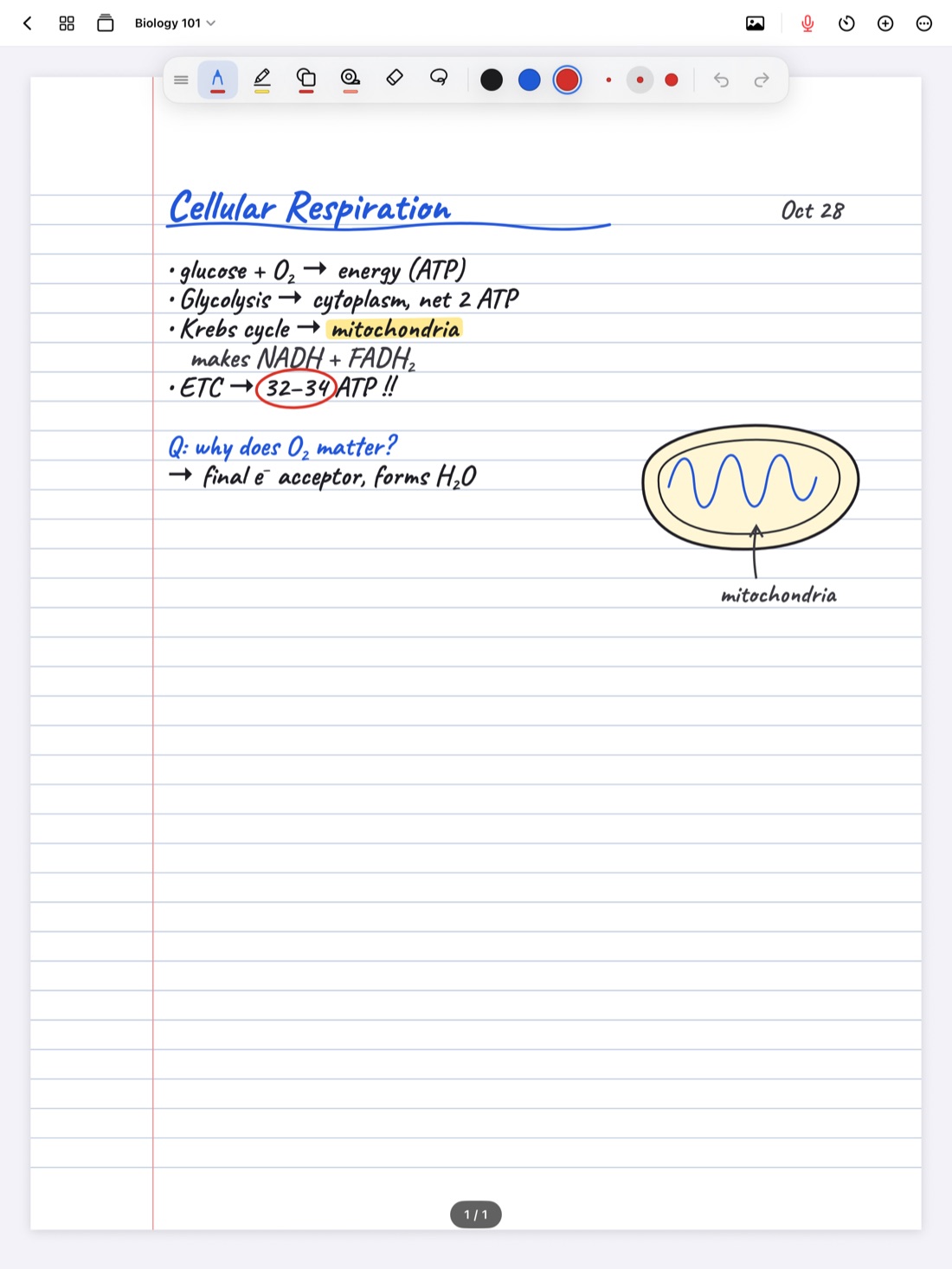
An iPad mini is easy to love in college. It slips into a small bag, it's light enough to hold in one hand on a crowded bus, and it sits comfortably on the tiny fold-out desks in lecture halls. The catch is the screen. Open a full-size notebook page on it and everything shrinks: the lines are tight, your handwriting looks huge, and the toolbar takes a bite out of the little space you have.
None of that is a reason to give up on it. A small screen just needs a slightly different setup. This guide covers the habits and settings that make it work.
The main problem: pages built for big paper
Most note templates are modeled on printed paper, like US Letter or A4. On a large iPad, a whole page fits on screen at a readable size. On a mini, fitting the whole page means shrinking it until ruled lines are too close together to write between.
You have two ways around that:
- Use a smaller page, so a whole page fits on screen at a comfortable size.
- Keep a large page and zoom in, writing on part of it at a time.
Both work. Which one suits you depends on whether you'll ever print your notes or share them as PDFs.
Pick a page size for the screen
If your notes live on the iPad, choose a page size that suits the screen instead of a printer.
In Scribba, page size is chosen per notebook when you create it, from six sizes: US Letter, A4, A5, iPad, Square and Widescreen. For a mini, two stand out:
- A5 is a small paper size, about half of A4. It feels like a pocket notebook, and a whole page sits on a small screen without much shrinking. It still prints neatly if you ever need to.
- iPad, as the name suggests, is meant for notes that stay on the iPad. If you never plan to print, it's a natural choice.
Because the size is set when you make the notebook, decide before the semester starts. If you've already filled a US Letter notebook, keep it, and start a new A5 or iPad-size notebook for the next unit or term.
Tip: paper with more space between lines is easier on a small screen. College Ruled or Wide Ruled usually feels better than Narrow Ruled on a mini, and you can change any page's paper later from the page sidebar.
Write small with the Zoom Window
On a mini, the hardest part of handwriting is getting it small enough. Your hand wants to write at the same size it always does, which on a small page means three words per line.
The Zoom Window fixes that. In Scribba, open it from the + menu in the notebook's top bar. You write big in a magnified strip, and your writing lands small and neat on the page. As you fill the strip, it slides along the line.
It suits a mini especially well, because you get comfortable, full-size handwriting and a page that still holds a full lecture's worth of notes. More in the Zoom Window for small handwriting.
Zoom in and fit the page
Without the Zoom Window, the simplest trick is zoom. Pinch to zoom into the part of the page you're writing on, write there, and move down as you go. Scribba's paper stays sharp at any zoom, so lines don't blur when you zoom in.
To see the whole page again, double-tap the paper with a finger to fit the page to the screen. That two-step rhythm, zoom in to write and double-tap to check the whole page, becomes automatic after a few lectures.
Portrait or landscape?
On a small screen, orientation matters more than usual.
Portrait is the default for most notes. It shows more of the page at once and feels like holding a notebook. It's also easier to hold in one hand.
Landscape makes each line wider on screen, which can make writing feel less cramped, and it leaves more room for slides. It's useful for:
- Annotating lecture slides, which are usually wide themselves
- Diagrams and timelines that run sideways
- Storyboards and wide planners
In Scribba, orientation is chosen per notebook when you create it, along with the page size. Keep the class notebook in portrait and make a separate landscape notebook for slide-heavy classes if you need one. How to annotate lecture slides on iPad covers that side.
Keep the tools out of the way
Every bit of toolbar on a mini is space your notes don't get.
- Move the palette. Scribba's tool palette floats; drag it to the top, bottom or either side of the screen. Put it where your writing hand doesn't rest. For many people that's the top in portrait, or the side opposite the writing hand in landscape.
- Hide what you don't use. Open Customize Toolbar from the More menu and hide the buttons and tools you never touch.
- Use gestures instead of buttons. Two-finger tap to undo, three-finger tap to redo, and scribble back and forth over writing to erase it, without reaching for any tool.
- Keep a short color list. Three saved colors per tool is plenty, and fewer choices mean less fiddling.
Scribba also hides the iPad's status bar by default, so notes get the whole screen. If you want the time and battery back, turn on Settings › Screen › Show Time and Battery.
What works well on a mini, and what doesn't
Some things are better on a small screen. Others are a squeeze.
Works well:
- Recording lectures. The mini is easy to set down near the front of the room, and recording keeps going when the screen locks. See how to record a lecture on iPad.
- Flashcards and study tape. Reviewing a deck or peeking under tape is quick and comfortable on a small screen, on the bus or in line.
- Quick switching. Tabs and the quick switcher let you jump between class notebooks without crowding the screen.
A squeeze:
- Split View. Two notebooks side by side on a mini can feel cramped. Switching between tabs is often more comfortable.
- Dense pages, like full-page equations or big labeled diagrams. Zoom in and give them room, or use a graph page for them alone.
Frequently asked questions
What page size is best for an iPad mini?
A5 or iPad usually. A5 feels like a pocket notebook and still prints well; iPad suits notes that stay on screen. Both fit on a small screen better than US Letter or A4.
Can I change a notebook's page size later?
Page size and orientation are chosen per notebook when you create it. To switch, make a new notebook with the size you want.
Is an iPad mini big enough for college notes?
For most classes, yes, with a smaller page size and the Zoom Window. Very dense diagram work is easier on a larger screen.