 Scribba
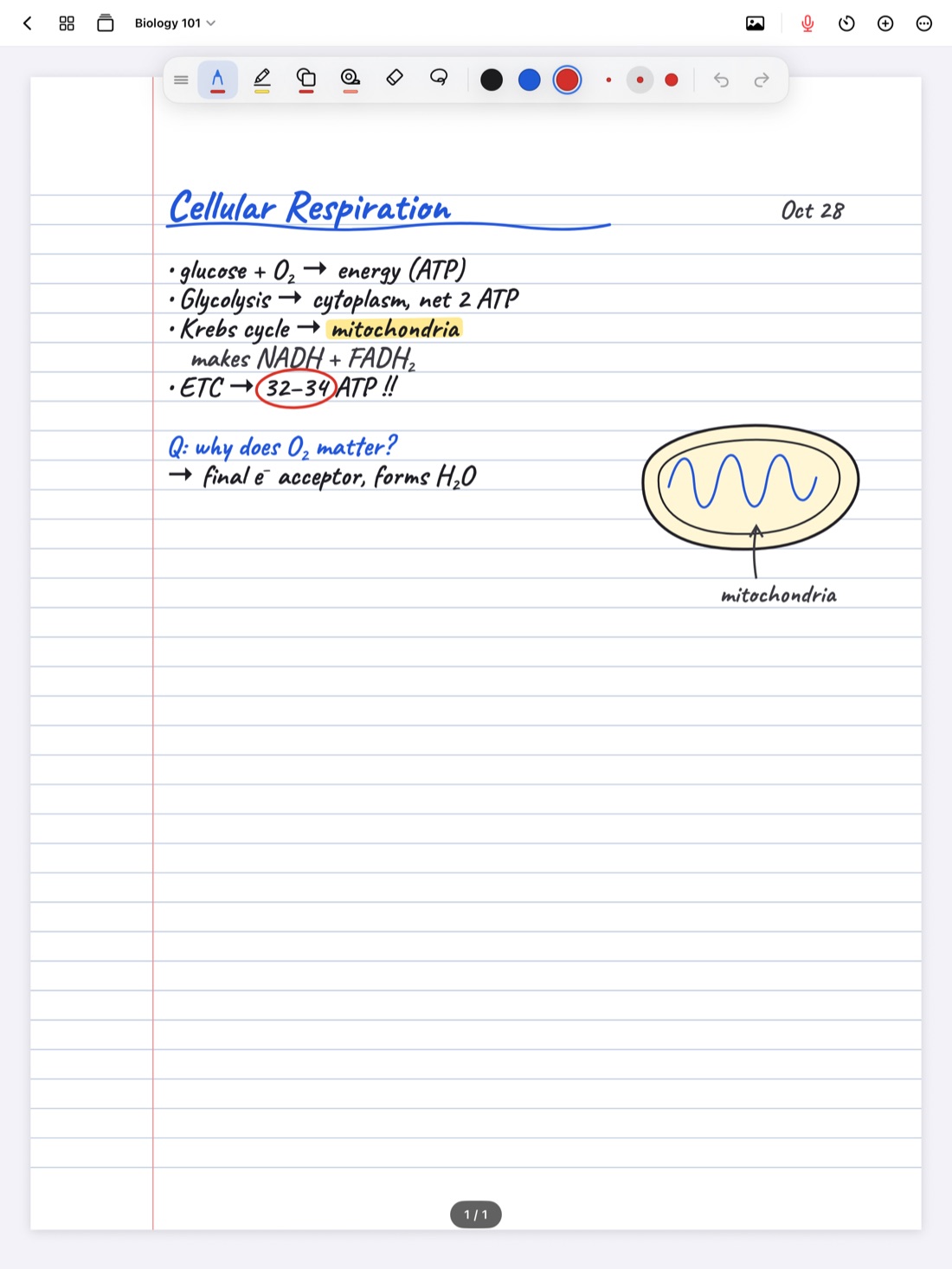
On paper, where you write something is where it stays. If the professor circles back to an earlier point, you squeeze it into the margin with an arrow. If a diagram runs into your next heading, you live with it. By the end of the semester, the important pages are often the messiest ones.
On an iPad, handwriting can move. The lasso tool lets you draw a loop around part of a page, select what's inside, and drag it somewhere else. That small ability changes how you can take notes: you can write fast in class and fix the layout later. This guide covers the main ways to use it, and how not to let tidying eat your study time.
How the lasso works
The lasso is a selection tool. Instead of writing, you draw a loop around the handwriting you want, and everything inside the loop is selected. Then you drag the selection to a new spot on the page.
A few habits make selections go right the first time:
- Draw the loop loosely but fully. Go a little wide around the edges and around whole words, so nothing you meant to move stays behind.
- Zoom out for big moves. Pinch out first, so you can see where you're moving things to.
- Undo if it goes wrong. A two-finger tap undoes the last change, so a bad move costs you nothing.
In Scribba, the lasso sits in the tool palette alongside the pen, highlighter, shapes, study tape and eraser.
Make room for something you missed
This is the most common use, and the one that saves the most mess. The professor goes back to an earlier slide and adds a point that belongs in the middle of your notes.
- Pick the lasso and draw a loop around everything below the spot where the new point belongs.
- Drag it down to open a gap.
- Switch back to your pen and write the new point in the gap.
If the page has no room left, write the addition on a new page instead, with a small note on the original page pointing to it. In Scribba, pull past the last page to add one, then reorder it in the page sidebar so it sits right after the page it belongs with.
Tip: leave a few blank lines between topics as you write. A gap you don't need costs nothing, and it means most additions won't need the lasso at all.
Tidy a page after class
A fast lecture leaves a page with stray words, half-finished diagrams and notes in the wrong place. A few minutes with the lasso fixes most of that while you still remember what everything meant.
- Move headings into place. If a heading ended up tucked against the last line of the previous topic, give it some space.
- Pull a label back to its diagram. Drag a stray label next to the part it names.
- Put answers under their questions. If the professor answered a question ten minutes after you wrote it down, move the answer up.
- Separate crowded ideas. Spread out two topics that ran together so each has room for a note later.
- Group related points. Move scattered notes on the same idea into one cluster.
Then clear the junk. In Scribba, scribble back and forth over a stray mark with your pen to erase it without switching to the eraser.
Lay out notes for studying
Moving notes around is also a way to think about them. When you group related points or put cause next to effect, you're deciding how ideas connect. That's real review work, not just neatness.
A few layouts that help later:
- Leave a cue column. Move your notes slightly right and add questions in the left margin, the way a Cornell page works. See Cornell notes on iPad.
- Make a summary space. Clear room at the bottom of the page for a two or three line summary.
- Make space for a diagram. If a list of steps would read better as a flowchart, move the list aside and draw it. Our guide to drawing straight lines and shapes covers that.
Know when to stop tidying
Tidying feels productive, and a neat page is nice to look at. But rearranging notes isn't the same as learning them. If you spend twenty minutes perfecting a page and no time testing yourself on it, you've practiced layout, not biology.
A good rule: tidy for five minutes, as part of a short review the same day, then move on to questions, flashcards or a summary. Our ten-minute review routine fits the lasso into that kind of review.
Text boxes, sticky notes, photos and whole pages
The lasso is for handwriting. Other things on a page move in their own way. In Scribba, you can move, resize and duplicate photos, text boxes and sticky notes, and recolor text boxes and sticky notes. That makes it easy to type a definition in a text box and slide it next to the diagram it explains. More in text boxes and sticky notes on iPad.
When a whole page is in the wrong place, don't lasso it. Open the page sidebar to reorder it, or move or copy it into another notebook. That's the right fix for a page of notes that ended up in the wrong class.
Frequently asked questions
How do I make room in the middle of my notes?
Lasso everything below the spot where you want room, drag it down to open a gap, and write in the space. If the page is full, pull past the last page to add a new one and write it there.
I moved the wrong thing. How do I undo it?
Two-finger tap to undo. With a keyboard, ⌘Z works too.
Can I move a whole page instead of its contents?
Yes. In Scribba's page sidebar, you can reorder pages, or move or copy a page to another notebook.