 Scribba
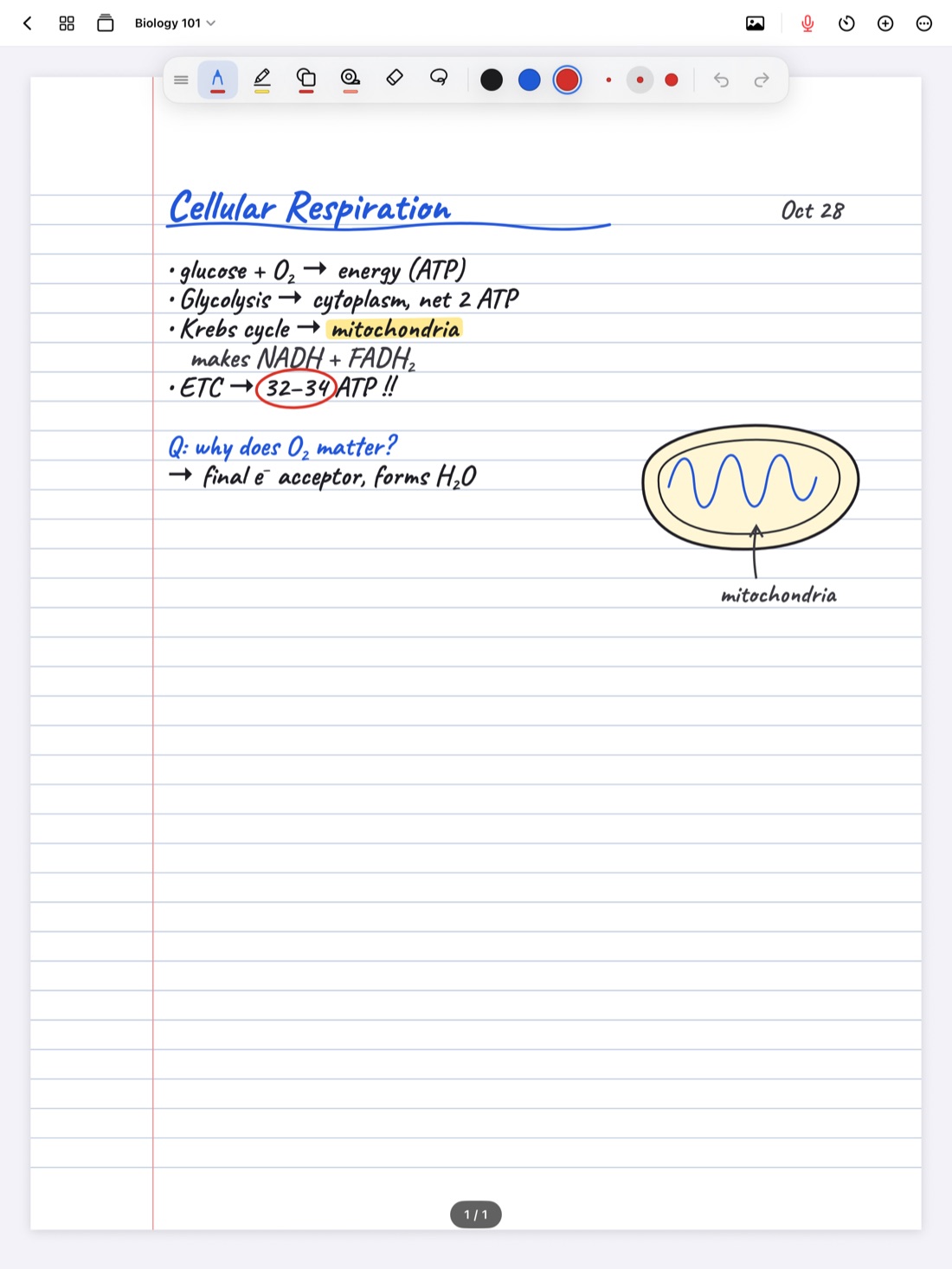
Typing versus handwriting is usually framed as a choice you make once: laptop people and paper people. On an iPad you don't have to choose. The same page can hold a handwritten diagram, a typed definition beside it, and a sticky note in the corner that says "ask about this on Thursday."
The trick is knowing which to use for what. This guide covers the strengths of each, a few page layouts that mix them well, and how text boxes and sticky notes work in Scribba.
What handwriting is good at
Writing by hand is slower than typing, and that's often a feature. You can't take down every word, so you're pushed to listen, decide what matters and put it in your own words. That processing is a large part of how notes help you learn.
Handwriting wins for:
- Diagrams, arrows and anything spatial. A cycle, a graph, a family tree, a free body diagram.
- Math and science. Equations, structures and symbols are much faster by hand.
- Connecting ideas. Circling two things and drawing a line between them takes a second.
- Summaries in your own words, where the goal is to think, not transcribe.
What typing is good at
Typing wins when accuracy or quantity matters more than processing:
- Exact wording. A legal definition, a quote you'll cite in an essay, a formula name you can't misspell.
- Long lists, like the readings for the week or the steps of a lab procedure.
- Code and commands, where every character matters.
- Text other people will read, like a group project plan you'll export.
- Fast talkers, if you type much faster than you write. Even then, try to type a summary rather than a transcript.
What sticky notes are good at
A sticky note isn't really for content. It's for things about your content: a status, a reminder or a question. That's why it helps to keep them separate from the notes themselves.
- Questions to ask. "Why is this step irreversible?" Stick it next to the step, and delete it once you have the answer.
- To-dos tied to a page. "Redo problem 4." "Find the missing slide."
- Exam flags. "Professor said this will be on the midterm."
- Cross-references. "See week 3 for the original definition."
Tip: give each kind of sticky note its own color and keep it all term. For example, one color for questions, another for exam flags and a third for to-dos. A glance at a page tells you what's still open.
Page layouts that mix both
A few patterns students use often:
- Typed outline, handwritten detail. Type the main headings before class from the syllabus or slides. During class, write under each heading by hand.
- Handwritten notes, typed definitions. Write the lecture by hand, and drop a text box beside each key term with its exact definition from the textbook.
- Diagram in the middle, labels around it. Draw the diagram by hand, then add short text boxes for labels if your handwriting gets cramped at small sizes.
- Notes on the left, questions on the right. Keep the right edge of the page for sticky notes with questions and flags. It works a bit like the cue column of Cornell notes. See Cornell notes on iPad.
Text boxes and sticky notes in Scribba
In Scribba, typing happens in text boxes on the page. Scribba isn't a typed-notes editor; it's a handwriting notebook where you can type wherever it helps.
- Open the + menu in the notebook's top bar.
- Choose Add Text for a text box, or Add Sticky Note.
- Move it where you want it, and resize it to fit the space.
Text boxes and sticky notes can be moved, resized, recolored and duplicated. Duplicating is handy for sticky notes: make one in your "question" color, then duplicate it whenever you need another.
You can type with the on-screen keyboard or a hardware keyboard. A keyboard makes a real difference if you type a lot, and it brings Scribba's shortcuts with it, like ⌘Z to undo and ⇧⌘N for a new page. See iPad keyboard shortcuts for notes.
How typed and handwritten notes work together
- Search covers both. Scribba searches handwriting, typed text, PDF text and lecture transcripts, from the library or inside a notebook. See how to search your handwritten notes.
- You can turn handwriting into typed text. If you wrote something by hand and now need it typed, Scribba can copy, share or place a page's handwriting as text. See handwriting to text on iPad.
- Study tools read both. On iPads that support Apple Intelligence, with it turned on, Scribba's Study Guide pulls the key points of every lecture in a notebook from handwriting, typed notes and recordings.
- Recording links your ink. When you record a lecture, every pen stroke is linked to the moment in the recording, so tapping a word you wrote jumps the audio there. A quick handwritten mark next to a typed note gives you a spot to tap.
When there's no Apple Pencil
If you don't have an Apple Pencil, text boxes will probably carry most of your notes, with finger drawing for arrows and diagrams. That setup has its own guide: taking notes on iPad without an Apple Pencil.
Frequently asked questions
Is it better to type or handwrite class notes?
Neither is better for everything. Handwriting makes you summarize and suits diagrams and math. Typing suits exact wording, long lists and code. On an iPad you can do both on the same page.
Can I type notes in Scribba?
Yes, in text boxes on the page. Add one from the + menu in the notebook's top bar. Scribba is built around handwriting, so there's no separate typed-notes editor.
Is typed text searchable in Scribba?
Yes. Search covers typed text along with handwriting, PDF text and lecture transcripts.
Can I change the color of a sticky note?
Yes. Sticky notes and text boxes can be recolored, as well as moved, resized and duplicated.