 Scribba
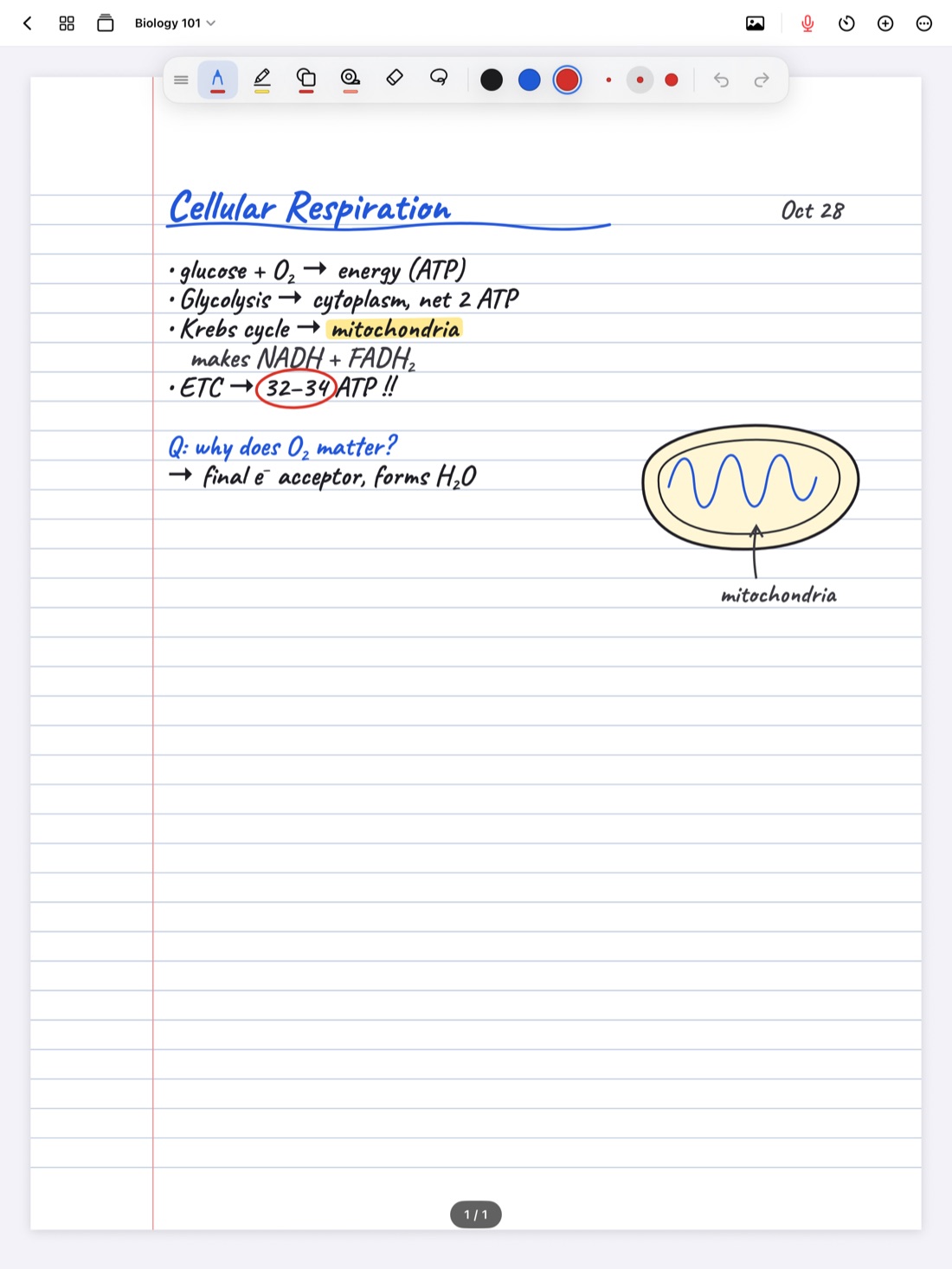
Every trip to the toolbar costs you a moment. You lift the Pencil, look away from the page, find the button, tap it and find your place again. One trip is nothing. A few hundred per lecture adds up to sentences you didn't catch.
Gestures cut out most of those trips. This is every gesture worth knowing for iPad notes, what each one is good for, and how they work in Scribba.
Why gestures matter more on an iPad
On paper, your tools are physical. You can grab a highlighter without looking. On an iPad, every tool is a button on glass, and you can't find a button by feel. Gestures are the closest thing to reaching for a pen without looking: your hand learns them, and after a while you stop thinking about them.
They also keep your writing hand where it is. Most of the gestures below use your other hand or the Pencil itself, so the tip never leaves the line you're writing.
Two-finger tap to undo
Tap the screen with two fingers and the last thing you did is undone. Tap again to go back another step. It's the gesture you'll use most, so learn it first.
- Use your non-writing hand, so the Pencil stays in position.
- Keep it a quick tap. If your fingers move, the iPad may treat it as a scroll or zoom instead.
- Undo for recent mistakes only. It steps back one action at a time, so for something you wrote a few minutes ago, erase it instead.
Three-finger tap to redo
Undid one step too many? Tap with three fingers to redo. In Scribba, two-finger and three-finger taps work anywhere on the page.
Scribble to erase
Scribble back and forth over writing with the pen and Scribba erases it. You never switch to the eraser, so you can fix a word and keep going in one motion. It's ideal for a misspelled word or a wrong number.
If you shade or cross-hatch in diagrams and find your shading getting erased, you can switch scribble to erase off in Scribba's Settings. It's not the same as Apple's Scribble feature in the iPad's Settings › Apple Pencil, which turns handwriting in text fields into typed text. For erasers and when to use them, see eraser tips for iPad notes.
Hold to snap a shape
Draw a line, arrow, circle or box, then hold the Pencil still at the end of the stroke. In Scribba it snaps into a clean line, arrow, circle, ellipse, triangle, rectangle or polygon. It's less a gesture than a pause, but it's one of the most useful habits for diagrams and flowcharts. If you're drawing lots of shapes, the Shape tool snaps every stroke. More in how to draw straight lines and shapes on iPad.
Pinch to zoom, and double-tap to fit the page
Pinch with two fingers to zoom in on the page. In Scribba, zoom is smooth and the paper stays sharp at any zoom, so you can zoom in to write small labels on a diagram without the lines going blurry.
Getting back out is the part people fumble. Instead of pinching out in steps, double-tap the paper with a finger and Scribba fits the page to the width of the screen. It's a quick way to get back to normal size, check your layout, or see how a diagram looks. With Draw with Finger on, a double-tap would leave dots, so use Zoom to Fit in the More menu instead.
Pull past the last page to add one
When you reach the bottom of the last page in a Scribba notebook, keep scrolling. Pull past the last page and a new one is added. No menu, no button.
Apple Pencil double-tap
Apple Pencil (2nd generation) and Apple Pencil Pro let you double-tap the flat side near the tip. You choose what it does in the iPad's Settings › Apple Pencil, for example switching between your current tool and the eraser. Scribba follows that system setting, so whatever you pick there works in your notes.
For note-taking, the eraser is usually the best choice. Double-tap, erase, double-tap again, and you're back to the pen.
Apple Pencil Pro squeeze
On Apple Pencil Pro, squeeze switches between pen and highlighter in Scribba. That's the switch you make most during a lecture: write the definition, squeeze, highlight the key term, squeeze, keep writing. Paired with double-tap for the eraser, you have three tools without ever touching the toolbar.
Tap your ink to replay the lecture
If you record a lecture in Scribba, tapping becomes a way to navigate. Tap any word, arrow or diagram you wrote and playback jumps to the moment you were writing it. During playback, the ink you were writing lights up and the page follows along. See how to record a lecture on iPad, and ask before you record, since policies vary by school, professor and location.
Rest your palm
Not a gesture so much as a non-gesture: iPads ignore your palm while you write with an Apple Pencil. Rest your hand on the glass the way you would on paper. Hovering makes writing shakier and gets tiring.
Gestures and the keyboard
If you use a keyboard case, a few shortcuts do the same jobs: ⌘Z to undo, ⇧⌘Z to redo, and ⌘1 to ⌘6 to switch tools. Gestures are faster when your hands are on the screen; shortcuts are faster when one hand is on the keyboard. The full list is in iPad keyboard shortcuts for notes.
How to make them stick
Gestures only save time once they're automatic. A simple plan:
- Week one: two-finger undo. Make yourself use it instead of the button, even when it feels slower.
- Week two: scribble to erase and double-tap to fit the page.
- Week three: set up Pencil double-tap, and squeeze if you have Apple Pencil Pro.
- After that: hold to snap, whenever you draw a diagram.
Practice outside class first, for example while copying notes from a reading, so you're not learning something new while the professor is talking.
Frequently asked questions
How do I undo on iPad without a keyboard?
In Scribba, tap the page with two fingers. Tap with three fingers to redo. There are also undo and redo buttons in the tool palette.
Why doesn't double-tap on my Apple Pencil do anything?
Double-tap works on Apple Pencil (2nd generation) and Apple Pencil Pro. Check what it's set to in the iPad's Settings › Apple Pencil, because Scribba follows that setting.
What does squeezing Apple Pencil Pro do in Scribba?
It switches between pen and highlighter.
Can I turn off scribble to erase?
Yes, in Scribba's Settings. Turn it off if shading or cross-hatching keeps getting erased.